
Role: Administrator
Objective: Create, configure, save, and publish announcements in the TIDWIT Ecosystem.
1. Create a New Announcement
From the Announcements main page, click New Announcement. The new item opens in Draft status with Details e Builder tabs.
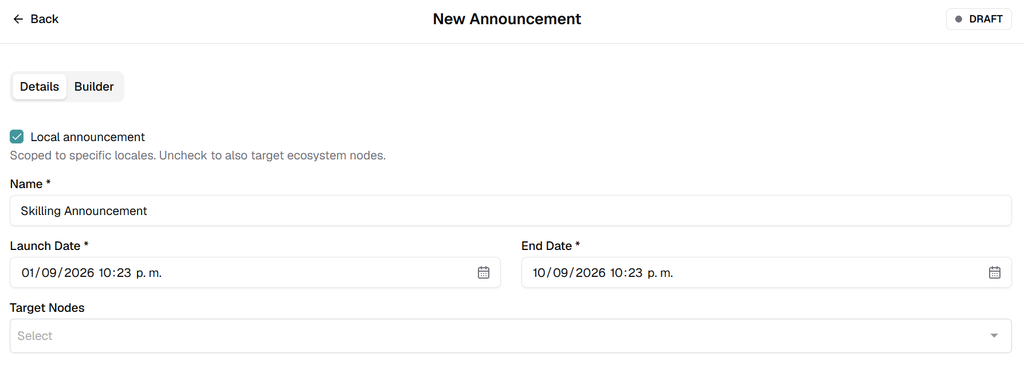
- Local announcement: Keep this selected to scope the announcement to specific locales. Uncheck it when the announcement should also target ecosystem nodes.
- Name: Enter a clear internal name.
- Launch Date: Define when the announcement should begin its lifecycle.
- End Date: Define when the announcement should stop being active.
- Target Nodes: When ecosystem-node targeting is used, select the nodes that should receive the announcement.
Required fields: Name, Launch Date, and End Date are marked as required in the current interface.
2. Build the Announcement
Abrir Builder to design the content. The workspace contains a preview canvas and a configuration panel with Blocks e Properties.
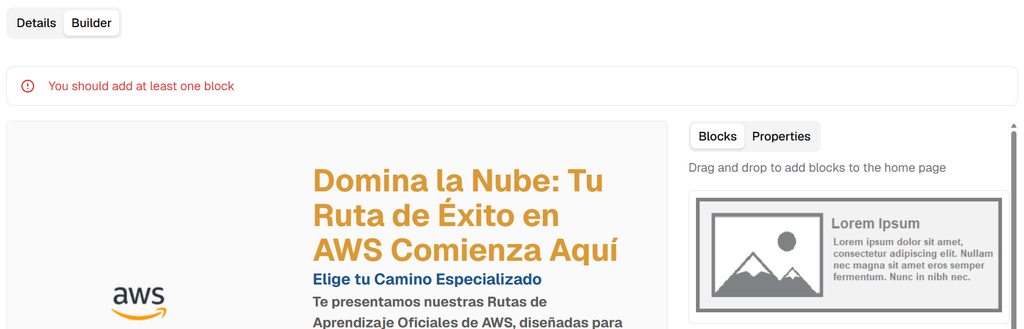
Add at least one block before publishing. The interface displays a validation message when no block has been added.
- Blocks: Drag and drop an available block into the canvas.
- Properties: Select the block, then configure its content and visual settings.
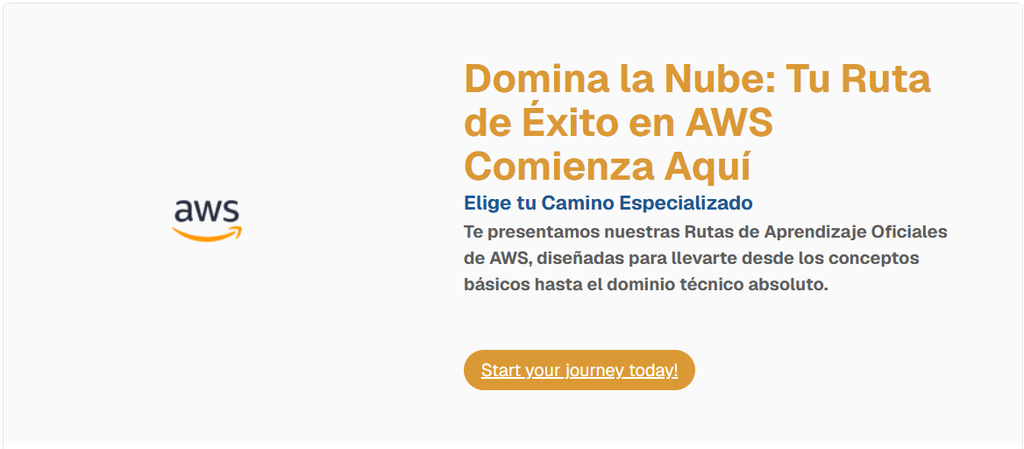
3. Configure Block Properties
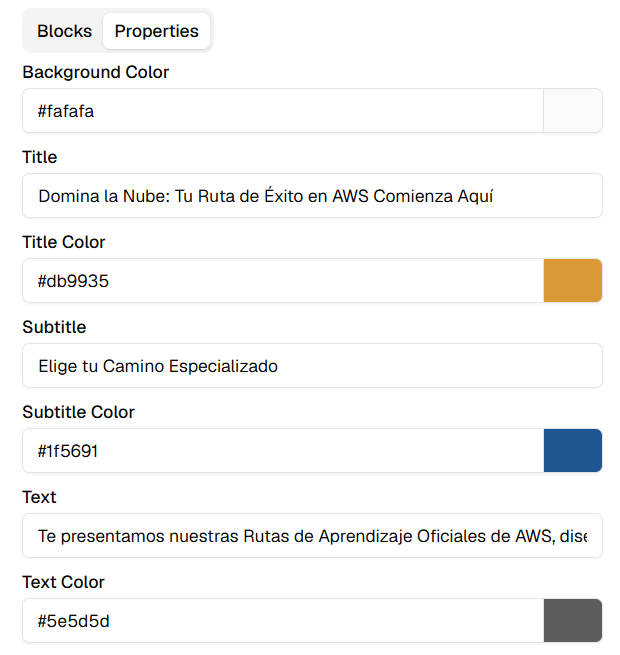
- Background Color: Set the block background color.
- Title / Title Color: Configure the primary headline and color.
- Subtitle / Subtitle Color: Configure the secondary headline and color.
- Text / Text Color: Configure supporting copy and its color.
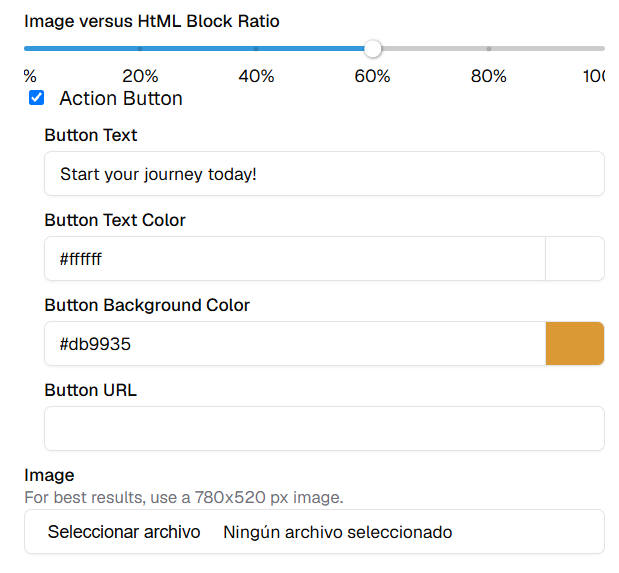
- Image versus HTML Block Ratio: Adjust the split between the image and content areas.
- Action Button: Enable a call-to-action button.
- Button Text: Enter the button label.
- Button Text Color: Set the button-label color.
- Button Background Color: Set the button background color.
- Button URL: Enter the button destination.
- Image: Upload the block image. The interface recommends 780 x 520 px for best results.
Design recommendation: Keep the message concise and verify the visual balance between the image, headline, text, and call to action.
4. Save and Publish
- Save: Preserve the current configuration without publishing it.
- Publish: Submit the announcement to the configured announcement lifecycle.
After publishing, the announcement appears on the Announcements main page with its current status, dates, Views, and Clicks.