
Crear una nueva campaña masiva de correo electrónico
Local Email Blast
Note: Email Blast campaigns will allow you to send a simple email to your target audience, without any learning assignment attached to it. It can be useful to promote events, provide support and guidance, communicate important information, drive platform adoption etc.
To create a new blast campaign, click on the Add button on the upper right corner of the screen then click on New Email Blast. A modal will be displayed.
Complete la información requerida.
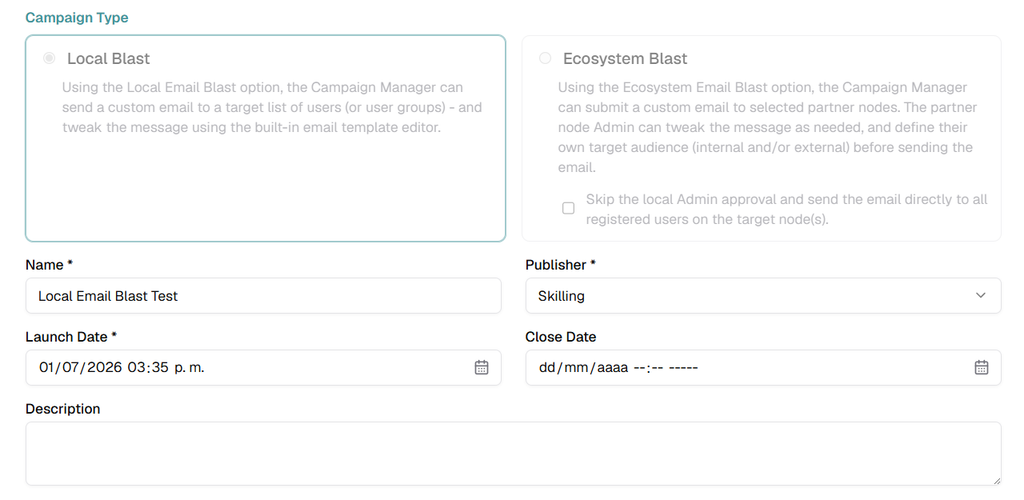
- Campaign Type: Choose Local Blast from the drop-down menu (this option allows you to send a custom email to a target list of users (or user groups) – and tweak the message using the built-in email template editor.).
- Escriba el nombre que desea dar a la campaña.
- Escriba una descripción para la campaña (opcional).
- Select the Launch Date, to define when the user shall be notified – until then, the campaign status will show as “Scheduled to launch…”
- Select the Close Date when the system will stop tracking the campaign.
In the drop-down menus select the templates for the Iniciar email and for the Reminder email. Then click on Save. Email templates can be created and edited separately using the “Email Templates” application (refer to the corresponding user guide).
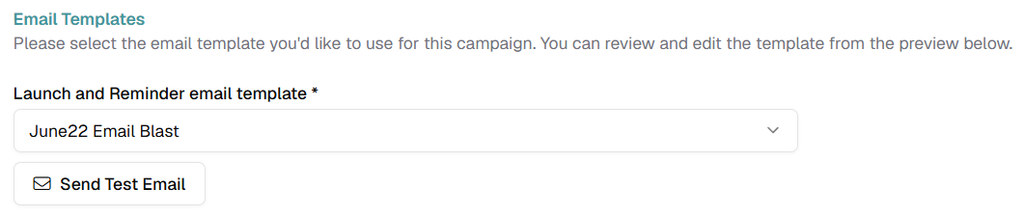
Haga clic en el botón Guardar .
Pestaña Audiencia
En esta pestaña puede definir las diferentes condiciones, usuarios o grupos de usuarios que podrán acceder a la campaña.
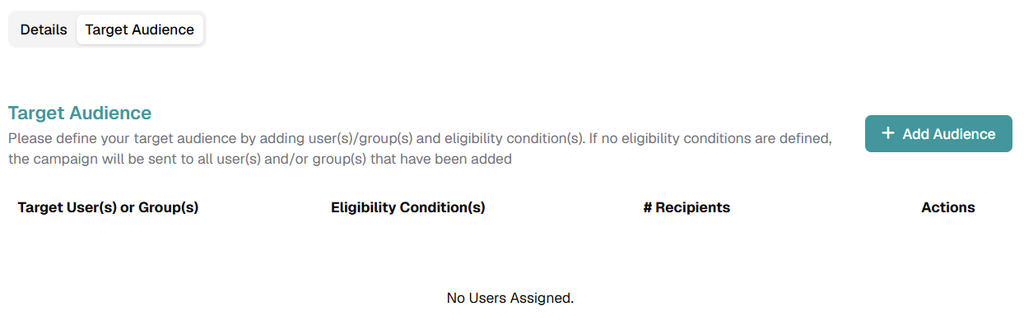
Set Audience
- All Users Elegible: The campaign will be sent to all users and will be accessible for everyone.
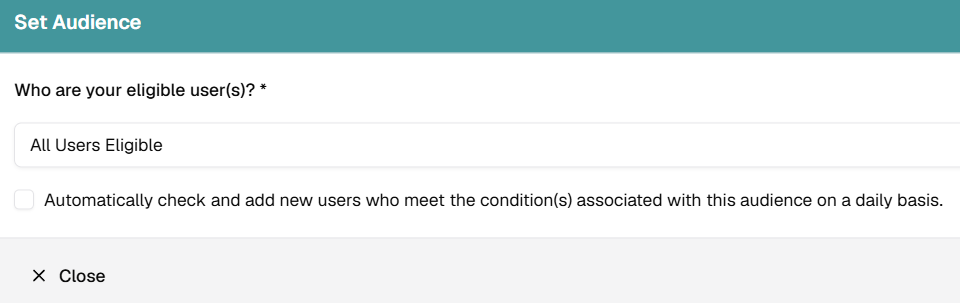
- Only specific user(s) are elegible: The campaign will be sent to all users and can be accessed by selected users.
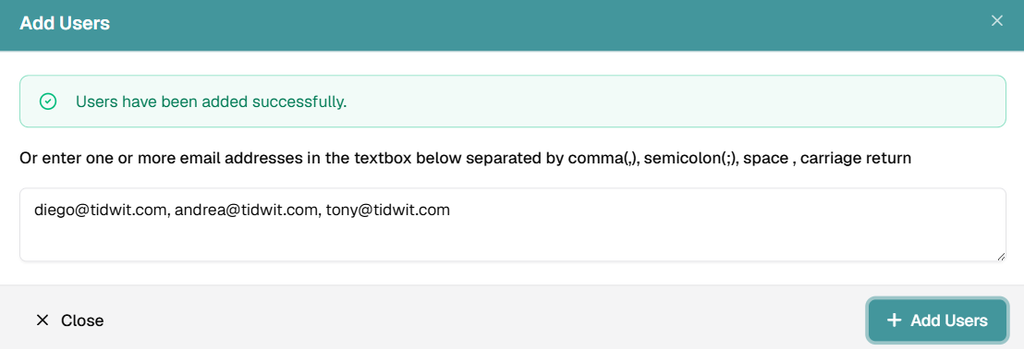
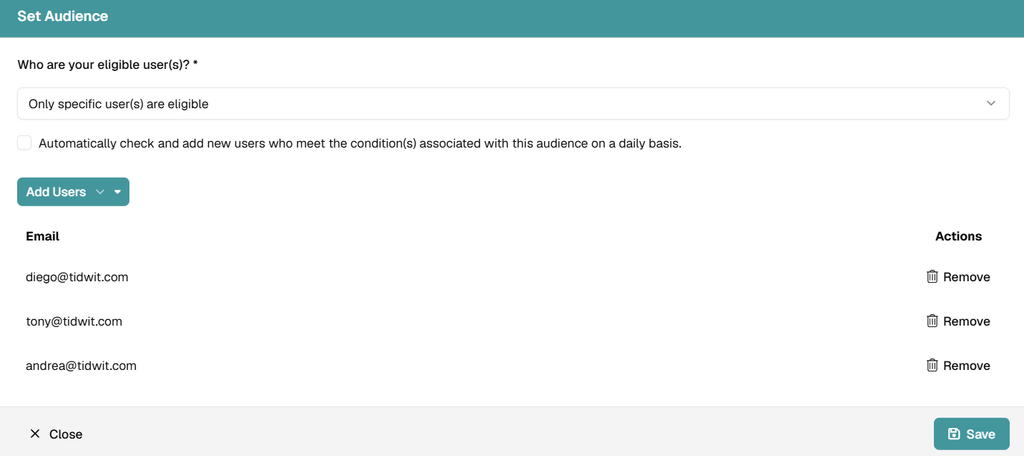
- Only specific user(s) group(s) are elegible: The campaign will be sent to all users and can be accessed by selected user groups.
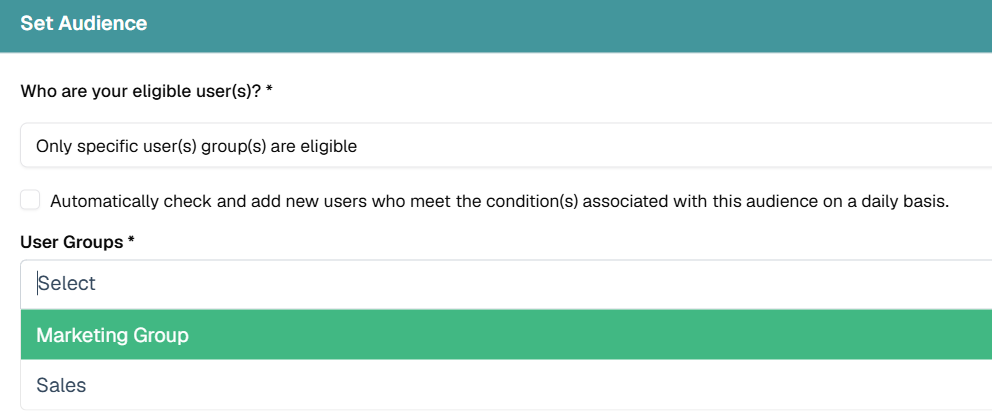
Conditions
Envíe la campaña a los usuarios que cumplan determinadas condiciones:
Click on the + Add Condition(s) link and a new modal will be displayed.
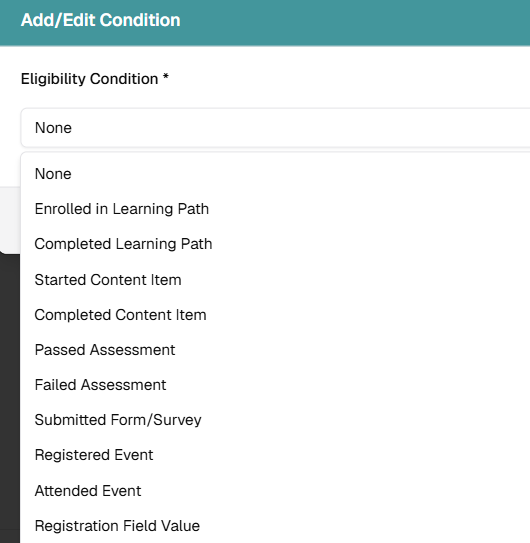
Select the condition and the required asset for the campaign.
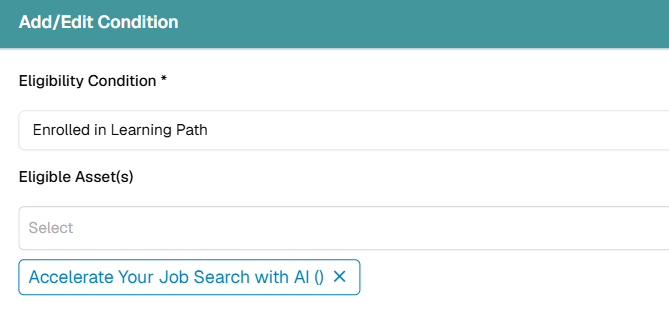
After selecting the condition and eligible users, click Guardar and the campaign will be ready to launch.
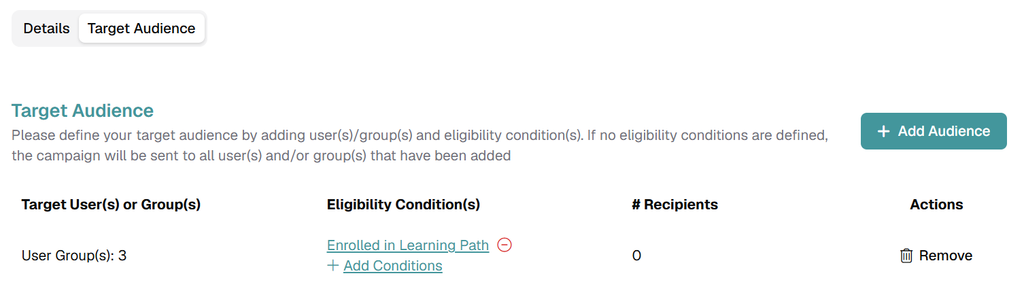
Enviar correo electrónico de prueba
To test your learning campaign before launching. return to the Details tab and scroll down to the Enviar correo electrónico de prueba .
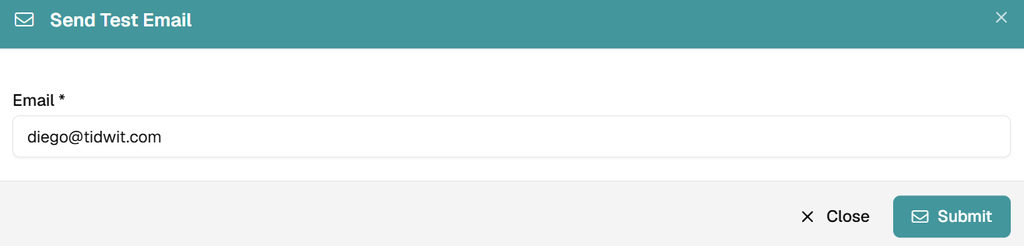
Escriba la dirección de correo electrónico a la que desea enviar el correo de prueba y haga clic en Enviar..
Compruebe que ha recibido el correo electrónico de prueba como es debido.
Launch the Campaign
Pulsa el botón Lanzar y confirma.
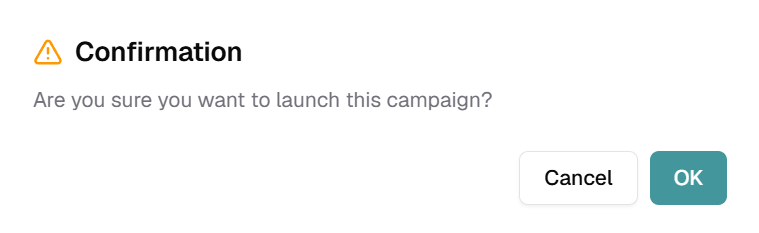
The campaign will now be activated, and the users will be notified (via email and messaging center) according to the selected launch date.