
Acceda a su instancia del Ecosistema TIDWIT:

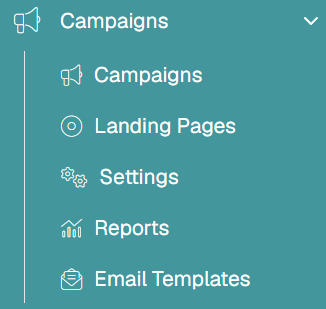
En la esquina superior izquierda, haga clic en el botón Menú. Se desplegará el panel lateral izquierdo y verá los iconos correspondientes a las diferentes aplicaciones disponibles en TIDWIT. Los tres primeros iconos corresponden a la sección Usuarios explicada en el Manual de Usuario. El resto de iconos sólo son visibles con un perfil de administrador. Si no puede verlos y es administrador, pida al gestor de su portal TIDWIT que le conceda los permisos necesarios.
Campañas
En la barra de la izquierda, en el apartado Campañas del ecosistema, haga clic en "Gestionar campañas".
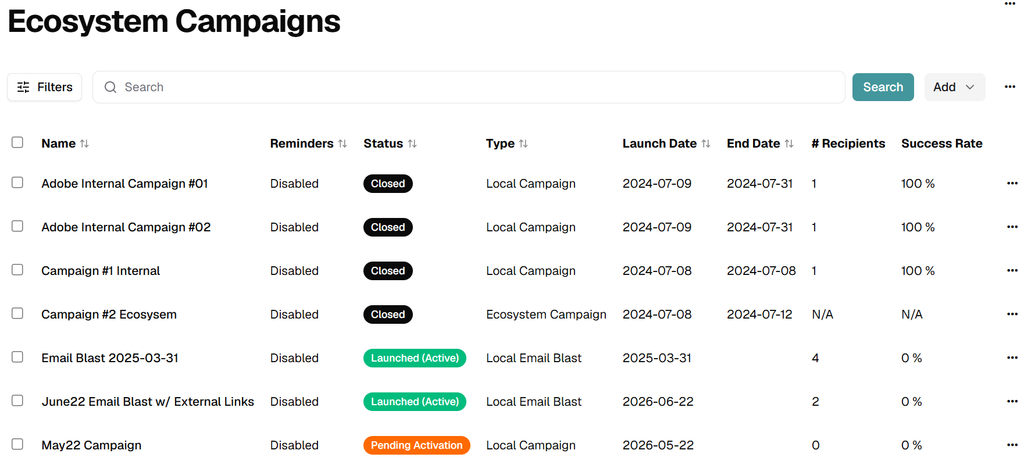
Verá una lista de las campañas creadas hasta la fecha y su estado.
Tipos de campañas
Two types of campaigns can be created: Learning Campaigns e Email Blast Campaigns, these campaigns are subdivided into Local e Aplicaciones.
Learning Campaigns
- Using the Local Learning Campaign option, the campaign manager can assign one or multiple learning assets (courses, videos, assessments, learning paths, etc.) to a defined target audience (user list or user groups). Assigned users will receive an email with a link to the assignment page – from which they can start & complete their assignment.
- Using the Ecosystem Learning Campaign option, the Campaign Manager can assign one or multiple learning assets (courses, videos, assessments, learning paths, etc.) to selected partner nodes. The partner node Admin can update the assignment and define their own target audience before launching the campaign to their organization.
Email Blast
- Using the Local Email Blast option, the campaign manager can send a custom email to a target list of users (or user’s groups) – and tweak the message using the built-in email template editor.
- Using the Ecosystem Blast option, the Campaign Manager can submit a custom email to selected partner nodes. The partner node Admin can tweak the message as needed, and define their own target audience (internal and/or external) before sending the email.