
Role: Administrator
Objective: Create, configure, publish, and manage Events and Webinars in the TIDWIT Ecosystem.
1. Events Main Page
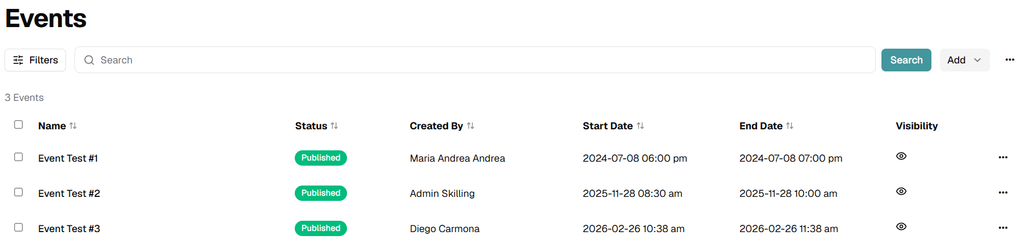
Abrir Events to review all events available in the current node. The table displays the event name, status, creator, start date, end date, and visibility.
Search and Filters
Use Buscar to locate an event by name. Click Filters to refine the list.
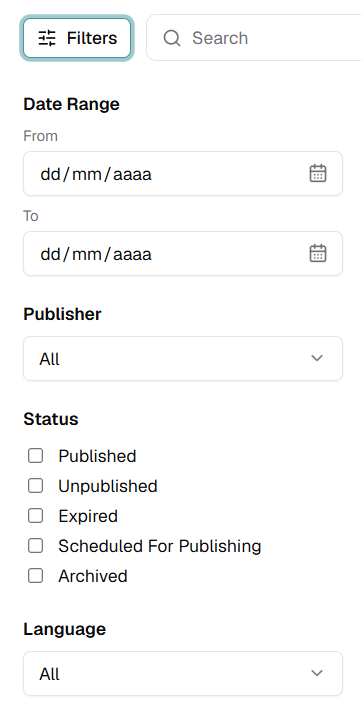
- Date Range: Set From and To dates.
- Publisher: Filter by publisher.
- Status: Select Published, Unpublished, Expired, Scheduled For Publishing, or Archived.
- Language: Filter by event language.
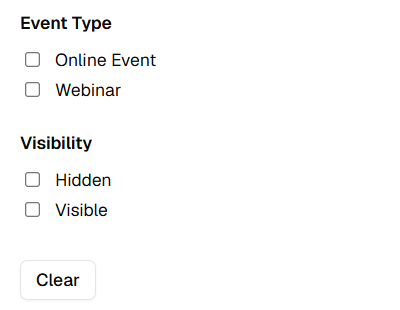
- Event Type: Select Online Event or Webinar.
- Visibility: Select Hidden or Visible.
- Clear: Remove the current filter selections.
Add Menu
Click Add to access event creation and event-management utilities.
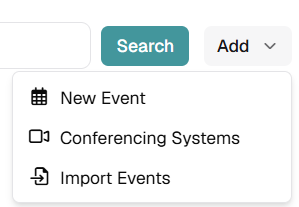
- New Event: Create a new event or webinar.
- Conferencing Systems: Configure conferencing platforms used by Webinar events.
- Import Events: Create events in bulk from an Excel or CSV file.
Additional Main Page Views
Open the three-dots menu beside Add to access archived events or the calendar.
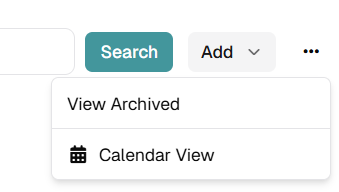
- View Archived: Open archived events.
- Calendar View: Review scheduled events in a calendar layout.
Event Row Actions
Click the three-dots menu at the end of an event row to manage that event.
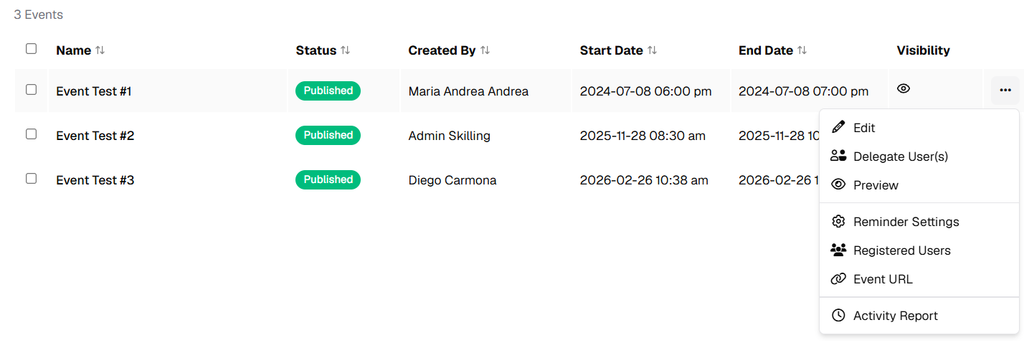
- Edit: Open the event configuration.
- Delegate User(s): Grant another node user management or reporting access.
- Preview: Preview the event page.
- Reminder Settings: Configure event reminders.
- Registered Users: Review registered participants.
- Event URL: Access the event link.
- Activity Report: Open the event reporting dashboard.
2. Conferencing Systems
Configure conferencing systems before creating Webinar events that depend on an integrated conferencing platform.
From the Events main page, click Add → Conferencing Systems.
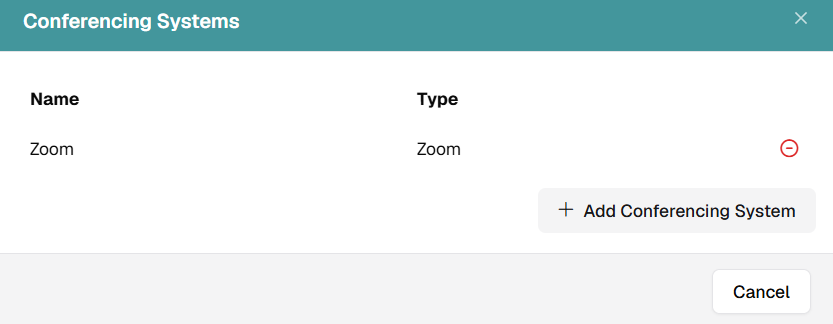
The modal lists the systems already configured. Review the Nombre e Tipo. Use the remove icon when a system should no longer be available.
Click Add Conferencing System to create another integration.
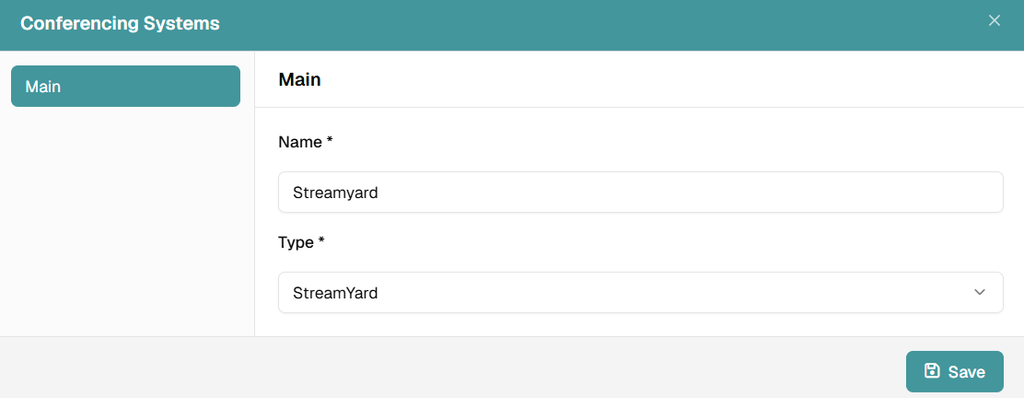
- Name: Enter a recognizable name for the conferencing system.
- Type: Select the conferencing platform type.
- Save: Save the conferencing system so it becomes available during Webinar configuration.
Webinar prerequisite: Create the required conferencing system before configuring a Webinar. When Event Type = Webinar, select the previously configured conferencing system.
3. Import Events
Use Add → Import Events to create multiple events from a file.
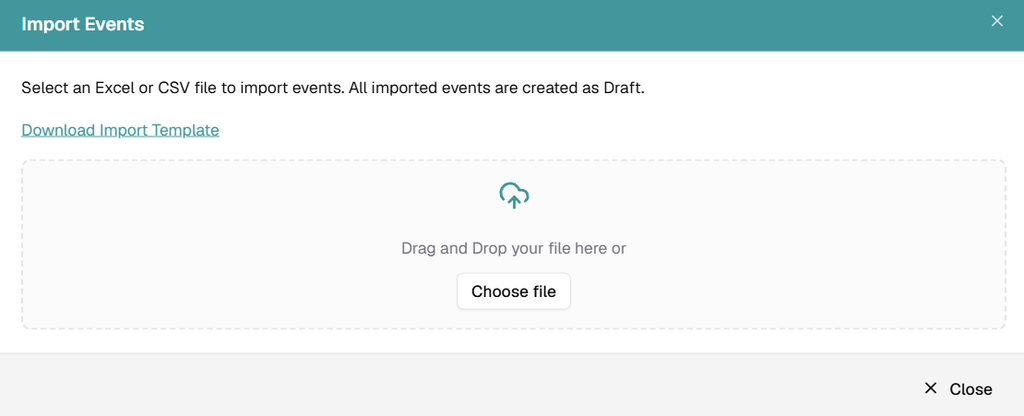
- Download Import Template: Download the supported import structure.
- Choose file: Select an Excel or CSV file from your computer.
- Drag and Drop: Drop the file directly into the upload area.
- Imported status: Imported events are created as Draft and should be reviewed before publishing.
4. Calendar View
Open the main three-dots menu and select Calendar View to review the event schedule chronologically.
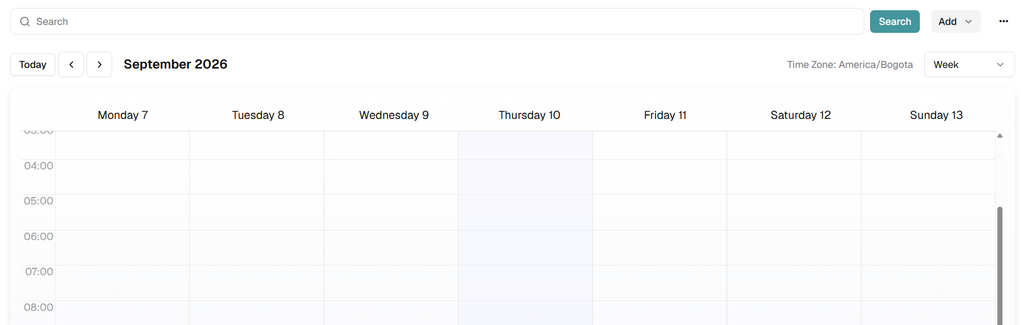
- Today: Return to the current date.
- Previous / Next: Move backward or forward through the calendar.
- Date header: Review the active month and year.
- Time Zone: Confirm the time zone used by the displayed schedule.
- View selector: Change the calendar timeframe when another view is available.
- Search: Locate scheduled events.
Scheduling recommendation: Confirm the displayed time zone before validating event times, especially for multi-country audiences.
5. Create a New Event
Click Add → New Event. Complete the configuration through the Details, Event Options, Audience, and Target Nodes tabs.
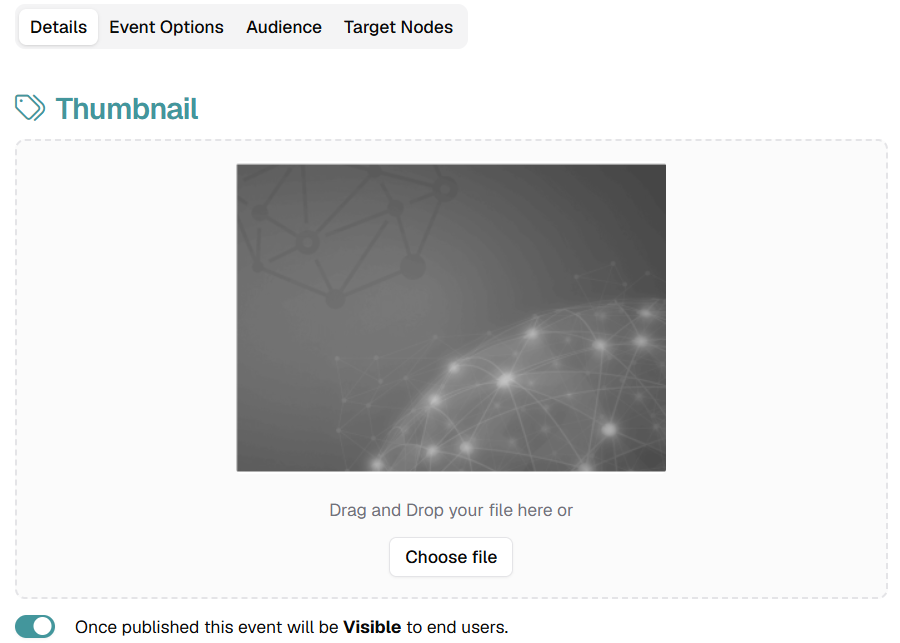
Details — Thumbnail and Visibility
Upload a thumbnail by dragging a file into the upload area or clicking Choose file. Use the visibility toggle to determine whether the published event is visible to end users.
Details — Event Information
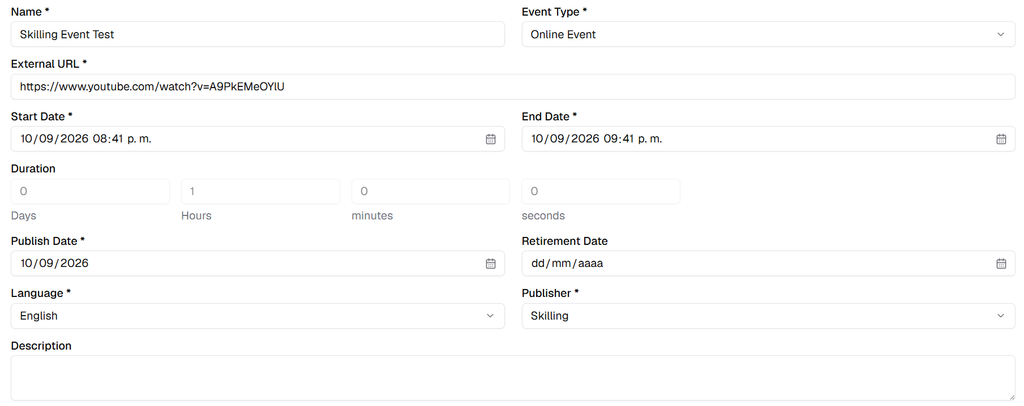
- Name: Enter the event title.
- Event Type: Select Online Event or Webinar.
- Start Date / End Date: Define the event schedule.
- Duration: Review the calculated duration.
- Publish Date: Define when the event becomes available.
- Retirement Date: Optionally define when the event should retire.
- Language: Select the event language.
- Publisher: Select the publisher.
- Description: Add the event description.
Event Type behavior: If Online Event is selected, the platform requires an External URL. If Webinar is selected, choose a Conferencing System that was configured previously.
Event Email Templates
Select the templates that control registration confirmation and reminder communications.

- Registration Confirmation Email Template: Used after registration.
- Event Reminder email template: Used before the event.
6. Event Options
Abrir Event Options to configure access, recording, and post-event behavior.
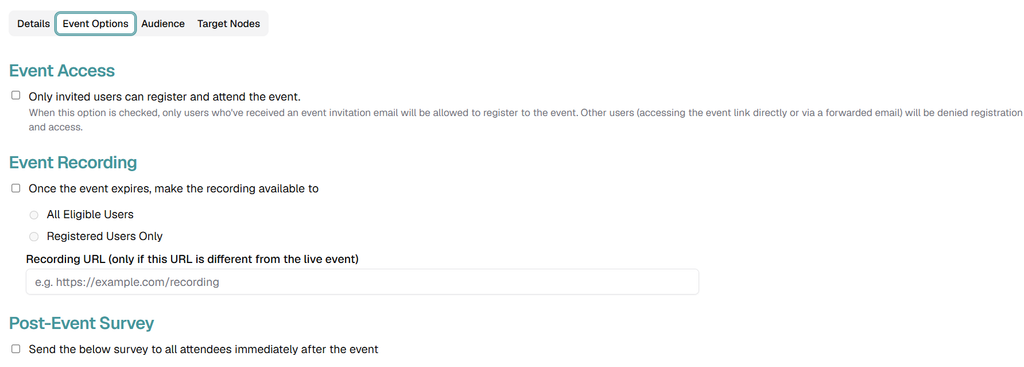
- Only invited users can register and attend the event: Restrict access to officially invited users.
- Event Recording: Make a recording available after the event expires.
- All Eligible Users / Registered Users Only: Define who can access the recording.
- Recording URL: Enter the recording URL when it differs from the live-event URL.
- Post-Event Survey: Enable the survey option when attendees should receive a follow-up survey.
7. Audience
Abrir Audience to select the registration mode and define who should receive the event.
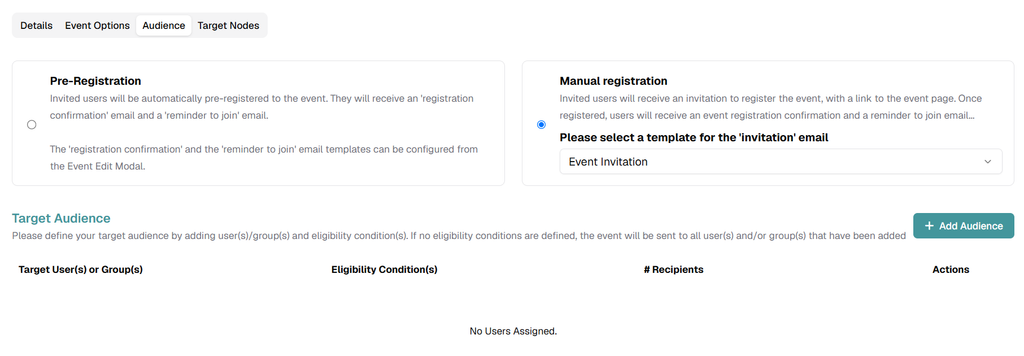
Registration Mode
- Pre-Registration: Invited users are automatically registered.
- Manual registration: Invited users receive an invitation and must complete registration themselves. Select the invitation email template when this mode is used.
Target Audience
Click Add Audience, then choose the eligible user scope.
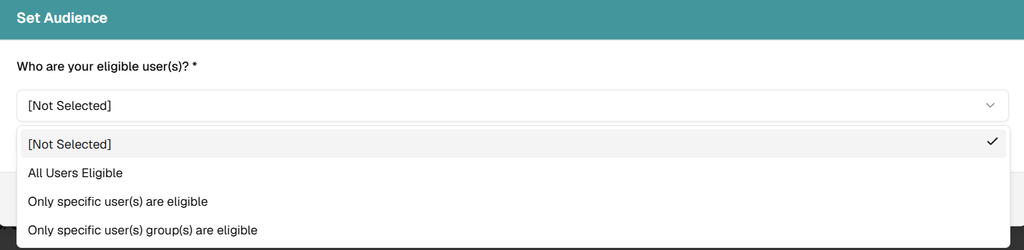
- All Users Eligible: Include all eligible users.
- Only specific user(s) are eligible: Select individual users.
- Only specific user(s) group(s) are eligible: Select specific user groups.
Eligibility Conditions
Add an eligibility condition when the audience must meet an additional requirement.
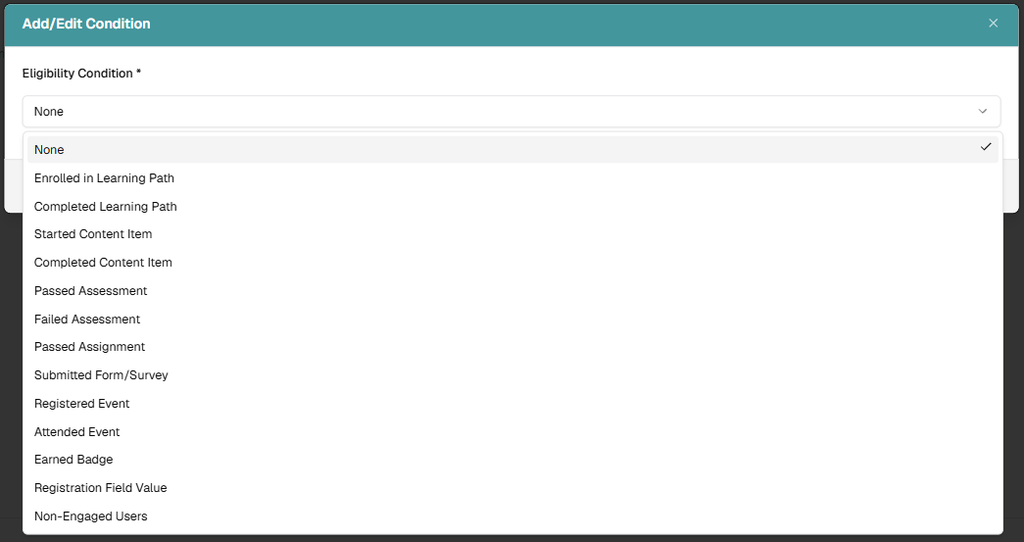
- Enrolled in Learning Path
- Completed Learning Path
- Started Content Item
- Completed Content Item
- Passed Assessment
- Failed Assessment
- Passed Assignment
- Submitted Form/Survey
- Registered Event
- Attended Event
- Earned Badge
- Registration Field Value
- Non-Engaged Users
When the selected condition requires an asset, choose the applicable item in Eligible Asset(s).
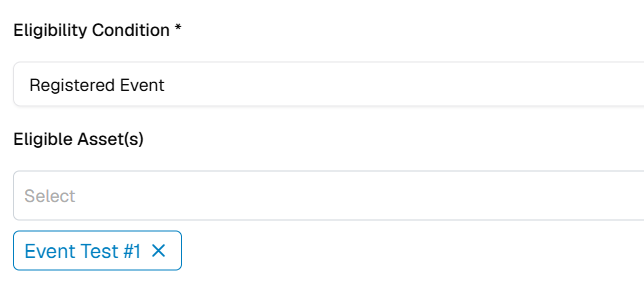
After saving, verify the target users or groups, eligibility conditions, calculated recipients, and available actions.

8. Target Nodes
Abrir Target Nodes to distribute the event to connected ecosystem nodes.
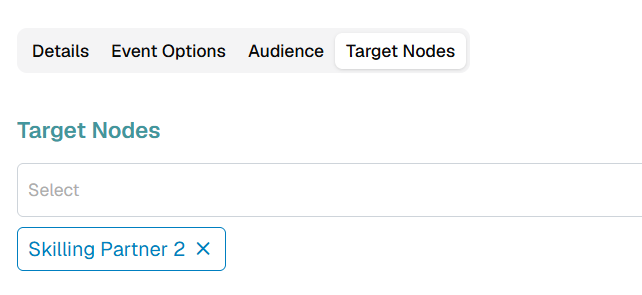
Select each node that should receive the event. Remove a node with the × icon when necessary.
9. Save and Publish
Review every tab before finalizing the event. Click Guardar to preserve changes. Click Publish when the event is ready for users.
Final review: Verify event type, External URL or Conferencing System, schedule, publish date, visibility, email templates, registration mode, audience, eligibility conditions, and target nodes before publishing.