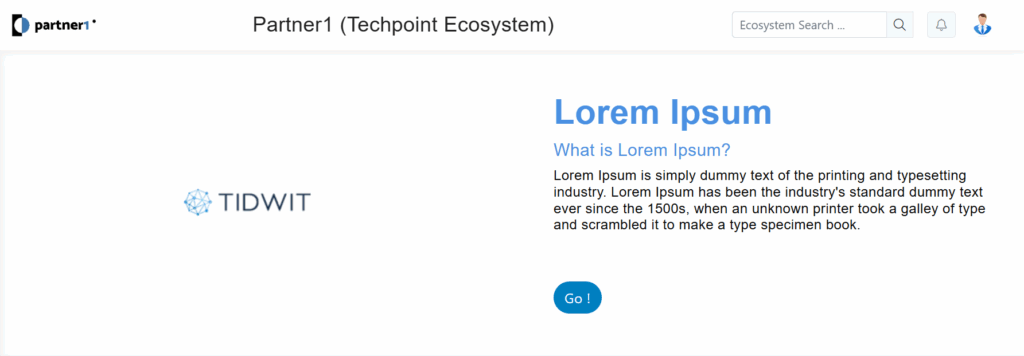
The Ecosystem Announcements module allows administrators to create, design, and deploy targeted pop-up announcements to specific partner organizations (nodes) within the ecosystem. This feature is ideal for communicating important updates, promotions, or calls-to-action in a highly visible format.
To access this feature, an administrator must be logged into the TIDWIT platform.
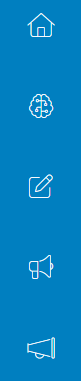
- From the main administrative dashboard, locate the primary vertical navigation menu on the left side of the screen.
- Click on the Announcements icon to open the main “Ecosystem Announcements” dashboard.
Announcements Dashboard
The main dashboard provides an overview of all the announcements created and is the starting point for creating new ones.
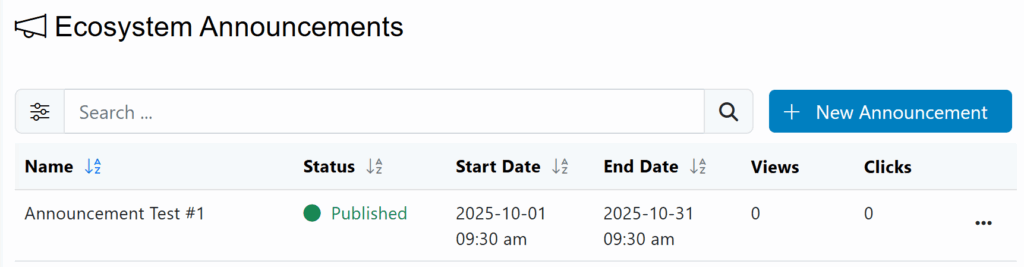
Search Bar: Allows you to find specific announcements by name.
New Announcement Button: Opens the editor to create a new announcement.
Announcements List: Displays all existing announcements with the following columns:
Name: The internal name of the announcement.
Status: The current state (e.g., Draft, Scheduled, Published).
Start Date: The date and time the announcement becomes visible.
End Date: The date and time the announcement ceases to be visible.
Views: A count of how many times the announcement has been viewed.
Clicks: A count of how many times the call-to-action button within the announcement has been clicked.
Creating a New Announcement
The creation process is divided into two main stages: configuring the details and designing the content.
Step 1: Configure Announcement Details
This section defines the core parameters of the announcement.
- From the dashboard, click the + New Announcement button.
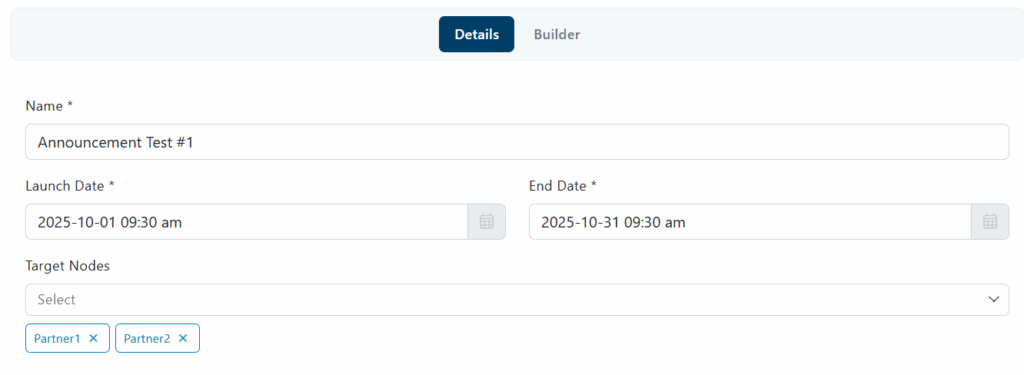
- You will be taken to the “New Announcement” screen, with the Details tab selected by default.
- Fill in the following required fields:
- Name: Enter a clear, descriptive name for internal reference.
- Launch Date: Set the exact date and time for the announcement to go live.
- End Date: Set the date and time for the announcement to be automatically removed.
- Target Nodes: Select one or more partner nodes from the dropdown menu that should receive this announcement.
Step 2: Design the Announcement (Builder)
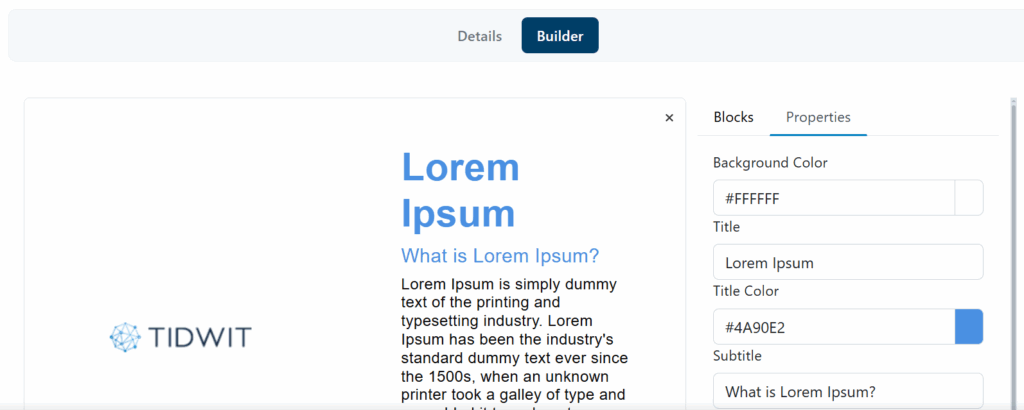
- Click the Builder tab to open the design interface. The interface consists of a central canvas and a right-hand panel with Blocks and Properties.
- From the Blocks tab, drag the desired layout and drop it onto the main canvas.
- Click on the newly added block within the canvas to select it. The right-hand panel will automatically switch to the Properties tab, allowing you to customize the content.
- Configure the available properties as needed:
- Content: Set the Title, Subtitle, and Text.
- Appearance: Customize the Background Color, Title Color, Subtitle Color, and Text Color.
- Layout: Adjust the Image versus HTML Block Ratio slider to change the space allocation between the image and text.
- Action Button: Check this box to enable a call-to-action button. Configure its Button Text, Button Text Color, Button Background Color, and the destination Button URL.
- Image: Click “Select file” to upload an image from your computer. For best results, use an image with dimensions of 780×520 pixels.
Step 3: Save and Publish
Once the design is complete, you can save your progress or publish the announcement.
- Save: Click this to save the announcement as a draft. You can return to edit it later. The status will be marked as DRAFT.
- Publish: Click this to finalize and schedule the announcement. Once clicked, the status will change to SCHEDULED FOR PUBLISHING.

Managing Existing Announcements
After creation, announcements can be monitored and managed from the main dashboard.
- Status Tracking: The Status column will update automatically from Scheduled For Publishing to Published once the launch date and time have been reached.
- Editing: To modify an existing announcement, click the three-dot menu icon on the far right of the announcement’s row and select Edit.

Once the announcement is published, it will be displayed for the target nodes on their home page.