
Role: Administrator
Objective: Create, manage, test, and reuse email templates used by Events and Webinars.
1. Email Templates Main Page
Open Email Templates to review the templates available for event communications.
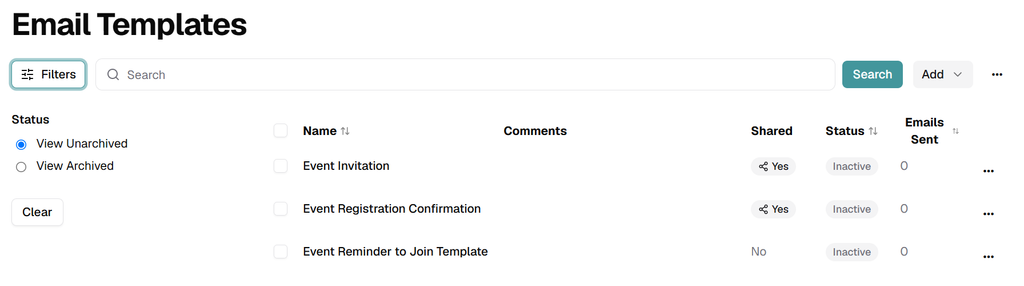
- Filters: Switch between View Unarchived and View Archived.
- Search: Find templates by name.
- Name: Template name.
- Comments: Internal description or purpose.
- Shared: Indicates whether the template is shared.
- Status: Displays Active or Inactive.
- Emails Sent: Shows the number of emails sent using the template.
2. Create a New Email Template
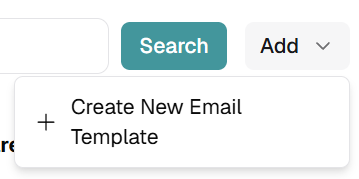
Click Add → Create New Email Template.
3. Import and Export Templates
Open the main three-dots menu to access template import and export utilities.
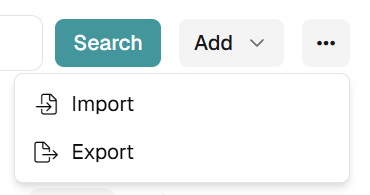
- Import: Import a supported email-template file.
- Export: Export email templates for reuse or backup.
4. Manage an Existing Template
Open the three-dots menu at the end of a template row.
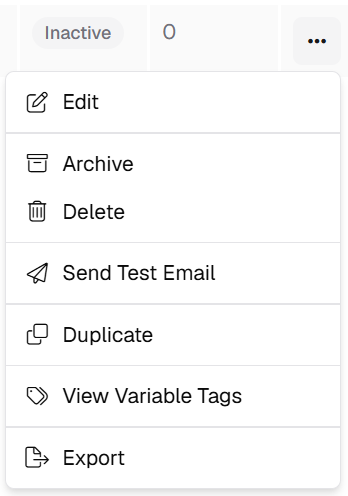
- Edit: Modify the template.
- Archive: Move the template to the archive.
- Delete: Permanently remove the template.
- Send Test Email: Send a test message.
- Duplicate: Create a copy of the template.
- View Variable Tags: Review the supported dynamic fields.
- Export: Export the selected template.
5. Basic Information
Use the Basic Information tab to define the template identity and purpose.
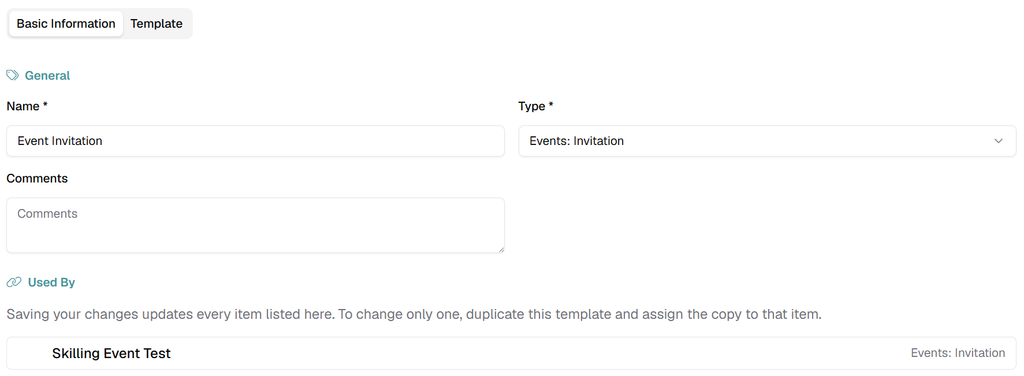
- Name: Enter the template name.
- Type: Select the event email type. The available purpose and associated values depend on the selected type.
- Comments: Add internal notes when useful.
- Used By: Review every event or item currently using the template.
Shared-template impact: Saving changes updates every item listed under Used By. To modify the template for only one event, duplicate it and assign the copy to that event.
6. Template Designer
Open the Template tab to configure the subject and design the message.
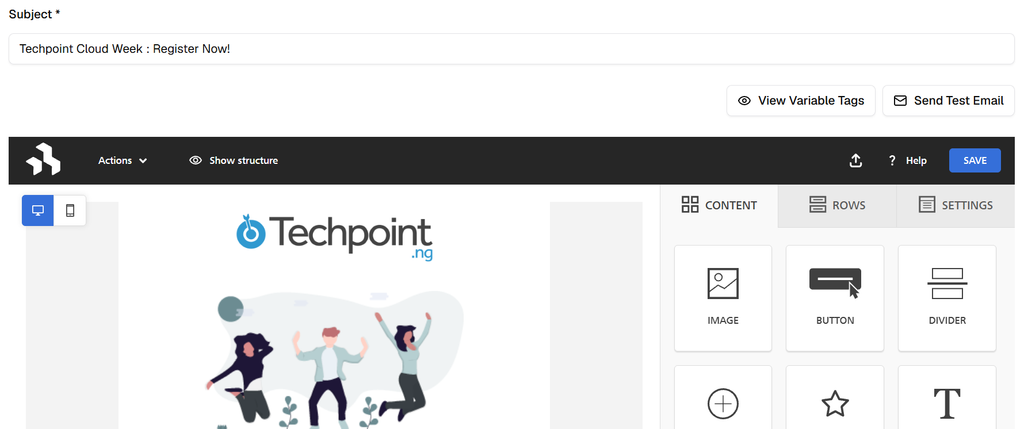
- Subject: Enter the email subject line.
- View Variable Tags: Open dynamic fields available for personalization.
- Send Test Email: Validate the template before using it.
- Desktop / Mobile: Preview the message on different device sizes.
- Content: Add blocks such as Image, Button, Divider, Social, Icons, and Text.
- Rows: Structure the email layout.
- Settings: Configure template-level design properties.
- SAVE: Save the email design.
7. Variable Tags
Click View Variable Tags to review the placeholders supported by the selected email-template type.
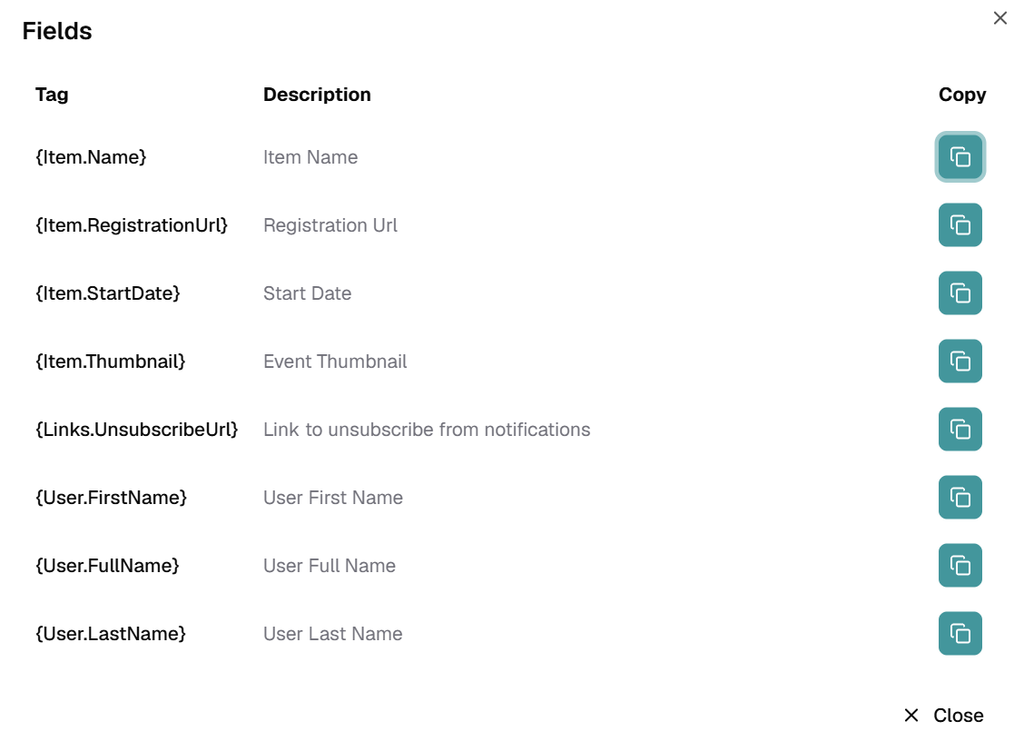
{Item.Name}— Item Name{Item.RegistrationUrl}— Registration URL{Item.StartDate}— Start Date{Item.Thumbnail}— Event Thumbnail{Links.UnsubscribeUrl}— Unsubscribe link{User.FirstName}— User First Name{User.FullName}— User Full Name{User.LastName}— User Last Name
Use the copy button beside a tag, then paste the tag into the applicable subject or email content.
Template recommendation: Send a test email after changing layout, links, or variable tags. Verify the final message on both desktop and mobile before assigning it to a published event.