
Audience: Administrator
Objective: Create, import, monitor, and manage Voucher Sets and their voucher inventory.
Overview
Voucher Sets are used to upload and manage pools of voucher codes. Once available, codes can be distributed to internal users or allocated through Voucher Campaigns and ecosystem workflows.
Voucher Sets main page
Open the Voucher Sets application to view all Voucher Sets available to your administrator profile.
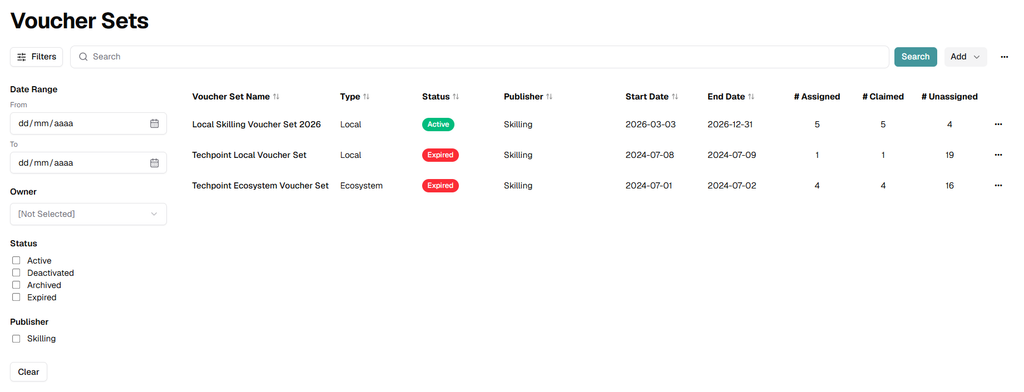
The main table provides a quick operational view of each Voucher Set:
- Voucher Set Name: Identifies the Voucher Set.
- Type: Shows whether the set is Local or Ecosystem.
- Status: Shows the current lifecycle status, such as Active or Expired.
- Publisher: Identifies the publisher associated with the Voucher Set.
- Start Date: Shows when vouchers become available for distribution.
- End Date: Shows when distribution availability ends.
- # Assigned: Shows how many voucher codes have been assigned.
- # Claimed: Shows how many voucher codes currently have Claimed status.
- # Unassigned: Shows how many voucher codes remain unassigned.
Search and filter Voucher Sets
Use Search and Filters to locate Voucher Sets quickly without changing the underlying data.
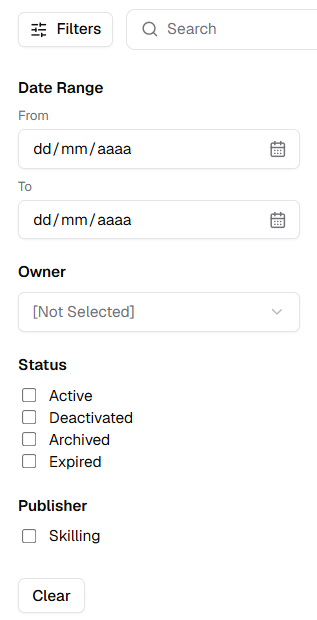
- Click Filters to open the filter panel.
- Set a From and To date when you want to limit the list by date range.
- Select an Owner when you want to display Voucher Sets managed by a specific owner.
- Select one or more Status values: Active, Deactivated, Archived, or Expired.
- Select a Publisher when you want to limit results to a specific publisher.
- Click Clear to remove all selected filters.
- Use the Search field to find a Voucher Set by name, then click Search.
Note: You can combine filters with the Search field to narrow the list further.
Main-page actions
Use the Add button to create a new Voucher Set. Use the three-dot menu for application-level voucher actions.
- Voucher Approvals: Opens the voucher approval workflow.
- Voucher Dashboard: Opens the overall voucher reporting dashboard.
- Upload Results: Opens the workflow used to upload voucher redemption or exam-result data.
- View Archived: Displays archived Voucher Sets.
- View Notification Settings: Opens notification configuration for voucher workflows.
Voucher Set actions
Each Voucher Set has its own three-dot menu. Available actions can depend on the set status and your permissions.

- View Report: Opens reporting data for the selected Voucher Set.
- Audit Trail: Reviews recorded voucher activity, including status changes and actions.
- Delegate User(s): Grants other node users management or reporting access to the Voucher Set.
Note: Delegated users should receive only the access level required for their role.
Create a new Voucher Set
Click Add on the Voucher Sets main page and select the option to create a new Voucher Set.
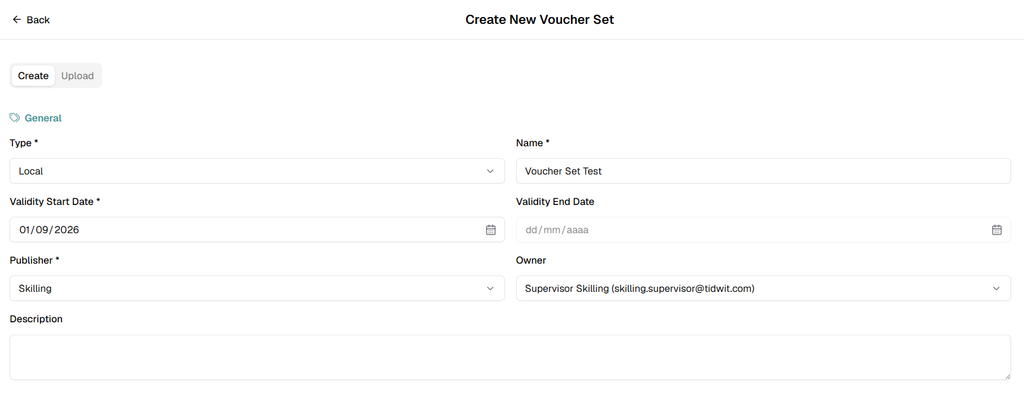
Complete the fields in the Create tab:
- Type (Required): Select Local for internal distribution or Ecosystem for partner-node allocation.
- Name (Required): Enter a clear, descriptive Voucher Set name.
- Validity Start Date (Required): Select the date vouchers become available for distribution.
- Validity End Date: Select the date voucher distribution should end.
- Publisher (Required): Select the publisher that owns or provides the voucher inventory.
- Owner: Select the administrator responsible for the Voucher Set.
- Description: Add optional context, purpose, or operational notes.
Save the Voucher Set before loading voucher codes. After the set is created, open the Upload tab.
Upload tab and voucher inventory filters
Use the Upload tab to review inventory, filter voucher codes, and add new codes to the set.
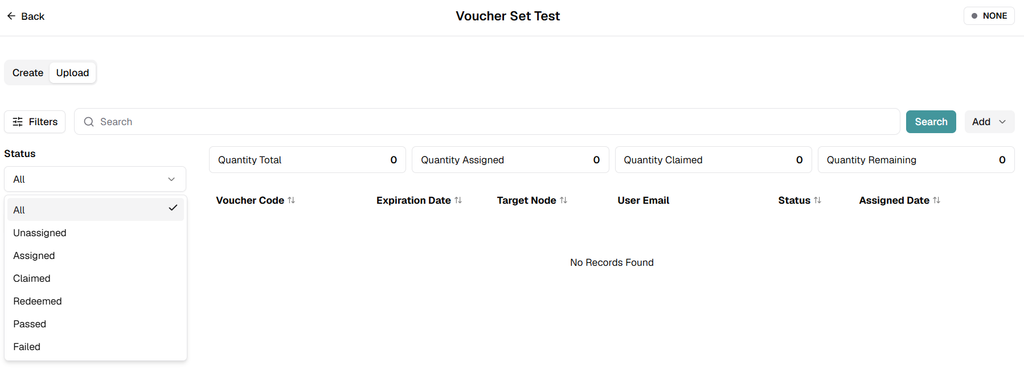
The summary cards show Quantity Total, Quantity Assigned, Quantity Claimed, and Quantity Remaining.
Use the Status filter to display voucher codes by lifecycle state:
- All
- Unassigned
- Assigned
- Claimed
- Redeemed
- Passed
- Failed
Use the Search field to find a specific voucher code or matching inventory record. Click Add to open the voucher import workflow.
Import voucher codes
From the Upload tab, click Add and open the voucher upload option.
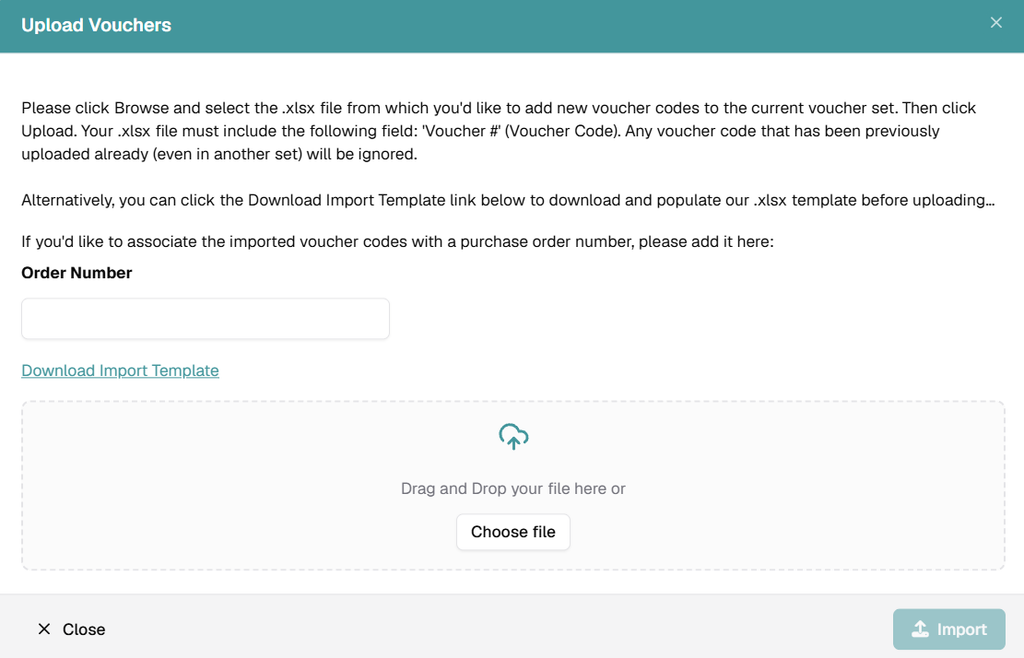
- Prepare an .xlsx file containing a Voucher # column with the voucher codes.
- Optionally enter an Order Number to associate the imported codes with a purchase order.
- If needed, click Download Import Template and populate the provided Excel template.
- Drag and drop the file into the upload area, or click Choose file.
- Click Import to upload the voucher codes.
Note: Voucher codes that were previously uploaded, including codes in another Voucher Set, are ignored.
Review and manage uploaded vouchers
After a successful import, the uploaded vouchers appear in the inventory table.
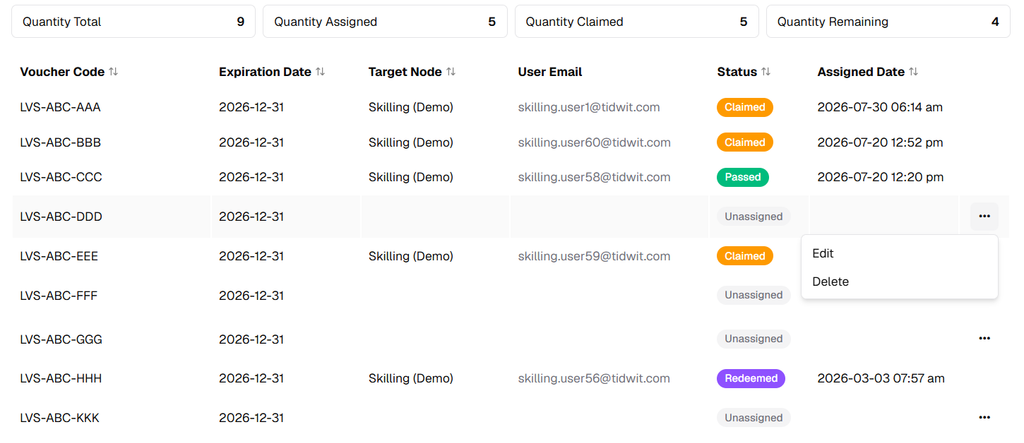
The voucher table includes Voucher Code, Expiration Date, Target Node, User Email, Status, and Assigned Date.
Status values reflect the current voucher lifecycle. Unassigned codes are available for assignment; assigned and downstream statuses update as users receive and use the vouchers.
For an unassigned code, open the three-dot menu to access Edit or Delete.
Note: Delete only codes that are safe to remove from the available inventory. Preserve assigned or historically relevant codes for auditability.
Local and Ecosystem Voucher Sets
Local Voucher Sets are intended for voucher distribution within the organization. Ecosystem Voucher Sets extend allocation to connected partner nodes.
For an Ecosystem Voucher Set, use the allocation workflow to select a Target Node and define the Voucher Quantity assigned to that node. The Remaining value indicates how many vouchers are still available for allocation.
Note: The ecosystem allocation workflow is available only for Voucher Sets created with the Ecosystem type.
Operational guidance
- Use descriptive names: Include the program, geography, certification, or campaign when useful.
- Set validity dates carefully: Align Voucher Set availability with the actual validity of the voucher codes.
- Monitor remaining inventory: Use Quantity Remaining and # Unassigned to avoid running out of codes.
- Use delegation intentionally: Separate management access from reporting-only access where possible.
- Review the Audit Trail: Use historical records when investigating assignments, status changes, or inventory discrepancies.