
Directed to: Administrator
Objective: Create and manage landing pages, configure access and AI Chat, design content, publish pages, and review engagement metrics.
The Landing Pages module provides administrators with a complete workflow for creating web experiences inside a TIDWIT node. A landing page combines page settings, access controls, optional AI Chat behavior, a visual HTML Builder, publication controls, management actions, and performance metrics.
Open and Navigate the Landing Pages Module
Open the Landing Pages section from your TIDWIT node. The main page displays existing landing pages and provides search, creation, reporting, import, and management controls.
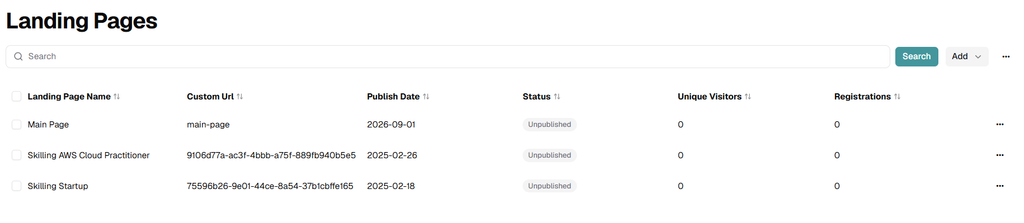
Main Page Information
- Landing Page Name: Displays the administrative name of each page.
- Custom URL: Displays the page-specific URL value.
- Publish Date: Shows the configured publication date.
- Status: Shows whether the page is published or unpublished.
- Unique Visitors: Shows the number of distinct visitors recorded for the page.
- Registrations: Shows the number of users registered through the landing page.
- Sorting: Use the column sort indicators to reorder the list where available.
Search, Create, Reports, Archive View, and Import

- Use the Search field and click Search to filter the page list.
- Open Add to create a new landing page.
- Open the three-dot menu to access global landing page options.
- View Archived: Opens the list of archived landing pages.
- Landing Pages Report: Opens reporting for landing page activity.
- Import Landing Page: Imports a landing page previously prepared for import.
Create a New Landing Page
- Open the Landing Pages main page.
- Click Add and select the option to create a new landing page.
- Complete the Details tab before designing the page content.
Details – General and Advanced Settings
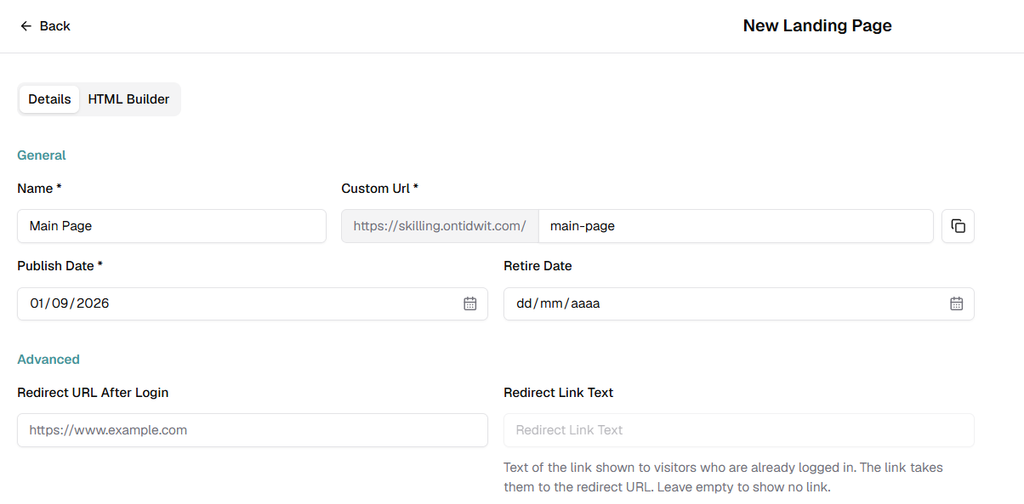
- Name (Required): Enter a clear administrative name for the landing page.
- Custom URL (Required): Enter the page-specific URL slug. The platform displays the node domain before the custom value. Use the copy icon when needed.
- Publish Date (Required): Set the intended publication date. The page remains unpublished until you use the Publish action.
- Retire Date (Optional): Set the date when the page should be retired automatically, when applicable.
- Redirect URL After Login (Optional): Enter the destination URL associated with the post-login redirect link.
- Redirect Link Text (Optional): Enter the link text shown to users who are already logged in. Leave it empty to show no redirect link.
Language, Title, Access, and AI Chat
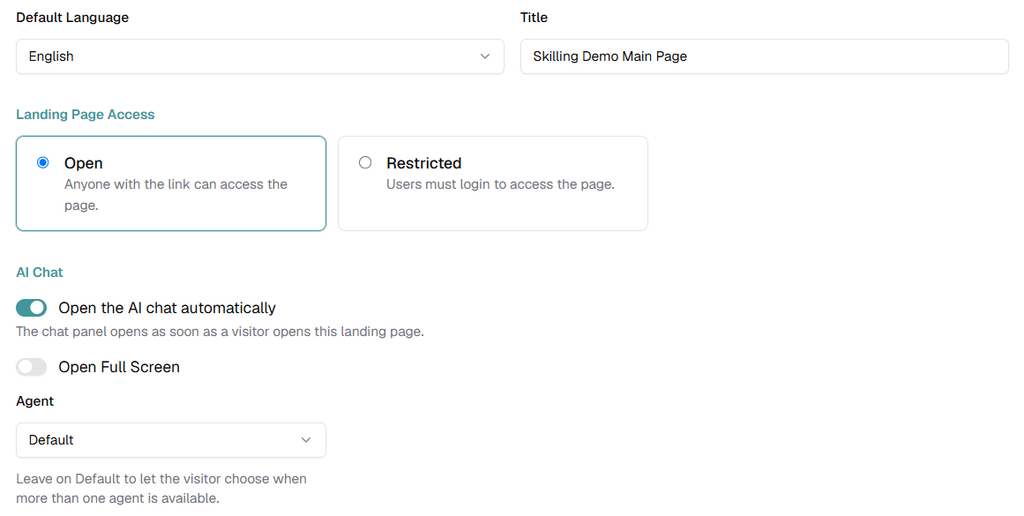
- Default Language: Select the default language used by the landing page.
- Title: Enter the title associated with the landing page experience.
Landing Page Access
- Open: Anyone with the link can access the page.
- Restricted: Users must log in to access the page.
AI Chat
- Open the AI chat automatically: Opens the chat panel as soon as a visitor opens the landing page.
- Open Full Screen: Opens AI Chat using the full-screen experience when enabled.
- Agent: Select the AI agent associated with the page. Leave Default selected to let visitors choose when multiple agents are available.
Design the Landing Page with HTML Builder
Open the HTML Builder tab to create and arrange the landing page visually. The builder provides a central canvas, responsive preview controls, editing tools, and reusable content blocks.
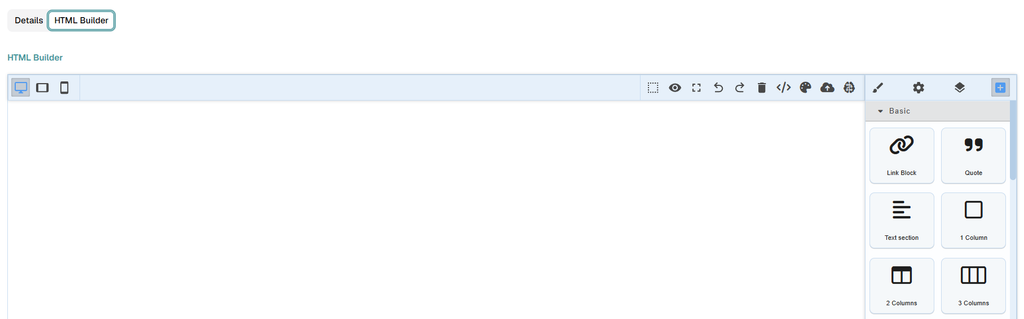
Builder Workspace
- Responsive views: Use the desktop, tablet, and mobile controls to review different screen sizes.
- Canvas: Build the page in the central workspace.
- Toolbar: Use the available preview and editing controls while working on the page.
- Content panel: Add reusable elements and layout blocks from the right-side panel.
Available Content Blocks
The current interface displays Basic blocks such as Link Block, Quote, Text section, 1 Column, 2 Columns, and 3 Columns. Depending on platform configuration, additional blocks can include:
- Link Block: Inserts a clickable content block.
- Quote: Displays a styled quotation.
- Text / Text Section: Adds text content or a styled text section.
- 1 Column / 2 Columns / 3 Columns / 2 Columns 3/7: Adds structured layout areas.
- Link: Adds hyperlink text.
- Image: Adds an image to the page.
- Video: Embeds video content.
Form and Registration Components
- Required Fields Form: Adds a form containing mandatory fields.
- Form Container: Groups form fields.
- Submit Button: Submits form values.
- Customizable Button: Adds a button with configurable styling and behavior.
- Go to Form: Adds navigation that jumps to a form section.
- Terms & Conditions: Adds terms acceptance content.
- Login Text: Displays login-related instructions or information.
- First Name / Last Name / Email / Password: Adds individual registration fields.
Variable Tags
- User Full Name: Inserts the user’s full name dynamically.
- User First Name: Inserts the user’s first name dynamically.
- User Last Name: Inserts the user’s last name dynamically.
- Date: Displays the current date dynamically.
- Domain Name: Inserts the organization or instance domain name.
Note: The exact set of builder components can vary by platform configuration and permissions.
Save, Preview, and Publish
Save your changes before previewing or publishing the landing page. Once the page has been saved, the Preview and Publish actions become available.

- Click Save to store the current page settings and design changes.
- Click Preview to review the visitor experience before publication.
- Click Publish when the page is ready to become available to its intended audience.
Best practice: Preview the page in desktop, tablet, and mobile views before publishing.
Manage Existing Landing Pages
Use the three-dot menu at the end of a landing page row to open page-specific actions.
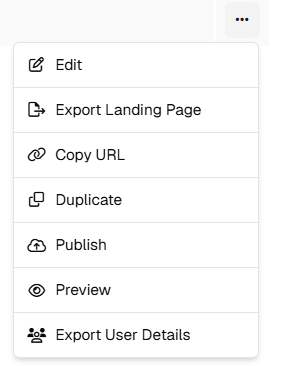
- Edit: Opens the landing page for changes.
- Export Landing Page: Exports the selected landing page for reuse or transfer.
- Copy URL: Copies the landing page URL.
- Duplicate: Creates a copy of the selected landing page.
- Publish: Publishes the selected landing page.
- Preview: Opens a preview of the selected landing page.
- Export User Details: Exports user-related data associated with the landing page.
Landing Page Metrics and Reporting
The Landing Pages main page provides at-a-glance performance indicators. Use Landing Pages Report when you need a dedicated reporting view.
- Unique Visitors: Shows the number of distinct visitors recorded for the landing page.
- Registrations: Shows the number of users who registered through the landing page when registration is part of the experience.
- Status: Confirms whether the page is published or unpublished.
Use these indicators to evaluate page reach, conversion activity, and whether additional content or design changes are needed.
Recommended Administrator Workflow
- Create the landing page from the Landing Pages main page.
- Complete General, Advanced, language, access, and AI Chat settings.
- Build and review the page in HTML Builder.
- Save the page.
- Preview the page across responsive views.
- Publish the page when the experience is ready.
- Monitor Unique Visitors and Registrations from the main page or Landing Pages Report.