
Role: Administrator
Objective: Review campaign-level voucher metrics, inspect individual voucher records, filter results, and export campaign details.
1. Open the Voucher Campaign Dashboard
From Voucher Campaigns, open the three-dots menu for the campaign you want to review.
Click View Report to open the Voucher Campaign Dashboard.
The dashboard displays the most recent refresh date at the top of the page.
2. Select a Voucher Campaign
Use the campaign dropdown in the upper-right area of the dashboard.
Select the Voucher Campaign whose metrics you want to review.
The dashboard refreshes the metric cards and funnel for the selected campaign.
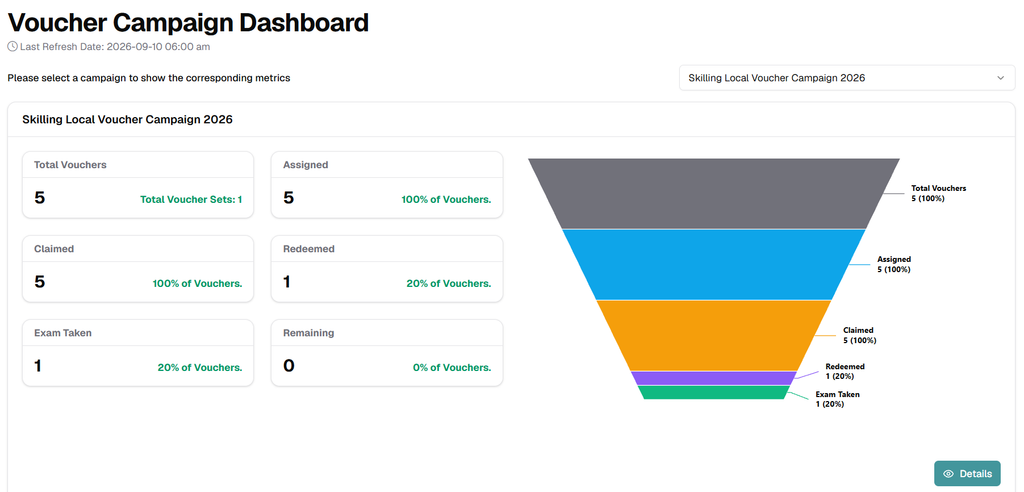
3. Understand the Dashboard Metrics
Review the summary cards to understand the current state of voucher inventory and usage.
- Total Vouchers: Total voucher codes included in the selected campaign. The card also shows the number of contributing Voucher Sets.
- Assigned: Number of voucher codes assigned to users.
- Claimed: Number of voucher codes claimed by users.
- Redeemed: Number of voucher codes recorded as redeemed.
- Exam Taken: Number of voucher records with an exam attempt recorded.
- Remaining: Number of voucher codes still available within the campaign.
Percentage values shown on the cards are calculated against Total Vouchers.
Funnel Visualization
Use the funnel to compare the progression of voucher records across the main campaign stages.
Each stage displays both the record count and its percentage of Total Vouchers.
The funnel provides a quick visual indication of where voucher activity decreases between assignment, claim, redemption, and exam activity.
4. Open Voucher Details
Click Details in the lower-right corner of the dashboard.
The Details window opens with the voucher-level records associated with the selected campaign.
5. Search and Filter Voucher Records
Use the controls on the left side of the Details window to narrow the voucher list.
- Search: Enter a voucher code, email address, or other supported value, then click Search.
- Status: Select a status to limit the displayed voucher records.
- Clear: Remove the active filter and return to the complete list.
The interface displays the number of records found after filters are applied.
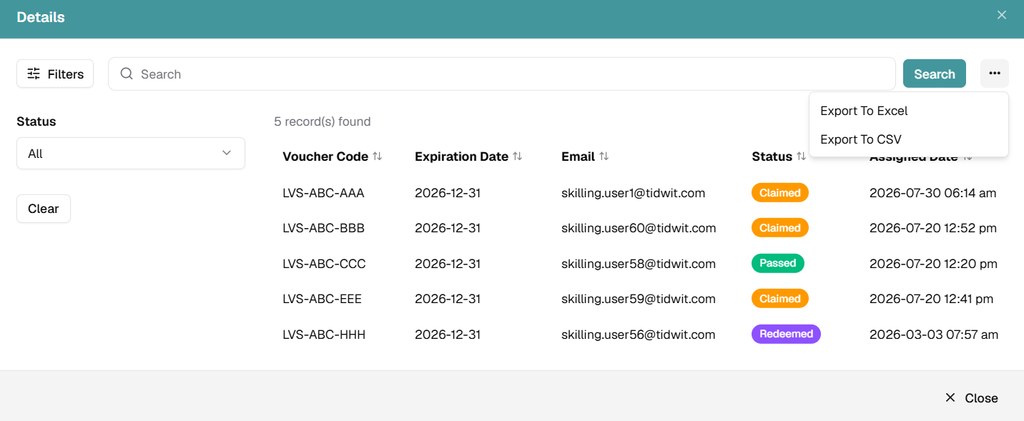
6. Review Voucher-Level Information
Use the Details table to review individual voucher records.
- Voucher Code: The voucher code associated with the campaign.
- Expiration Date: The date the voucher code expires.
- Email: The email address associated with the voucher assignment.
- Status: The current voucher state, such as Claimed, Passed, or Redeemed.
- Assigned Date: The date and time the voucher was assigned to the user.
7. Export Dashboard Details
Open the three-dots menu in the upper-right corner of the Details window.
Select Export To Excel or Export To CSV.
Use the exported file for offline analysis, reconciliation, or operational reporting.
Tip: Apply the required search or status filter before exporting when you need a narrower data set.
Metric Interpretation
Use the dashboard summary for campaign-level monitoring and the Details window for voucher-level validation.
A voucher can appear in a downstream status such as Redeemed or Passed while remaining part of the total assigned population.
Use the Last Refresh Date to confirm how current the dashboard information is before making operational decisions.