
Role: Administrator
Objective: Review voucher approval activity and process pending voucher requests efficiently.
1. Voucher Approvals Main Page
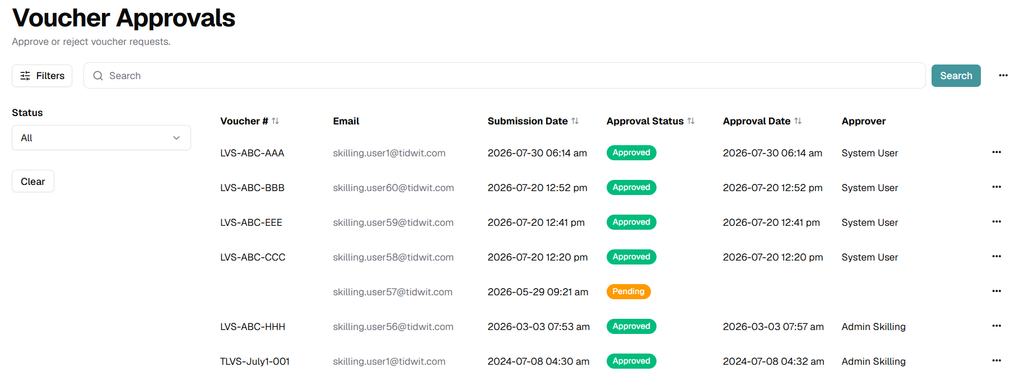
Open Voucher Approvals to review submitted voucher requests and their current approval status.
The page combines search, status filtering, request information, and request-level actions in one view.
Request Information
Use the table columns to review each voucher request:
- Voucher #: Shows the voucher code after a code has been assigned to the request.
- Email: Shows the email address of the user who submitted or received the voucher request.
- Submission Date: Shows when the voucher request was submitted.
- Approval Status: Shows the current decision state, such as Pending or Approved.
- Approval Date: Shows when the request was approved or rejected, when applicable.
- Approver: Shows the user or system account recorded as the approver.
Pending requests can display blank Voucher #, Approval Date, or Approver values until a decision is completed.
Search and Filter Requests
- Search: Enter a voucher code, email, or other supported value, then click Search.
- Status: Use the status dropdown to narrow the request list.
- Clear: Remove the active filter and restore the full list.
Use the column sorting controls when you need to reorder the request list by the available fields.
Module Navigation
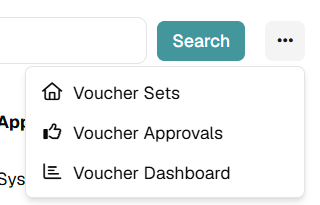
Open the three-dots menu beside Search to move between related voucher administration areas.
- Voucher Sets: Open the Voucher Sets module.
- Voucher Approvals: Return to the current approval queue.
- Voucher Dashboard: Open voucher reporting and analytics.
2. Process a Pending Voucher Request
Locate a request with Approval Status set to Pending.
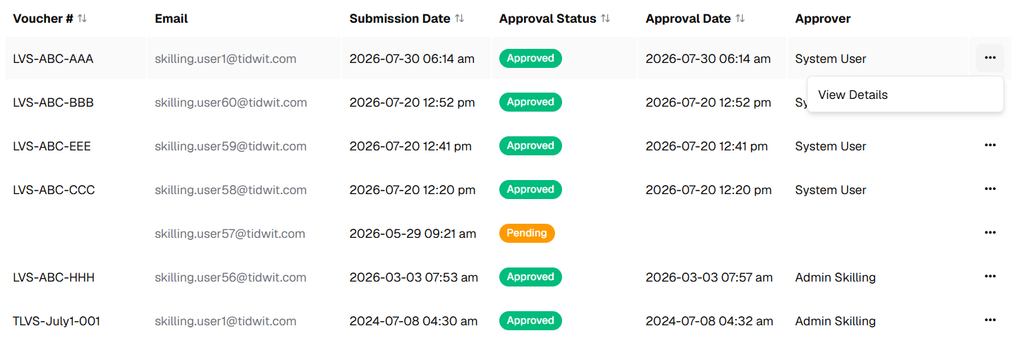
Click the three-dots menu at the end of the row to display the available actions.
Pending requests provide Approve, Reject, and View Details actions.

Approve a Request
Click Approve to approve the pending voucher request.
When the confirmation dialog appears, confirm the approval to complete the action.
After approval, the request status changes to Approved and the approval information is recorded in the table.
Reject a Request
Click Reject to reject the pending voucher request.
When the confirmation dialog appears, confirm the rejection to complete the action.
After rejection, the request status changes to Rejected and the decision is recorded in the approval history.
Actions on Completed Requests
Requests that have already been processed no longer require an approval decision.
For completed requests, the row action menu provides View Details so administrators can review the recorded request information.
3. View Voucher Request Details
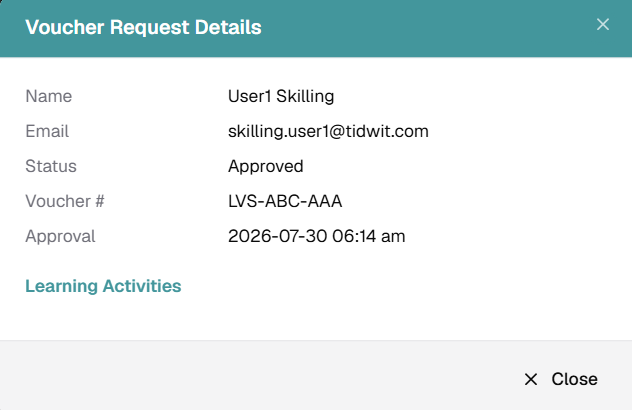
Click View Details to open the Voucher Request Details window.
Review the request before closing the window.
- Name: User associated with the voucher request.
- Email: User email address.
- Status: Current approval status.
- Voucher #: Voucher code associated with the request, when assigned.
- Approval: Date and time recorded for the approval decision.
- Learning Activities: Displays the learning requirements associated with the voucher request when applicable.
4. Approval Workflow Notes
- Only process requests that are still Pending.
- Review View Details before approving or rejecting when additional context is required.
- Use the Status filter to isolate pending requests when processing a larger approval queue.
- Verify the recorded Approval Date and Approver after completing a manual decision.