Role: Administrator
Objective: Create, configure, activate, and manage Voucher Campaigns in the TIDWIT Ecosystem.
1. Voucher Campaigns Main Page
Open Voucher Campaigns to review all campaigns available to your administrator account.
Use this page to search, filter, create, archive, and manage voucher campaigns.
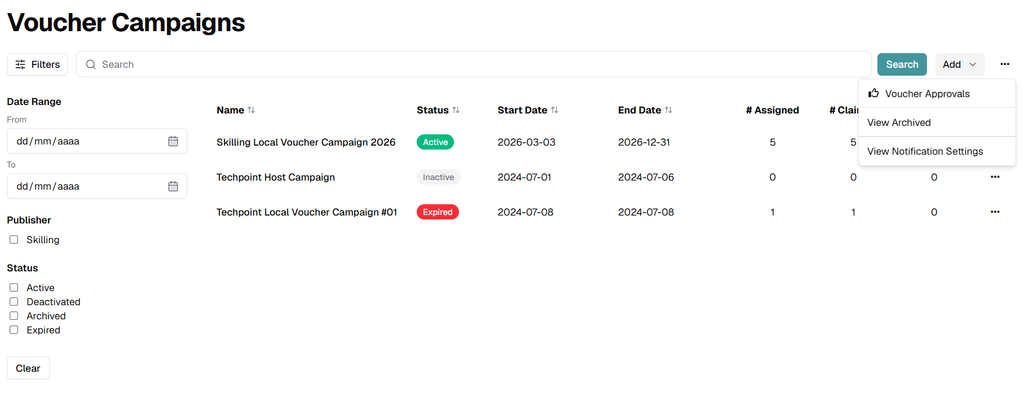
Search, Filters, and Global Actions
- Search: Enter a campaign name or part of a name, then click Search.
- Date Range: Use From and To to narrow campaigns to a specific period.
- Publisher: Filter the list by publisher.
- Status: Filter by Active, Deactivated, Archived, or Expired.
- Clear: Remove all active filters and restore the full list.
- Three-dots menu: Open Voucher Approvals, View Archived, or View Notification Settings.
Campaign Table and Row Actions
The campaign table summarizes the current state of each Voucher Campaign.
- Name: Campaign name.
- Status: Current lifecycle status.
- Start Date and End Date: Campaign validity period.
- # Assigned: Voucher codes assigned to users.
- # Claimed: Voucher codes claimed by users.
- # Unassigned: Voucher codes still available in the campaign.
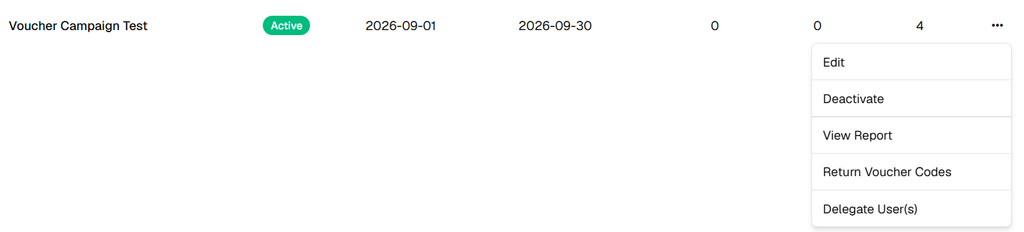
Click the three-dots menu at the end of a row to manage a campaign.
- Edit: Open the campaign configuration.
- Activate or Deactivate: Enable or suspend the campaign.
- Archive or Delete: Remove the campaign from the active workflow.
- View Report: Open campaign reporting.
- Return Voucher Codes: Send unused codes back to a Voucher Set.
- Delegate User(s): Grant management or reporting access to other node users.
2. Create a New Voucher Campaign
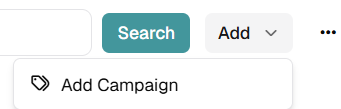
Click Add on the main page and select Add Campaign to create a new campaign.
Setup Tab
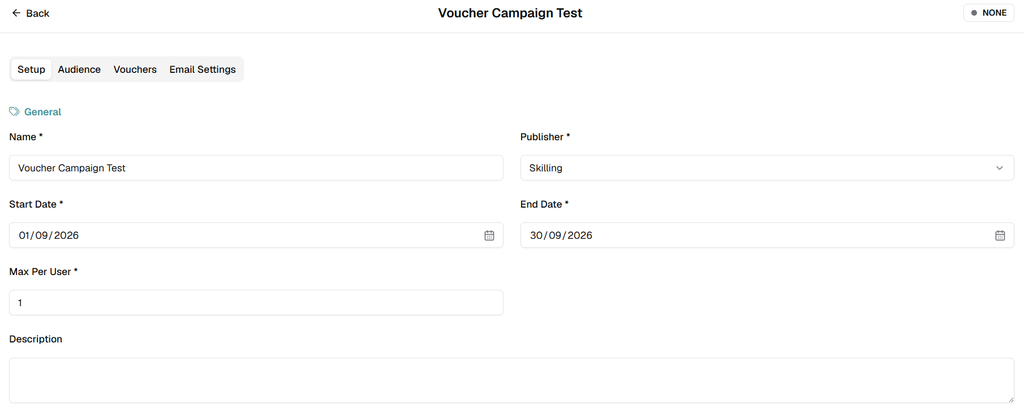
Use Setup to define the campaign’s core information.
- Name: Enter a descriptive campaign name.
- Publisher: Select the publisher responsible for the campaign.
- Start Date: Define when voucher distribution can begin.
- End Date: Define when voucher distribution ends.
- Max Per User: Set the maximum number of vouchers one user can receive.
- Description: Add optional notes or internal context.
Save the Setup information before moving to the next tabs.
3. Configure the Campaign Audience
Open Audience to define who can receive vouchers from the campaign.
Click Add Audience to create a new audience rule.
Choose the Eligible User Scope
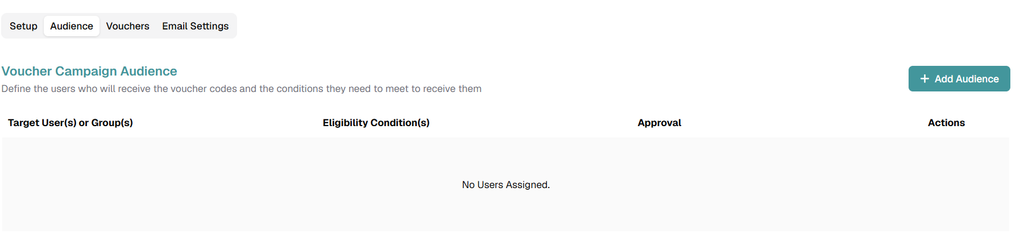
When the Set Audience modal opens, select how eligibility will be defined.
- All Users Eligible: Every user can qualify for the campaign.
- Only specific user(s) are eligible: Limit eligibility to selected individual users.
- Only specific user(s) group(s) are eligible: Limit eligibility to one or more user groups.
Eligible User Groups
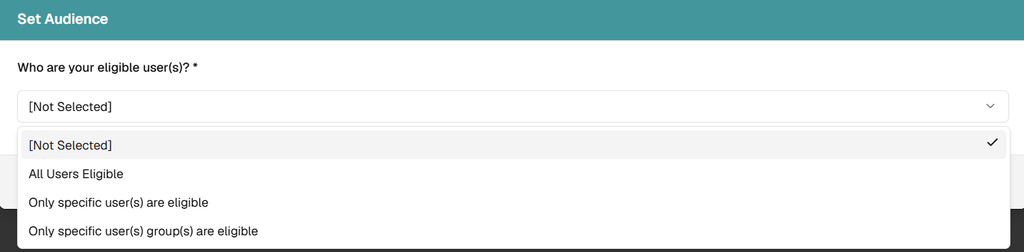
If you select Only specific user(s) group(s) are eligible, choose one or more user groups in the User Groups field.
Selected groups appear as tags below the field after they are added.
Eligible Individual Users
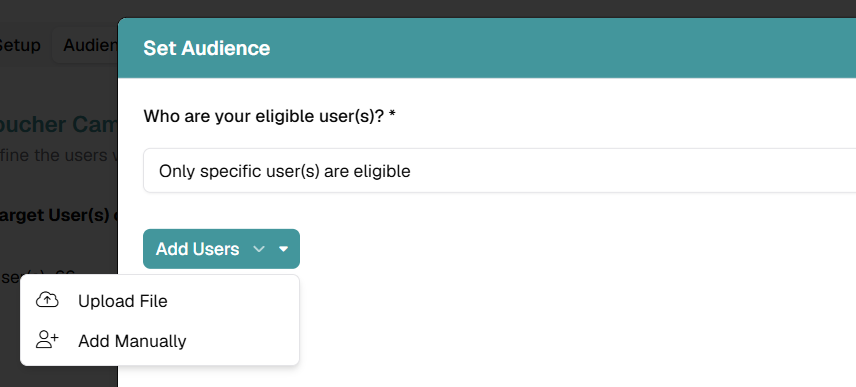
If you select Only specific user(s) are eligible, use Add Users to populate the audience.
- Upload File: Upload a file containing the users to add.
- Add Manually: Add users one by one directly in the modal.
Review the Audience Rule
After saving, the audience table displays the target users or groups, the configured eligibility conditions, and the available actions.
Use Remove to delete an audience rule when it is no longer needed.
The Approval column is displayed in the Audience table, but the approval workflow will be documented in the next module.

4. Add Eligibility Conditions
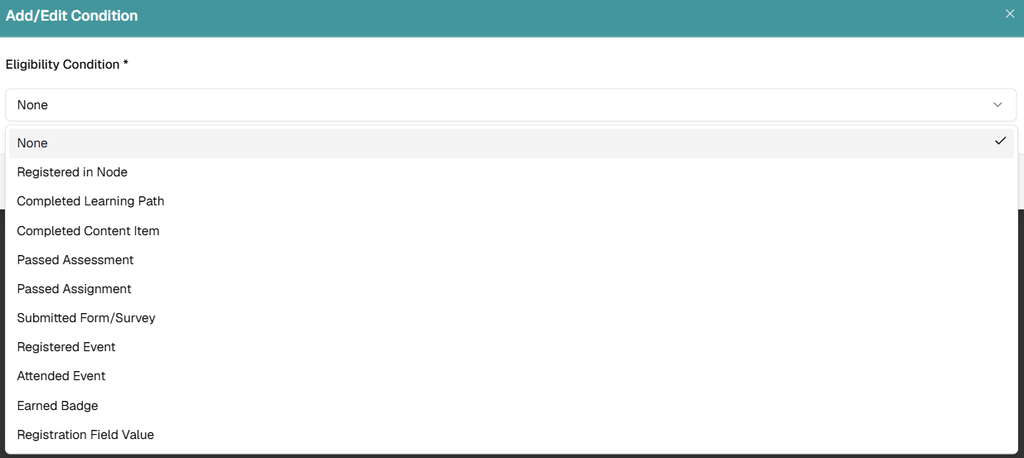
Use Add Conditions to define the rule a user must meet before receiving a voucher.
The current interface includes the following condition types:
- Registered in Node
- Completed Learning Path
- Completed Content Item
- Passed Assessment
- Passed Assignment
- Submitted Form/Survey
- Registered Event
- Attended Event
- Earned Badge
- Registration Field Value
Select the Eligible Asset
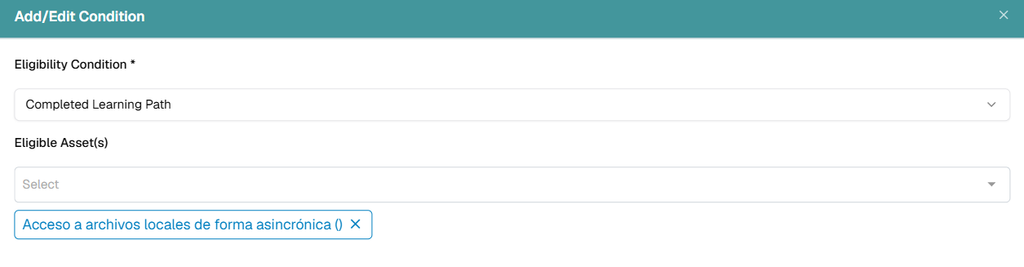
When a condition depends on a specific asset, select the corresponding item in Eligible Asset(s).
In the example below, the campaign requires users to complete a specific Learning Path.
Confirm the Condition
After saving, confirm that the condition appears under Eligibility Condition(s) in the audience table.
Use Add Conditions again if you need to attach additional requirements to the same audience rule.

5. Add Voucher Codes to the Campaign
Open the Vouchers tab to populate the campaign with voucher inventory.
Use the Search field and Status filter to find existing voucher records.
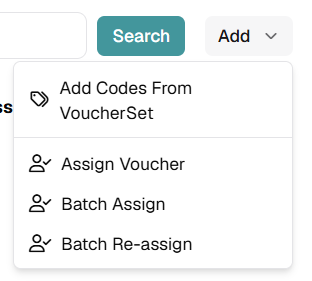
Open the Add menu to access the voucher operations available for the campaign.

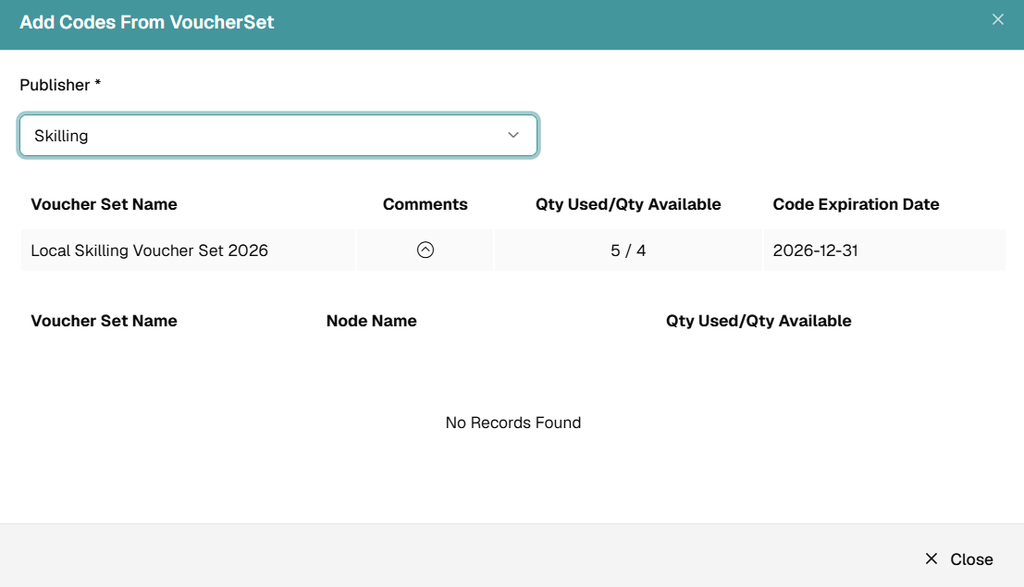
Add Codes From VoucherSet
Select Add Codes From VoucherSet to pull voucher inventory from an existing Voucher Set.
Choose the Publisher and review the available Voucher Set Name, quantity usage, and Code Expiration Date.
Review Node Allocation
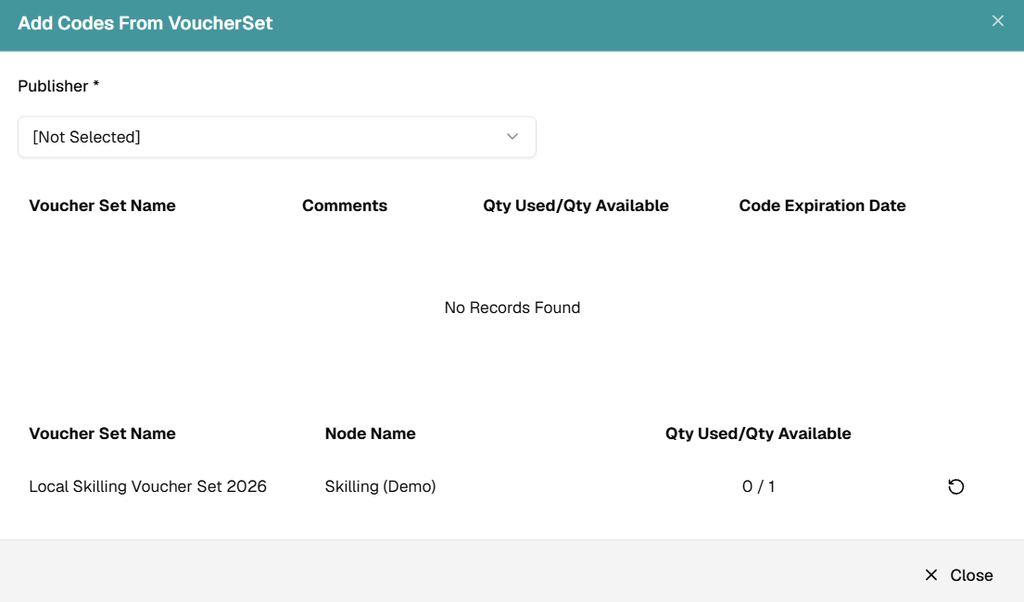
The modal can also display voucher availability by node.
Review Voucher Set Name, Node Name, and Qty Used/Qty Available before completing the action.
6. Assign and Reassign Voucher Codes
After voucher codes are available in the campaign, administrators can assign or reassign them manually or in batch.
Assign a Single Voucher
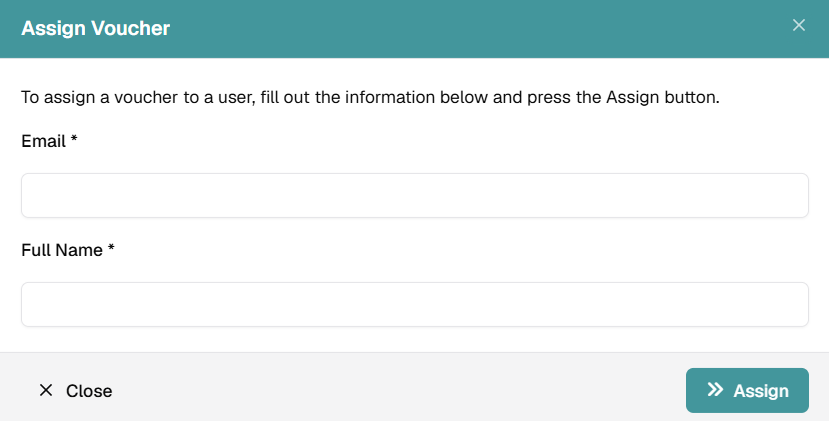
Select Assign Voucher from the Add menu.
In the Assign Voucher modal, enter the user Email and Full Name, then click Assign.
Batch Assign
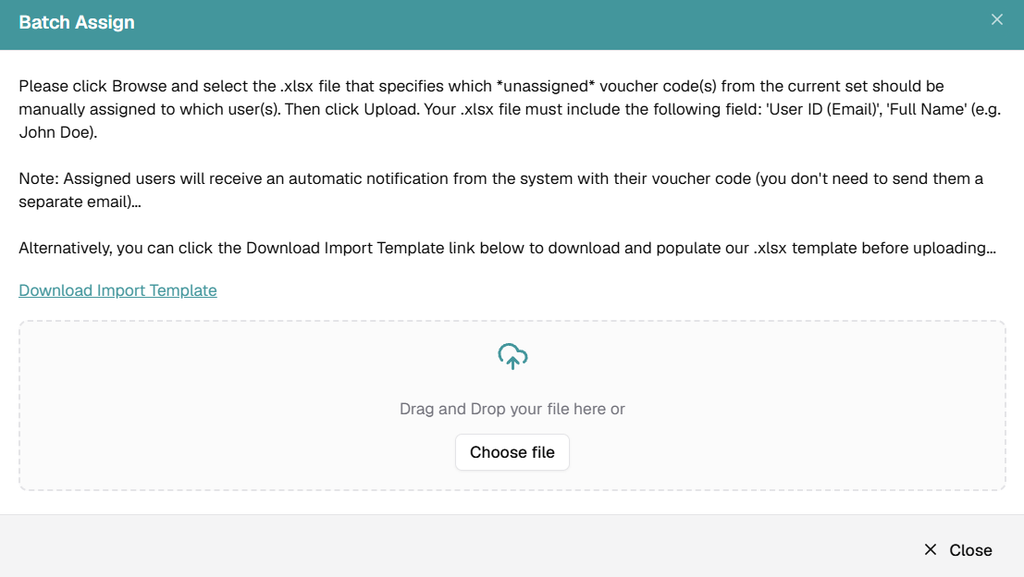
Select Batch Assign to upload an .xlsx file that maps unassigned voucher codes to users.
The file must include at least User ID (Email) and Full Name.
Use Download Import Template to obtain the required format before uploading the file.
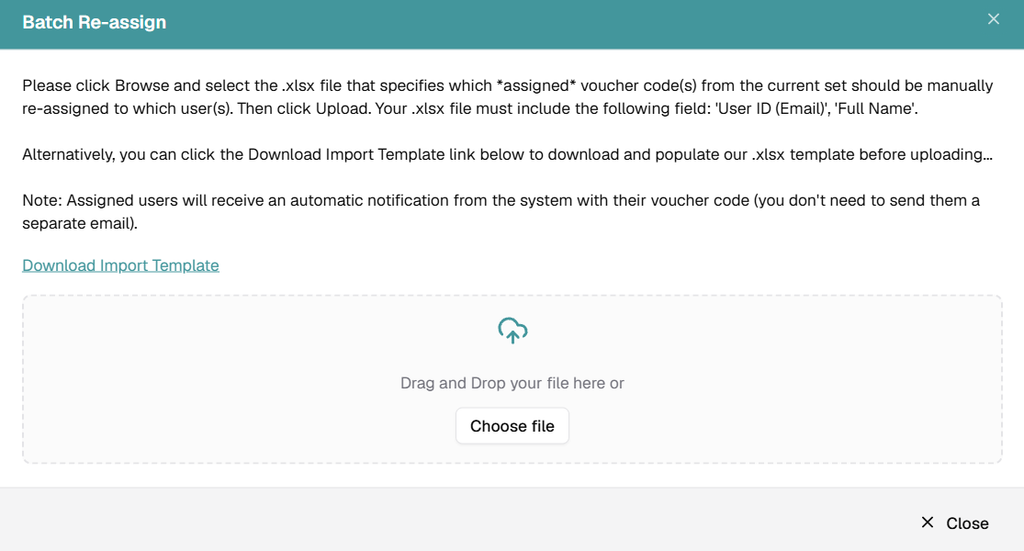
Batch Re-assign
Select Batch Re-assign to upload an .xlsx file that reassigns already assigned voucher codes to different users.
Use Download Import Template to obtain the required format and upload the completed file.
Voucher List and Statuses
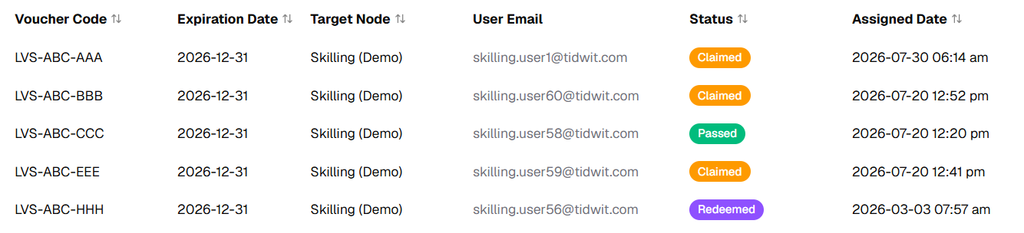
After voucher codes are loaded, review them in the campaign voucher table.
- Voucher Code: The code available in the campaign.
- Expiration Date: Code expiration date.
- Target Node: Node associated with the voucher.
- User Email: Email address of the assigned user, when applicable.
- Status: Current voucher state, such as Claimed, Passed, or Redeemed.
- Assigned Date: Date and time the voucher was assigned.
7. Configure Email Settings
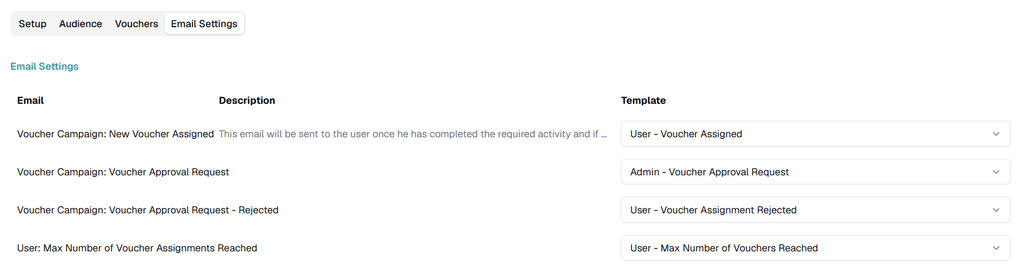
Open Email Settings to select the notification template for each campaign event.
- Voucher Campaign: New Voucher Assigned → User – Voucher Assigned
- Voucher Campaign: Voucher Approval Request → Admin – Voucher Approval Request
- Voucher Campaign: Voucher Approval Request – Rejected → User – Voucher Assignment Rejected
- User: Max Number of Voucher Assignments Reached → User – Max Number of Vouchers Reached
Select the required template in each dropdown and save the campaign.
8. Save and Activate the Campaign
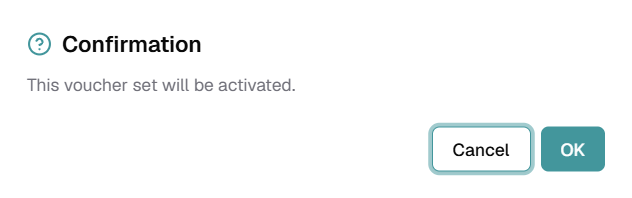
After the campaign is fully configured, click Save and then Activate.
Review the confirmation dialog and click OK to complete the activation.
Once active, the campaign can distribute vouchers according to its dates, audience rules, voucher inventory, and email configuration.
9. Return Voucher Codes
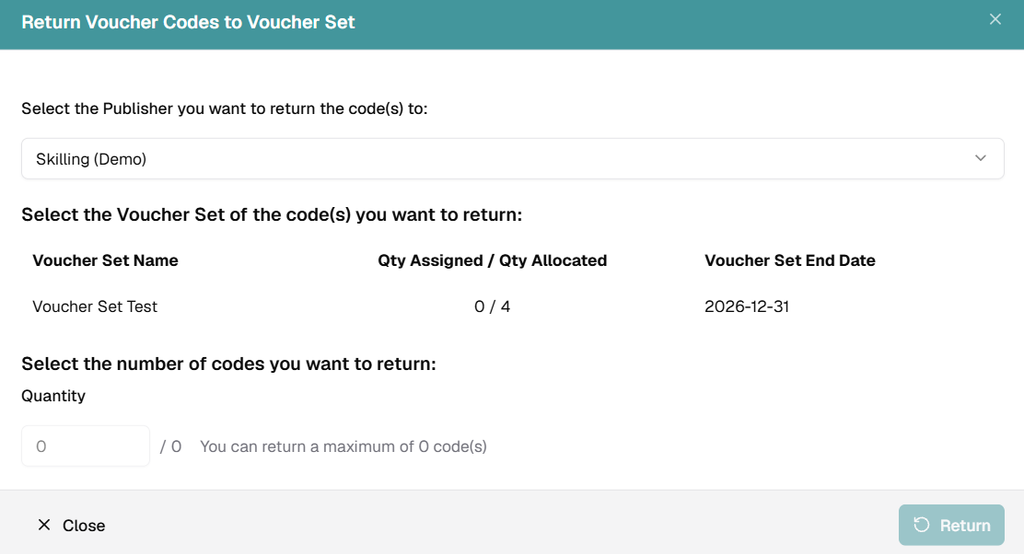
Use Return Voucher Codes from the campaign row actions when you need to send unused codes back to a Voucher Set.
Select the Publisher, review the available Voucher Set, and enter the Quantity to return.
The maximum number of returnable codes is displayed beside the quantity field.
10. Delegate User(s)
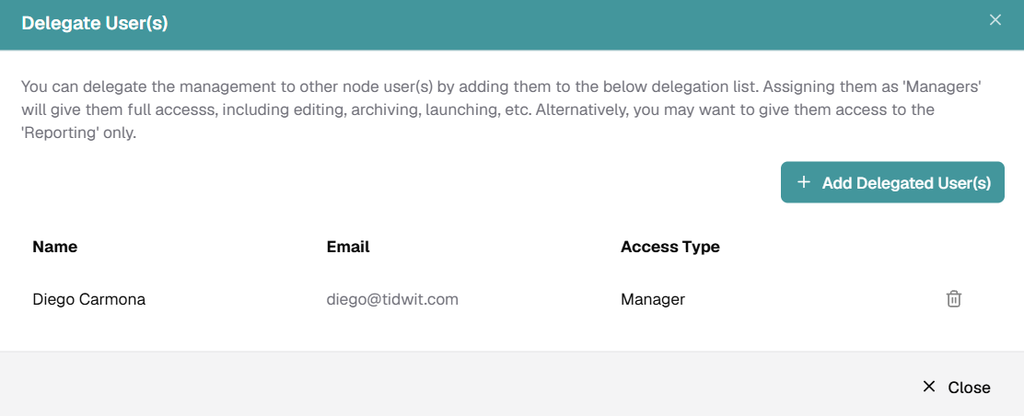
Use Delegate User(s) to grant other node users access to manage or report on the campaign.
The delegation list displays each delegated user’s Name, Email, and Access Type.
Click Add Delegated User(s) to add more users, or use the delete icon to remove an existing delegate.