
You will see a search bar and a table of all the created assessments.
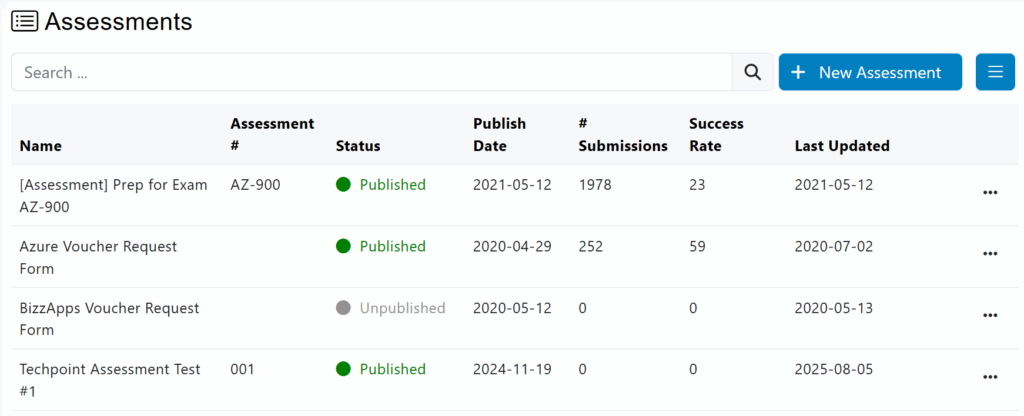
In the Assessments table you will see the:
- Assessment’s Name.
- Assessment’s Version.
- Assesment’s Number.
- Assessment’s Status, which can be Published or Unpublished.
- Number of Assessment’s Submissions made by users.
- Assessment’s Success Rate.
- Assessment’s Last Updated date.
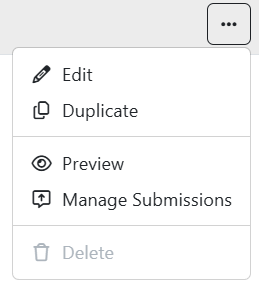
To the right of each assessment in the table you will find a “three dots button.” Click on it and you will see three options.
- Click on Edit to make any changes on the selected assessment.
- Click Duplicate to add a new version of the assessment you have created.
- Click Preview to directly access the link to the assessment you created.
- Click Manage Submissions to review and manage participant submissions.
The Manage Submissions option will display a list of all the people who submitted the assessment. In the table, you will find information such as the user email, assessment name, completion date, status, score, and actions.
You can also access the advanced search bar, where you can search for any of the previously mentioned keywords.
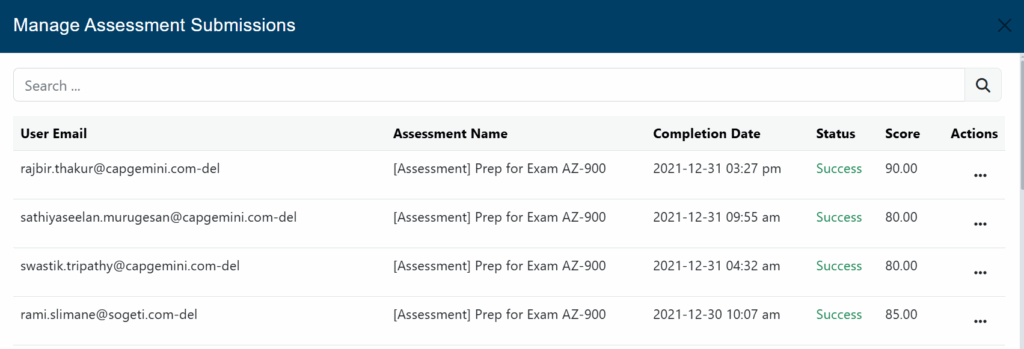
For each user, administrators will be able to download and reset the assessment.
