
Go to the Manage Campaigns main page. You will see the list of all the campaigns created by you. (Note: you cannot see campaigns created by others unless they give you Manager permission).
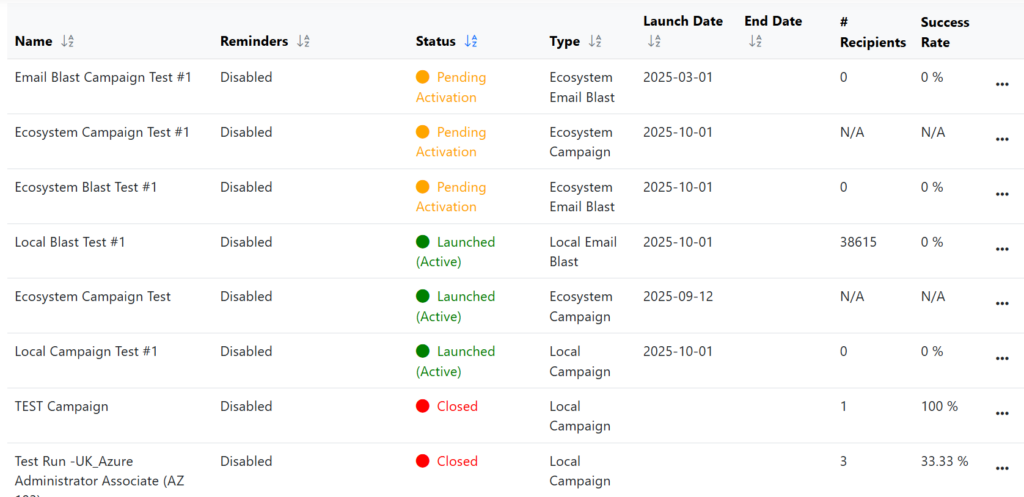
The list shows:
- Campaign’s Name.
- Campaign’s Status. (Scheduled, Pending to be activated, or Closed).
- Campaign’s Type.
- Campaign’s Launch Date.
- Campaign’s End Date.
- Campaign’s Number of recipients.
- Campaign’s Success Rate.
Click on the “three dots” button to see more options:
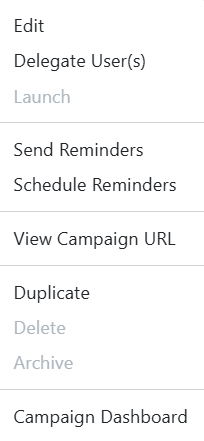
- Click on Edit to edit the information of the selected Campaign. You will be directed to the campaign’s Set Up page.
- Click on Delegate User(s) to delegate the management of the campaign to other node user(s). By default, the user who creates the campaign is the only one that can see it and manage it under “Manage Campaigns”.
- Click on Send Reminders to select the status of the emails you want to send reminders to. You can only do this if the campaign’s status is Active.
- Click on Schedule Reminders to activate or deactivate the automatic e-mail reminder.
- If you click on View Campaign URL, a pop-up window will appear with the option to copy the campaign’s URL to the clipboard.
- Click on Duplicate to make a duplicate of the selected campaign. Just enter the name of the new campaign and all the other information will be copied.
- Click on Delete to permanently remove and eliminate the Campaign.
- Click on Archive to send the campaign to the Archived Campaigns Page. You can only archive a campaign if it is closed. (Note: if you archive a campaign, you will not be able to unarchive it).
- Click on Campaign Dashboard option to go to the selected campaign’s dashboard and view data and statistics from the campaign.
Campaigns Filters
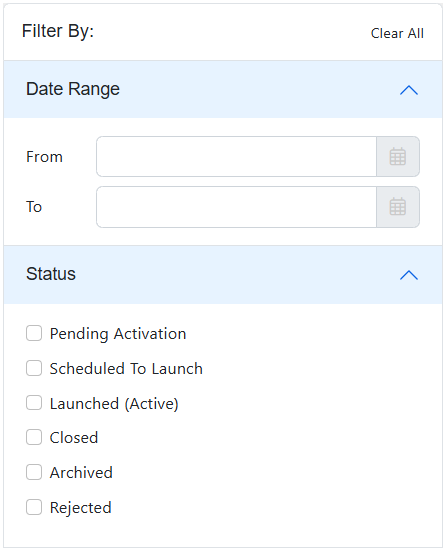
The Ecosystem Campaigns module includes an advanced filtering feature that allows users to quickly find and manage campaigns based on multiple criteria. The filter panel is displayed on the side of the screen and supports combining several filters at the same time.
Filter by Date Range
This filter allows users to view campaigns within a specific time period:
- From: Select the start date.
- To: Select the end date.
This option is useful for identifying campaigns created, scheduled, or active during a defined date range.
Filter by Status
Allows users to filter campaigns based on their current lifecycle status:
- Pending Activation: Campaigns created but not yet activated.
- Scheduled to Launch: Campaigns planned to go live at a future date.
- Launched (Active): Campaigns that are currently live.
- Closed: Campaigns that have ended.
- Archived: Campaigns stored for historical reference.
- Rejected: Campaigns that were not approved.
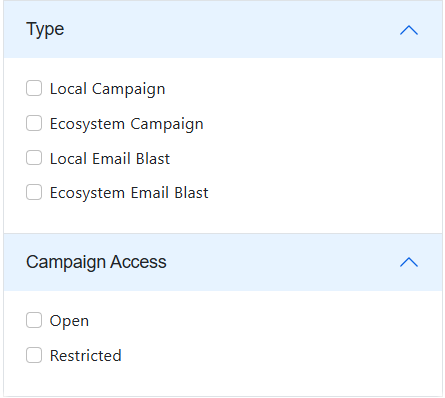
Filter by Type
Enables filtering campaigns by category:
- Local Campaign: Campaigns created for a specific node or environment.
- Ecosystem Campaign: Campaigns distributed across the ecosystem.
- Local Email Blast: Email campaigns targeting local audiences.
- Ecosystem Email Blast: Email campaigns sent at the ecosystem level.
Filter by Campaign Access
Allows filtering campaigns based on visibility:
- Open: Campaigns accessible to all users.
- Restricted: Campaigns available only to specific audiences.
Clear All
The Clear All option resets all selected filters and displays the full list of campaigns.