This guide assumes that you have already have a TIDWIT node and you have already created and published an agent in your TIDWIT node.
Use the following steps to configure Instagram integration with your agent. For this configuration, you will need to have your browser open with two tabs:
1. In the first tab, navigate to your TIDWIT node and go to the Agents page. Use the (…) menu to open the Instagram Integration window.
2. In the second tab, navigate to https://developers.facebook.com and click My Apps at top right corner. You will be taken to the Apps page.
Preparing the TIDWIT Instagram Integration
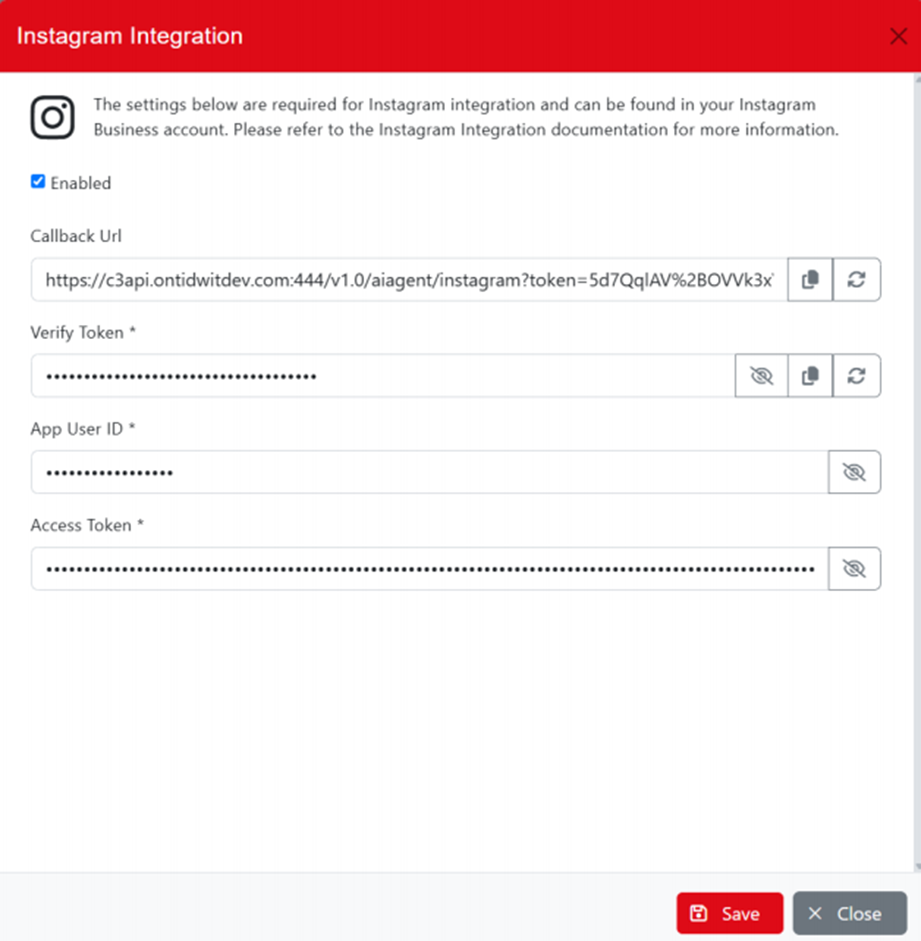
In your TIDWIT node, on the Instagram Integration window. Generate a new Callback URL token and Verify Token to be used for the Instagram webhook.
- Press the button for the Callback URL field.
- Press the button for the Verify Token field.
- Press the Save button
Setting up a new Facebook App
If you already have a Facebook app already setup, you can skip the app creation steps.
- On the Apps page, press the Create App button.
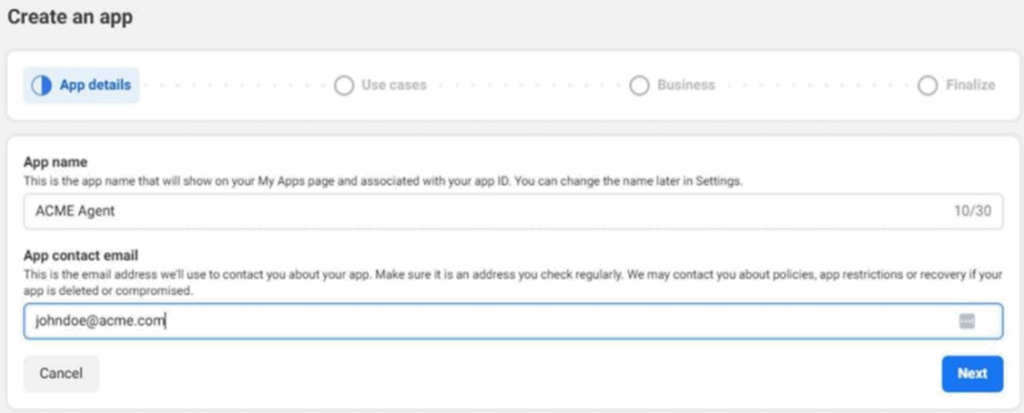
- Enter your App name and contact email and press Next
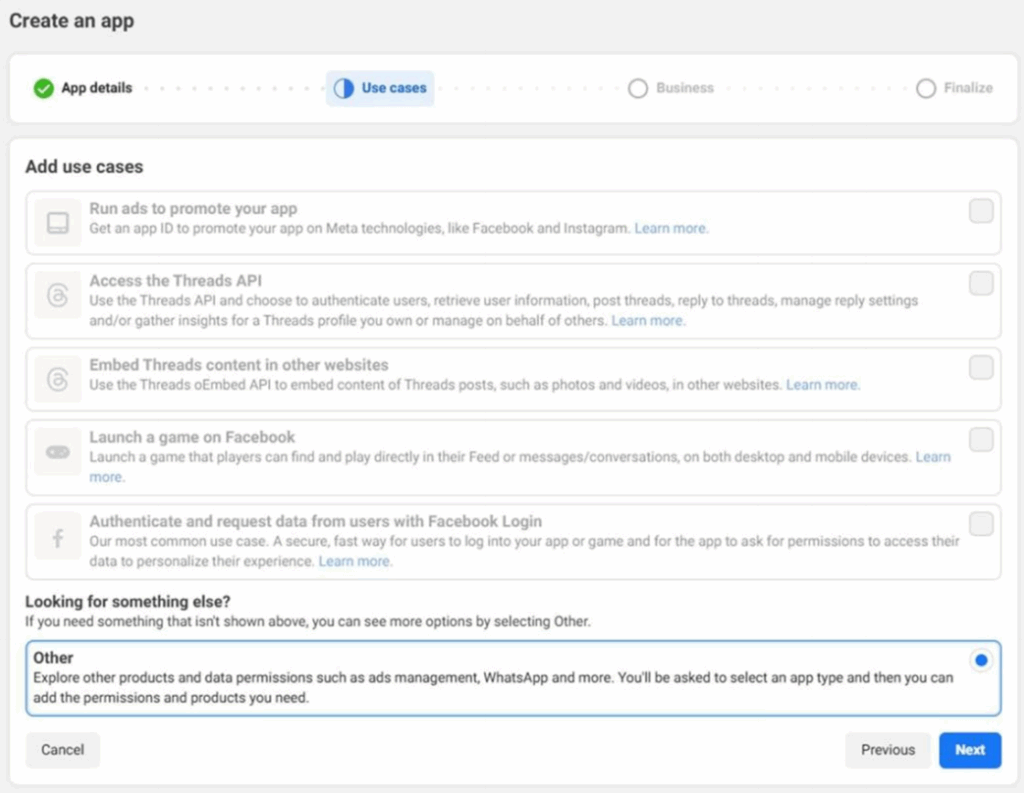
- On the Add use cases, select Other and press Next
- On the Select an app type, select Business and press Next
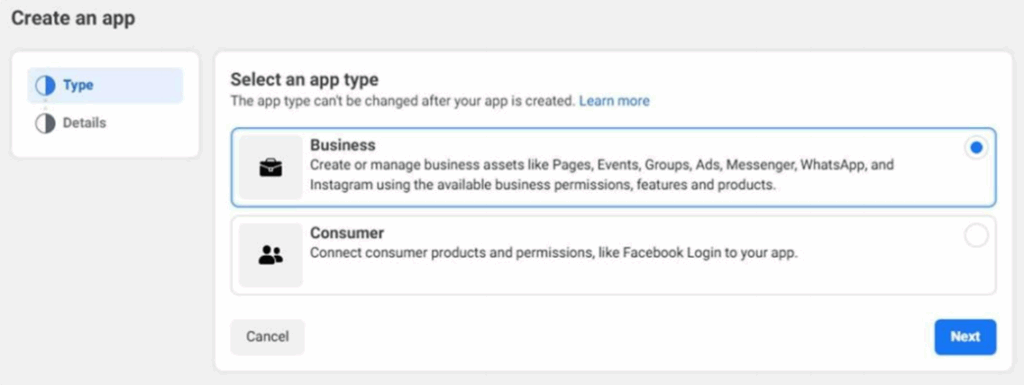
- On the Details page, verify the information and press Create App
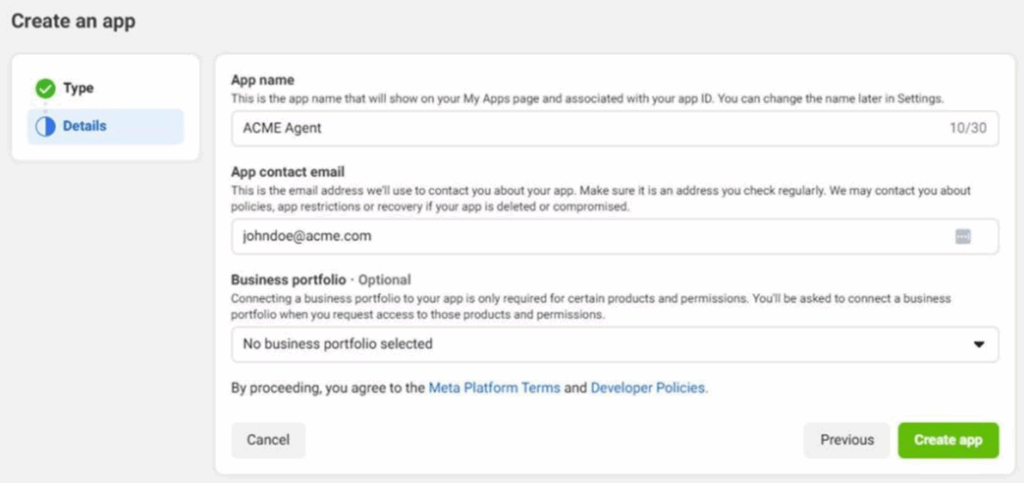
- If prompted to enter your Facebook password, do it and your application will be created.
- You will then be taken to the ‘Add products to your app’ page.
- Press the ‘Set up ‘button under the Instagram product to add it to your application.
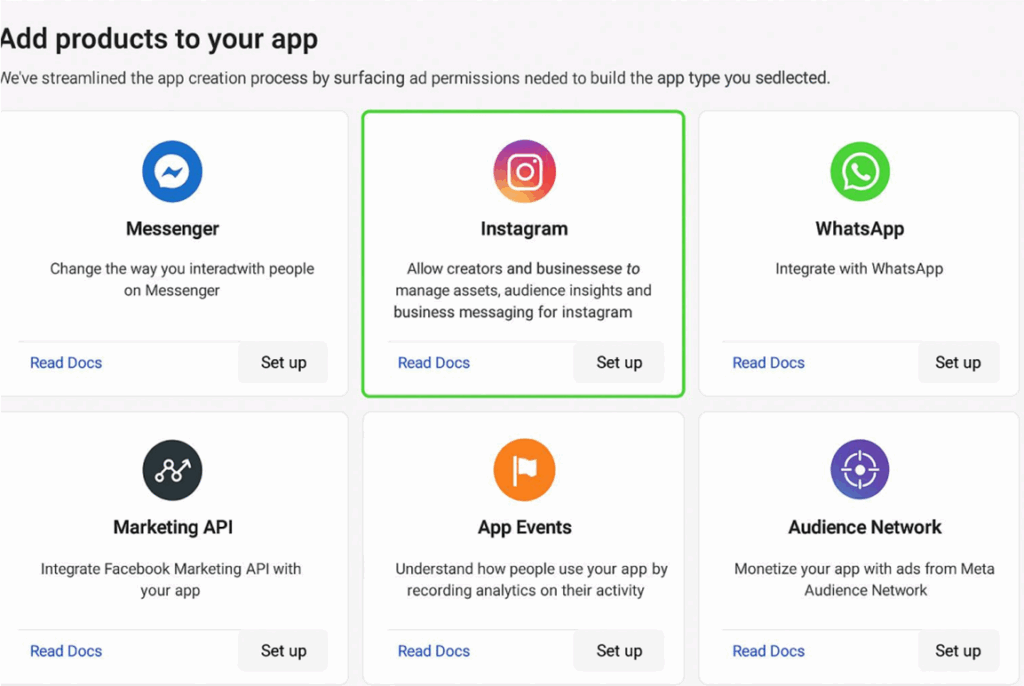
- On the next page, go to the first step: 1. Generate access token. You’ll be asked to log in with your Instagram Business account. If you have multiple accounts, select the one that you want to do the integration with.
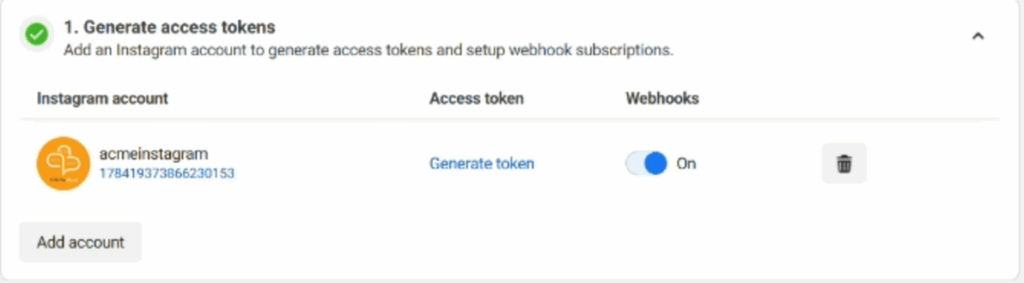
- Copy the ID under the added Instagram Business account and paste it in the App User ID field on the Instagram Integration window.
- Click Generate Token and paste the result in the Access Token field on the Instagram Integration window.
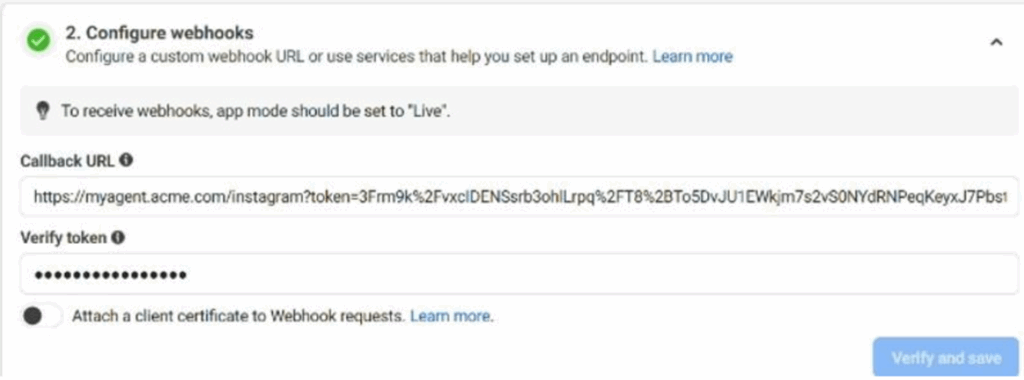
- Go to the second step: 2. Configure webhooks.
- Copy the Instagram Callback URL from the Instagram Integration window in TIDWIT node and paste it in the Callback URL in the Facebook App.
- Repeat the previous step for the Verify Token.
- Press the Verify and save button.
-
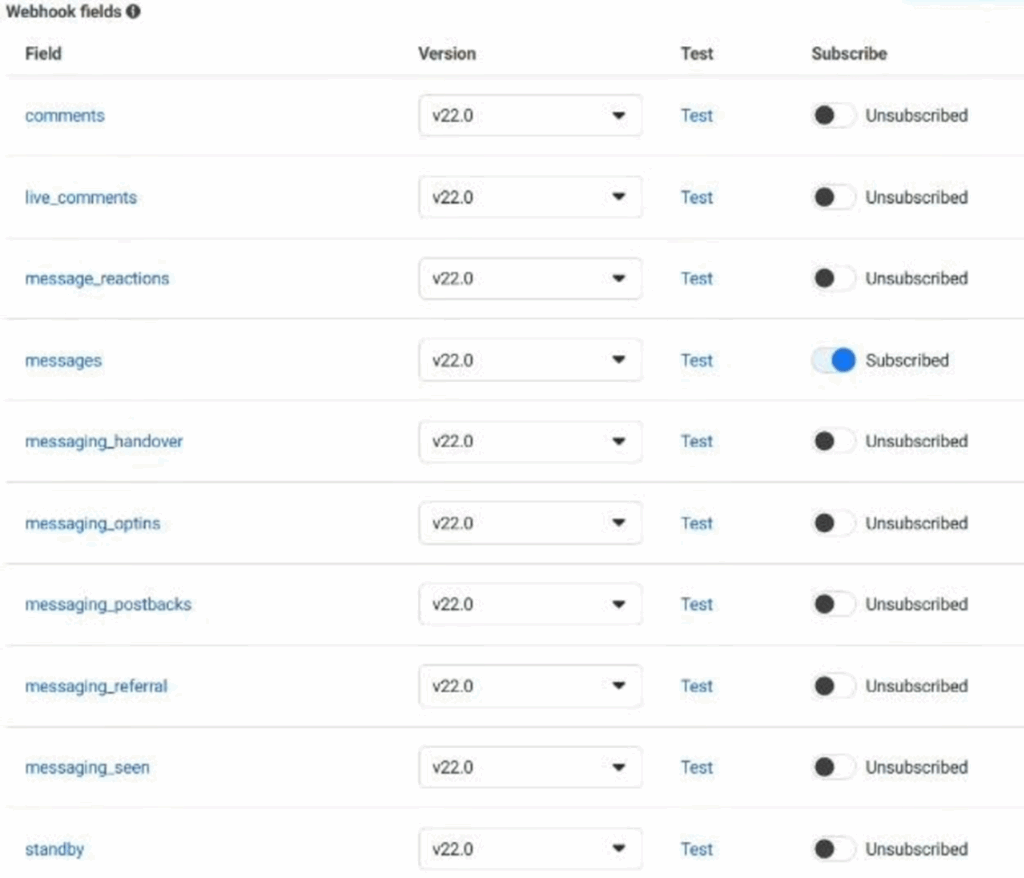
- Scroll down to messages and toggle the Subscribe option. Make sure the selected version is v22.0