
Go to the Events And Webinars main page. You will see the list of events you have created to date.
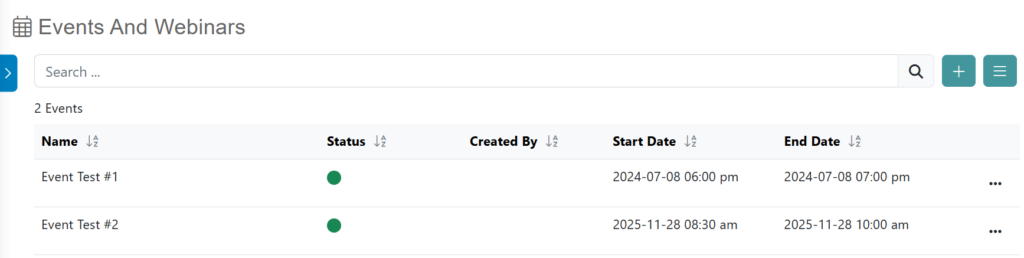
On the main page you will see a table with the following columns:
- Event Name
- Event Start Date
- Event End Date
- Event Status
- Created By
You will find different options on the three dots, click there.
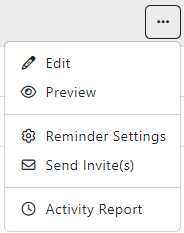
At the three dots you have available different options, you can Edit the information of a selected Event, Preview, Send Reminders and Invite(s) to all users, and check out the Activity Report.
- Click on Edit to edit the information of the selected Event. A new pop up will be displayed
- Click on Preview to access a quick view of the content
- Click on Reminders Settings to schedule or request reminders about events. By clicking this button, users can set up alerts that will remind them of the specified information later. Users can add reminders as needed
- Click on Send Invite(s) to send e-mail notifications to other users, inviting them to participate in a specific event
- Click on Activity Report to go to the selected event dashboard and view event data and statistics
Archived Events
If you want to see all your archived events, from the Events And Webinars main page click on the menu icon next to the plus [ + ] button. Then click on View Archived and you will be directed to the Archived Events Page.

You will see the status of the events changed to Archived.
To return to the Events And Webinars main page, click on the menu icon and then click on View Active.
Events Filters
To improve navigation and help administrators efficiently locate specific content within the Events & Webinars module, a new Advanced Filtering Sidebar has been implemented. This feature allows users to apply granular criteria to the event list view.
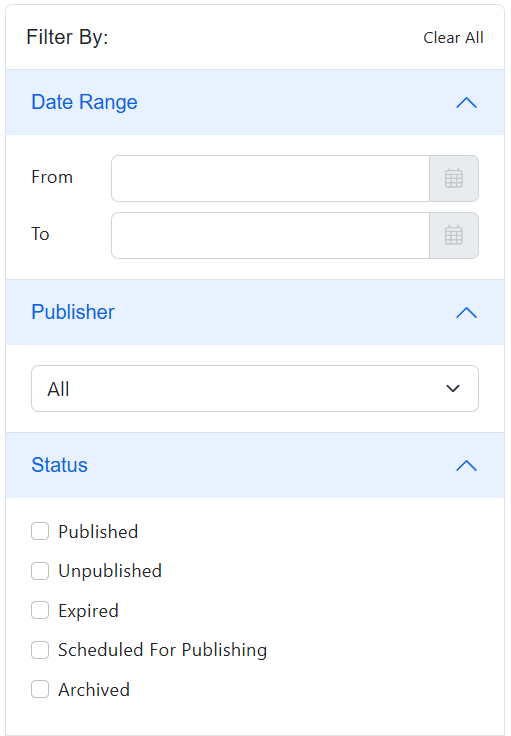
Date Range
Locate specific events based on their chronological scheduling.
- From: Select the start date of the search period using the calendar picker.
- To: Select the end date of the search period.
- Note: Leaving these fields blank will display events from all dates.
Publisher
Filter the list based on the entity responsible for the content.
- Use the Publisher dropdown menu to select a specific content provider or organization.
- Select “All” to view events from every publisher in the ecosystem.
Status
Refine the list based on the current lifecycle stage of the event. You may select multiple checkboxes simultaneously to create a composite view:
- Published: Events currently live and visible to users.
- Unpublished: Events created but not yet visible to the public.
- Expired: Past events that have exceeded their scheduled end time.
- Scheduled For Publishing: Events set to go live automatically at a future date/time.
- Archived: Events manually moved to the archive for record-keeping.
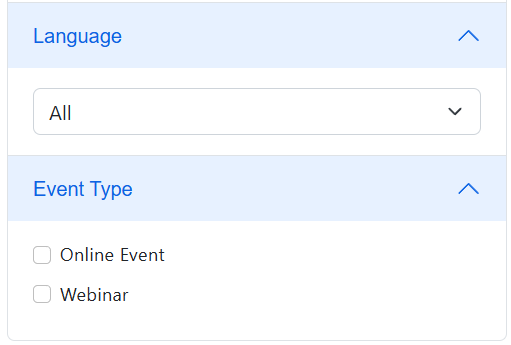
Language
Isolate events based on the primary language of delivery.
- Use the Language dropdown to select the specific target language (e.g., English, Spanish, French).
Event Type
Categorize results by the format of the session. Select the applicable checkboxes:
- Online Event: General virtual meetings.
- Webinar: Structured presentations or seminar-style broadcasts.
Global Controls
- Clear All: Located at the top right of the filter panel, clicking this link will instantly reset all selected criteria and return the list to the default view (showing all events).