
Go to the Ecosystem Forms main page. You will see the list of forms you have created to date.
Note: You cannot see forms created by other users unless they give you manager permissions.
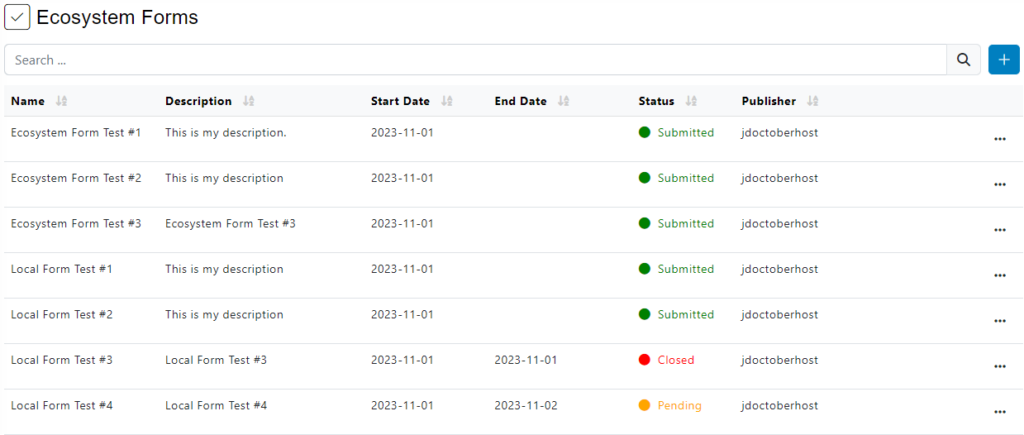
On the main page you will see a table with the following columns:
- Form Name.
- Form Description.
- Form Start Date.
- Form End Date.
- Form Status.
- Form Publisher.
You will find different options on the three dots, click there.
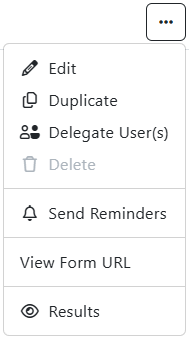
At the three dots you have available different options, you can edit the information of the selected form/survey, duplicate, delegate users, delete (If the form/survey has not yet been published), send reminders to specific users, view results and view form/survey Url.
Edit
When you edit a form you must keep in mind that you will not be able to modify certain information because it depends on the survey status.
Submitted Form
- You can edit all the fields except: Type and Start Date.
- You can edit the Audience, add or remove user groups.
- You can edit the Target Nodes, add or remove nodes.
- You cannot edit the added Fields.
- You can change the email template if you have another one(s) available.
Pending Form
- You can edit all the fields except: Type.
- You can edit the Audience, add or remove user groups.
- You can edit the Target Nodes, add or remove nodes.
- You can edit the Fields.
- You can change the Email Template if you have another one created.
Closed Form
- You can edit all the fields except: Type.
- You can edit the Audience, add or remove user groups.
- You can edit the Target Nodes, add or remove nodes.
- You can edit the Fields.
- You can change the Email Template if you have another one created.
Please note that even if you can edit the form, it will still be closed.
If you have finished editing the form, click on Save.
Duplicate
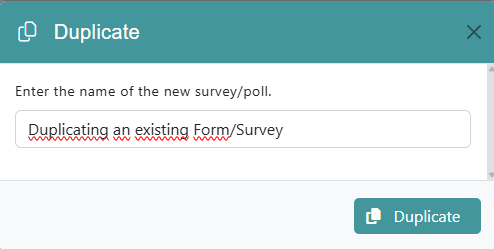
This allows you to duplicate the entire original structure of any selected form or survey. A new row will be created in the table and you will need to define a new form/survey name.
Delegate User(s)
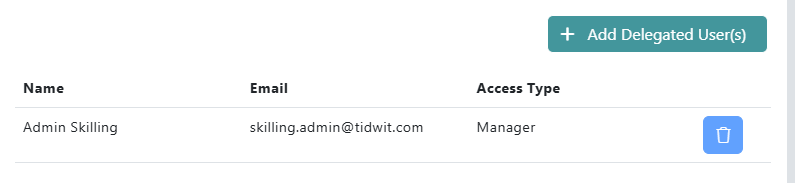
You can delegate the management to other node user(s) by adding them to a delegation list. Assigning them as ‘Managers‘ will give them full accesss, including editing, archiving, launching, etc.
Alternatively, you may want to give them access to the ‘Reporting‘ only.

Send Reminders
This option is available in local and ecosystem surveys. Allows you to send an email to remind users that they have an assigned survey to complete.
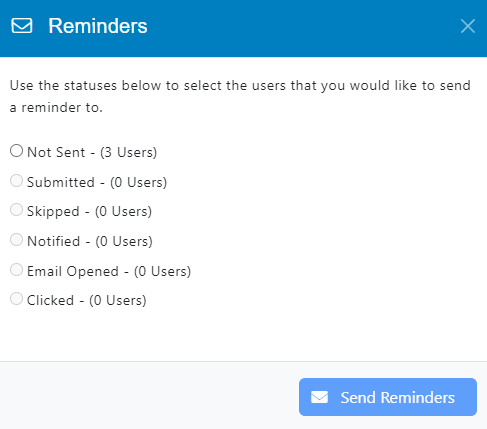
Select the appropriate option and then click on Send Reminders.
View Results
To navigate to the results of a specific form, click on the three dots button of the Survey you want to see and select Results.
Once you are in the Form Results, you will see a panel and a graphic with different metrics.
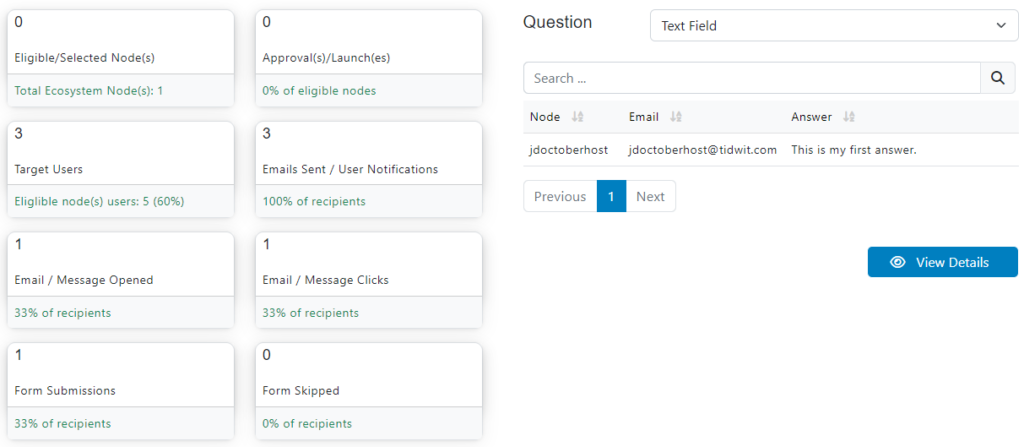
These statistics are:
- The total number of Selected Node(s) to which the form was sent.
- The total number of Approvals of the current form.
- The total number of Target Users of the form which represents 100% of the audience.
- The total number of Emails Sent to the users and the percentage it represents.
- The total number of Emails Opened and the percentage it represents.
- The total number of Emails Clicked by the users and the percentage it represents.
- The total number of Form Submissions by the users.
- The total number of Form Skipped by the users.
You can filter the data by question and the chart will be updated automatically, you can also use the search bar to find specific information.
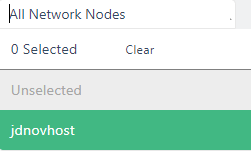
If you are viewing the results of an ecosystem type form, you will have the possibility to filter by node.

Select the specific node or all network nodes.
Below the graphic you will see the View Details button where you can find specific information from the current form, such as: Email, Responses, Status and Date.
You will also see an export button that allows you to download the current survey information in PDF format.
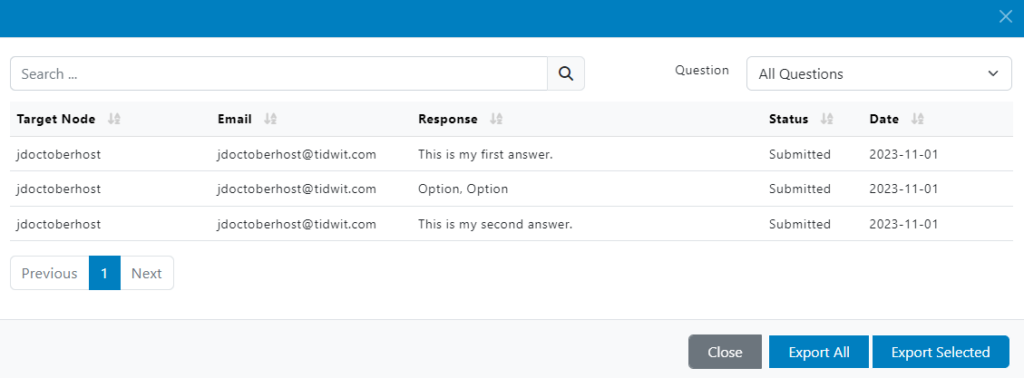
At the bottom right, next to the Close button, you will find two options to export the information in Excel or CSV format.

View Form Url
The last option allows you to get the direct link to the form so you can share it with other users.
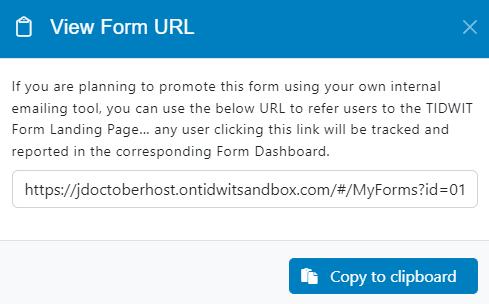
Click on the Copy to clipboard button.
Forms & Surveys Filters
The Forms & Surveys module now features an Advanced Filtering Sidebar. This tool enables administrators to sort through forms and surveys using specific criteria.
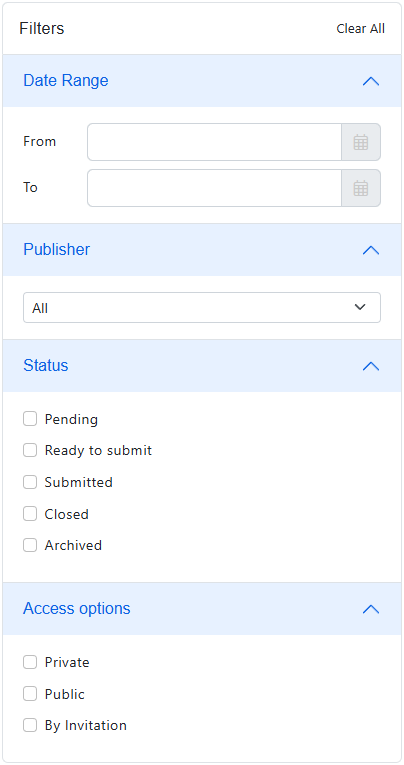
Date Range
Isolate forms or surveys based on their creation or activity timeline.
- From: Define the start date of the search period.
- To: Define the end date of the search period.
Publisher
Filter the list by the content provider.
- Use the dropdown menu to select a specific publisher or keep the default “All” selection to view forms from the entire ecosystem.
Status
Refine the results based on the current workflow stage of the form. Select the applicable checkboxes to create a custom view:
- Pending: Forms that are currently in progress or have not yet been finalized.
- Ready to submit: Forms that are finalized and awaiting the final submission action.
- Submitted: Active forms that have been successfully processed or sent.
- Closed: Forms that are no longer accepting new responses or have concluded their lifecycle.
- Archived: Forms removed from the active view for record-keeping purposes.
Access Options
Filter items based on their visibility and permission settings:
- Private: Forms visible only to the creator or internal administrators.
- Public: Forms accessible to the general user base without restriction.
- By Invitation: Restricted forms that require a specific user invitation to access.
Global Controls
- Clear All: Located at the top right of the filter header, this function instantly resets all selected criteria to the default state.