
The “Moderate discussions and comments” section allows platform administrators or moderators to manage user-generated posts in different libraries, content items, or integrated learning paths. This centralized interface ensures that all discussion activity related to published learning resources can be reviewed and moderated efficiently.
The interface is split into two main tabs:
- Moderate Discussions: Shows all original user posts.
- Moderate Comments: Displays user comments associated with those posts.
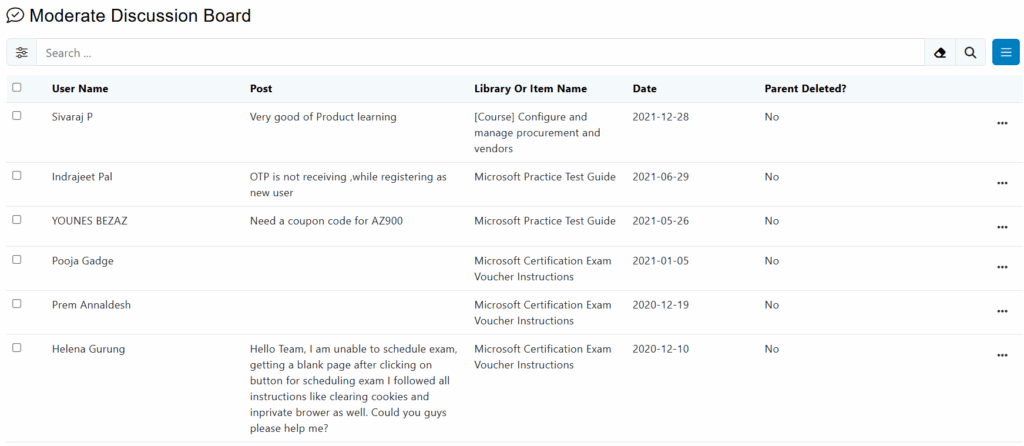
1. Search Bar and Filters
- The search bar at the top allows for real-time keyword filtering to quickly locate specific posts.
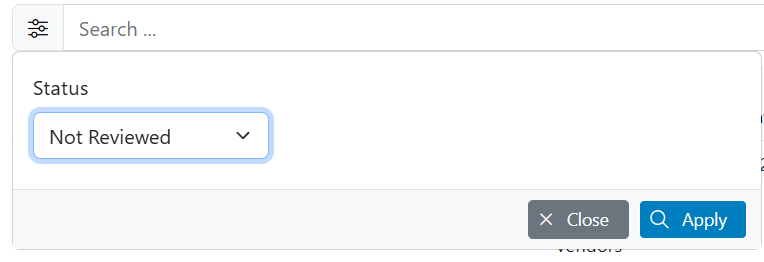
- The filter icon allows you to sort the information displayed in the table by status, which are Reviewed and Not Reviewed.
2. Quick Access Menu
The quick access menu provides moderators with direct management options for user posts. The available actions are:
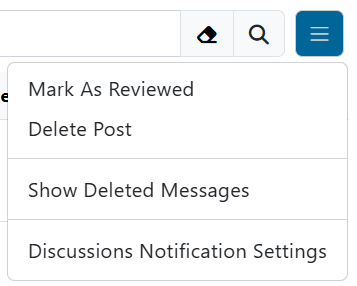
- Mark As Reviewed
Flags selected posts as “reviewed,” allowing moderators to track which items have already been evaluated. This helps maintain a clean moderation workflow and avoid duplicate reviews. - Delete Post
Permanently removes the selected post from the discussion board. Useful for handling inappropriate, irrelevant, or outdated content. - Show Deleted Messages
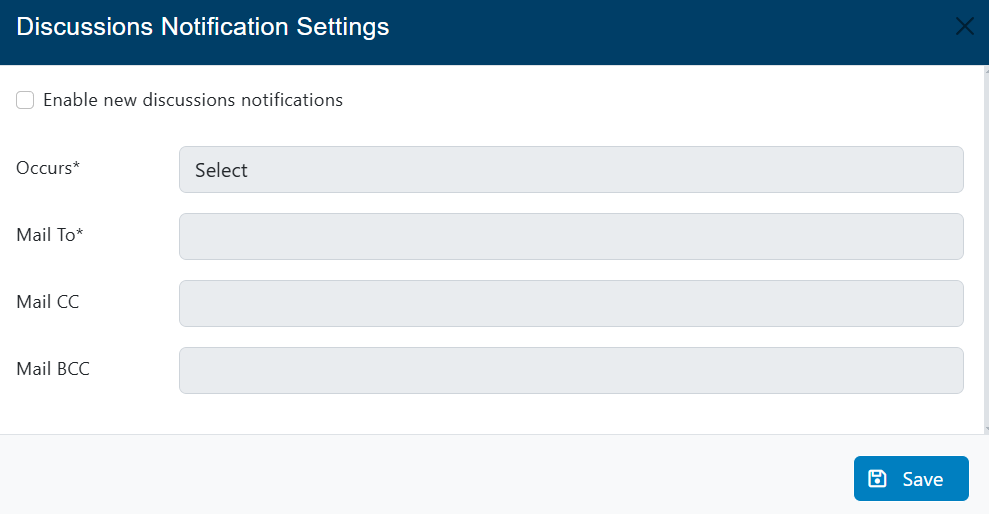
Enables visibility of posts that were previously deleted. This feature supports content auditing, accountability, or post recovery when necessary. - Discussions Notification Settings
Opens the configuration panel for managing discussion-related notifications. Moderators can adjust preferences to receive alerts for new posts, replies, flagged content, or other moderation-related events.
3. Three-dots Options
Each individual post or comment listed in the moderation table includes a three-dot menu (⋮) that provides specific moderation actions. These actions apply directly to the selected entry and are designed to facilitate efficient content management:
- Mark As Reviewed
Marks the comment or post as reviewed, signaling that no further moderation action is required. This helps moderators track progress. - Reply
Opens a reply field or redirect to a discussion interface, allowing moderators or administrators to respond directly to the user’s comment or question. Useful for engagement, clarification, or support. - View Comment/Post
Provides direct access to the post or comment within its original discussion context. This allows the moderator to review the content in detail and, if needed, reply to it immediately. - Delete Comment/Post
Permanently removes the comment or post from the discussion thread. This action is used to eliminate inappropriate, spam, or off-topic content and helps maintain a constructive and respectful learning environment.