Local Email Blast
Note: Email Blast campaigns will allow you to send a simple email to your target audience, without any learning assignment attached to it. It can be useful to promote events, provide support and guidance, communicate important information, drive platform adoption etc.
To ceate a new blast campaign, click on the [+] plus button on the upper right corner of the screen then click on New Email Blast. A modal will be displayed.
Fill in the required information.
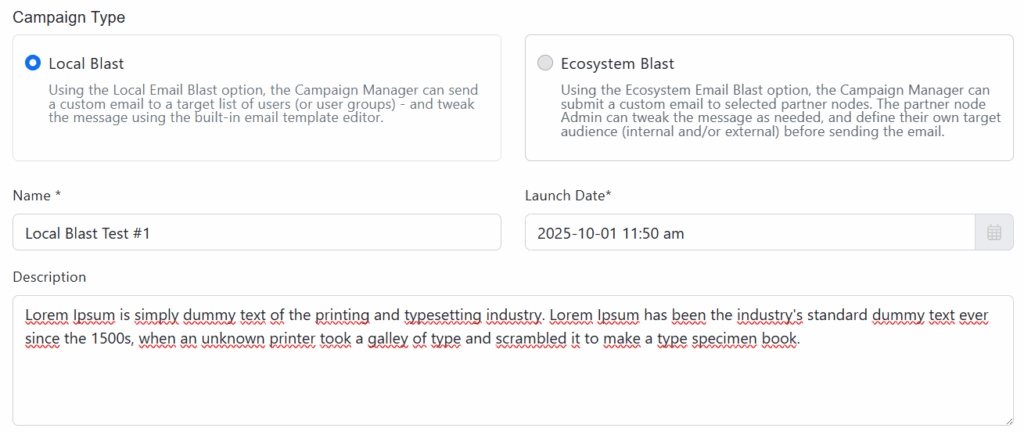
- Campaign Type: Choose Local Blast from the drop-down menu (this option allows you to send a custom email to a target list of users (or user groups) – and tweak the message using the built-in email template editor.).
- Write the name you want to give the campaign.
- Write a description for the campaign (optional).
- Select the Launch Date, to define when the user shall be notified – until then, the campaign status will show as “Scheduled to launch…”
- Select the Close Date when the system will stop tracking the campaign.
In the drop-down menus select the templates for the Launch email and for the Reminder email. Then click on Save. Email templates can be created and edited separately using the “Email Templates” application (refer to the corresponding user guide).

Click on the Save button.
Audience tab
In this tab you can define the different conditions, users or groups of users that will be able to access the campaign.
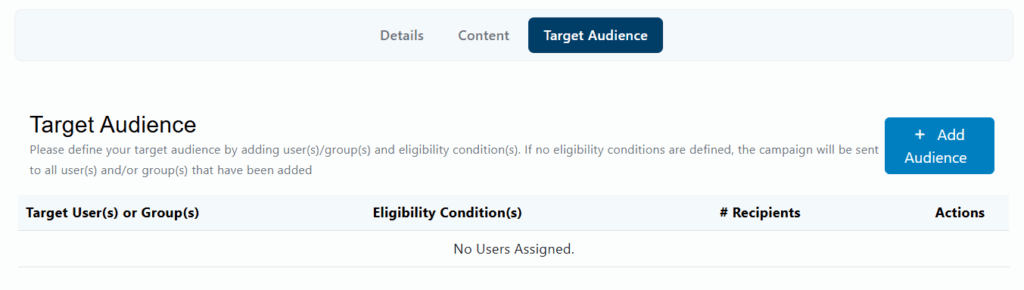
Set Audience
- All Users Elegible: The campaign will be sent to all users and will be accessible for everyone.
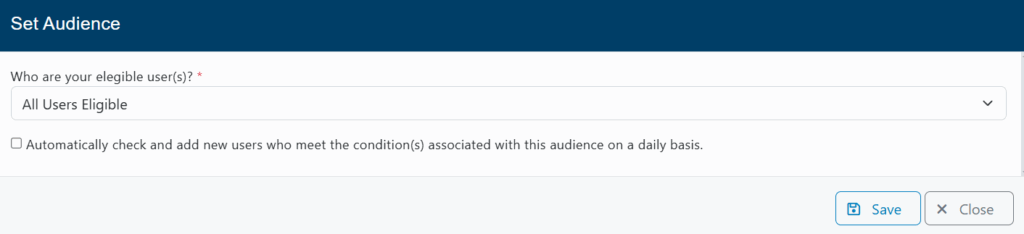
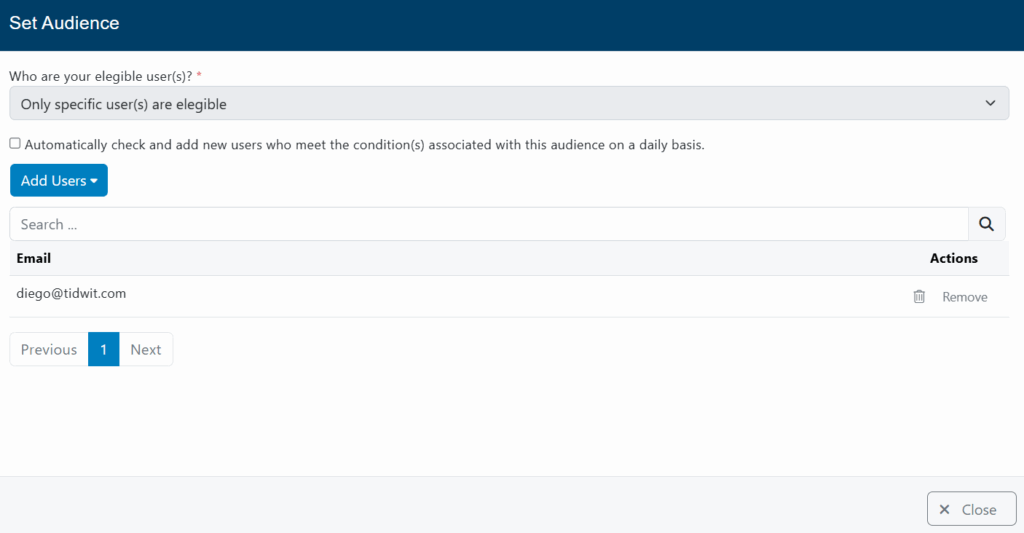
- Only specific user(s) are elegible: The campaign will be sent to all users and can be accessed by selected users.
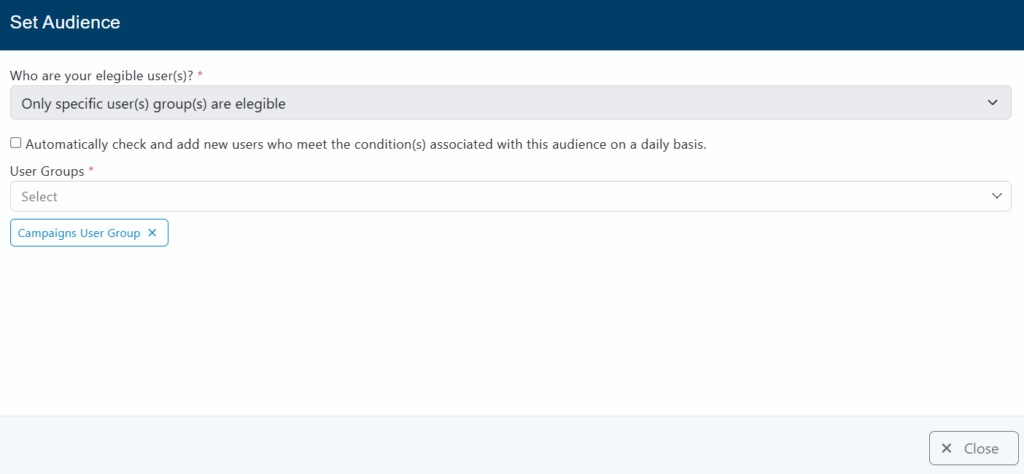
- Only specific user(s) group(s) are elegible: The campaign will be sent to all users and can be accessed by selected user groups.
Conditions
Send the campaign to users who meet specific conditions:

Click on the + Add Condition(s) link and a new modal will be displayed.
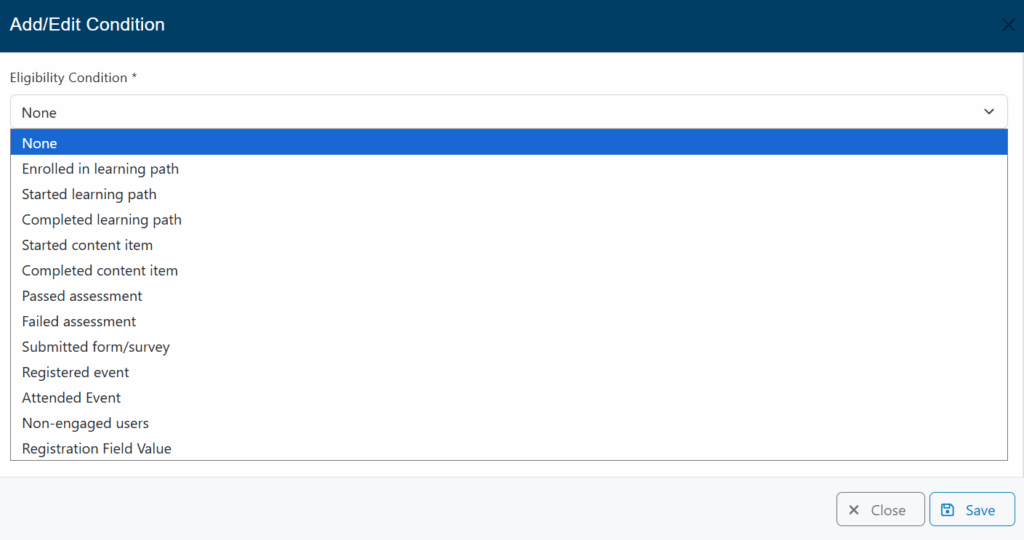
Select the condition and the required asset for the campaign.
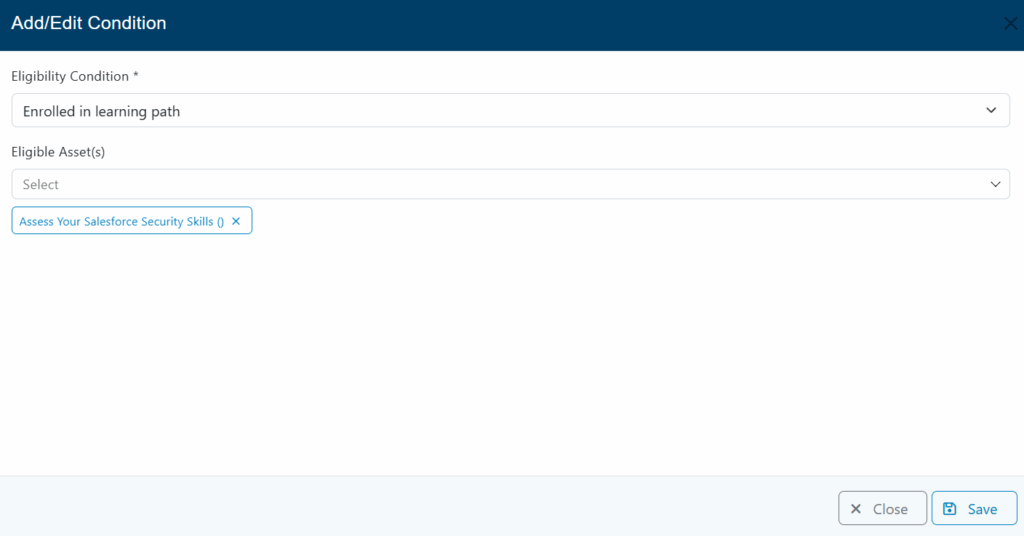
After selecting the condition and eligible users, click Save and the campaign will be ready to launch.
Send Test Email
To test your learning campaign before launching. return to the Details tab and scroll down to the Send Test Email button.
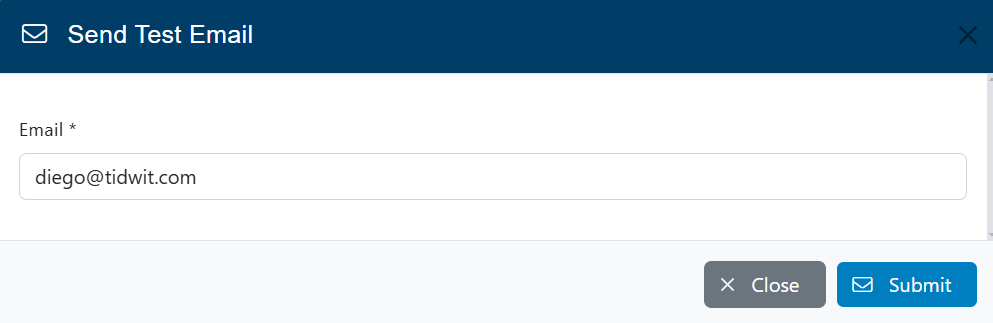
Type the email address where you want to send the Test Email and click on Submit.
Verify that you have received the test email as it should be.
Launch the Campaign
Click the Launch button and confirm.
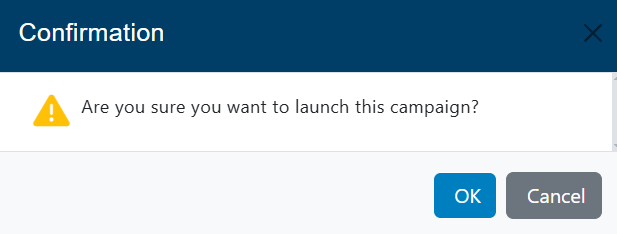
The campaign will now be activated and the users will be notified (via email and messaging center) according to the selected launch date.
Ecosystem Email Blast
Ecosystem email blast have the same properties as the local emial blast described above. The main and most important difference is that this type “push” the campaign to one or multiple partner nodes downstream and each downstream node can then launch the campaign to their own internal target audience.
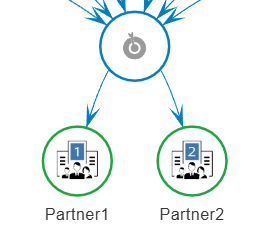
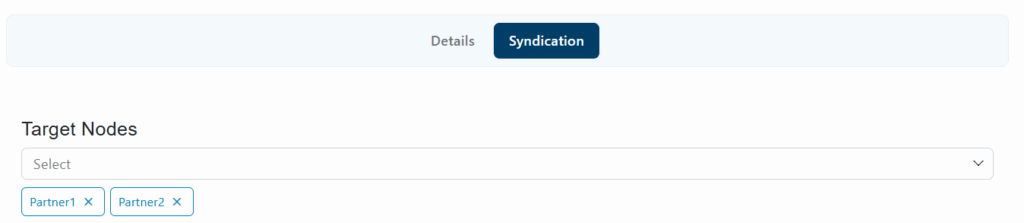
The Syndication tab will be enabled, where you can select one or more sub-nodes to launch the campaign.
Select the nodes you will send the campaign to. (Nodes should have been added before, check the Ecosystem Orchestration documentation).