
Role: Administrator
Objective: Review contact profiles, conversation history, actions, and contact filters.
The Contacts submodule is the directory of every user who has interacted with the agents of the node. From there administrators can browse contact profiles, review their conversation history and manage their records.
3.1 Main Page
Click on Contacts in the Omnichannel Connect menu to open the directory. The page shares the same toolbar pattern as the Conversations module: Filters, search bar and Search button.
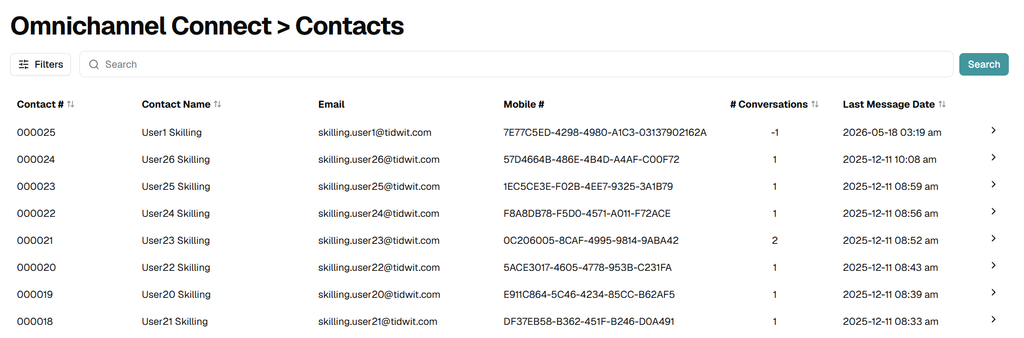
Image 7. Contacts main page.
The table provides the following columns:
- Contact # — sequential internal identifier of the contact.
- Contact Name — display name of the user.
- Email — email address associated with the contact.
- Mobile # — mobile number or external channel identifier (for example, the channel-specific user UUID).
- # Conversations — total number of conversations the contact has had with the agents of the node.
- Last Message Date — timestamp of the most recent interaction.
Click the chevron icon on the right of any row to expand the contact profile.
3.2 Contact Profile (Expanded Row)
The expanded row shows the contact card with avatar, name, email and external identifier, followed by three quick statistics: # Conversations, First Conversation and Last Conversation. Below them, a nested table lists every conversation that the contact has had:
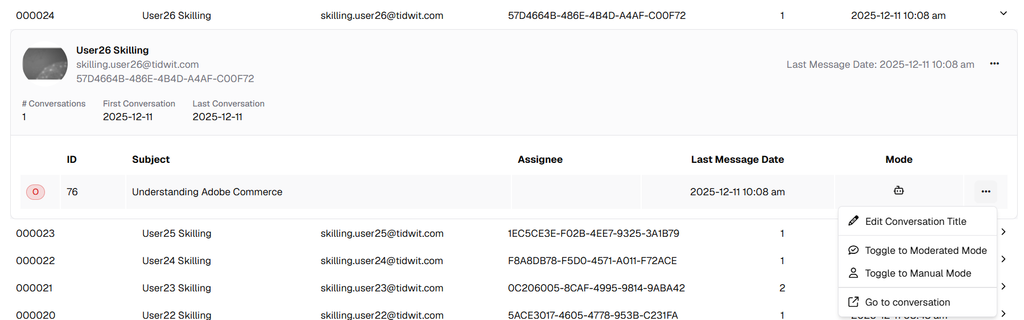
Image 8. Contact profile expanded, with its conversation history.
The conversation row inside the contact profile exposes a three-dots menu with administrative actions for that specific conversation:
- Edit Conversation Title — renames the conversation.
- Toggle to Moderated Mode — switches the conversation to Moderated mode: AI responses must be reviewed and approved by an administrator before being delivered.
- Toggle to Manual Mode — disables the AI agent and lets the administrator take full control of the conversation.
- Go to conversation — navigates to the full conversation view (same as clicking the row in the Conversations module).
3.3 Contact Actions Menu
The three-dots icon on the contact card header opens the contact-level actions menu:

Image 9. Contact actions menu.
- Delete Contact — permanently removes the contact and every associated conversation from the node. Use with caution: the action cannot be undone.
3.4 Filters
Click the Filters button to narrow down the list of contacts:
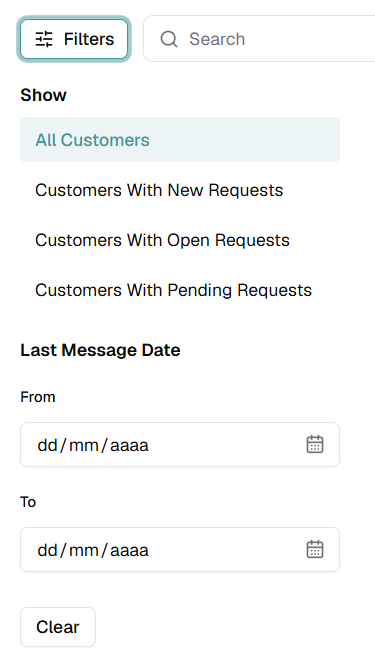
Image 10. Contacts filter panel.
Show
- All Customers — every contact registered on the node.
- Customers With New Requests — contacts that have opened a new request not yet attended.
- Customers With Open Requests — contacts with at least one conversation in Open status.
- Customers With Pending Requests — contacts with at least one conversation in Pending status.
Last Message Date
Restrict the list to contacts whose last message falls inside the From / To date range.