
Role: Administrator
Objective: Configure conversation and task defaults, integrations, emails, custom fields, Ticket Types, and Ticket Triggers.
The Settings submodule is the configuration area of Omnichannel Connect. The current interface is organized into seven tabs: General Conversations, General Task, Integrations, Emails, Custom Fields, Ticket Types and Ticket Triggers. These tabs control conversation and task defaults, integrations, email behavior, custom data, ticket structures and automation rules.
4.1 General Conversations Tab
General Conversations contains the node-level defaults that govern conversation behavior. This tab is part of the current Settings navigation. Its detailed controls are not included in the screenshot set supplied for this update.
4.2 General Task Tab
General Task defines how internal tasks are identified and which email templates are used for task notifications.
Task Reference Number
Configure the label and numbering pattern used for task references:
- Custom name — label displayed next to the task reference number.
- Reference number format — pattern used to generate the reference. Insert {CONSECUTIVE} where the sequential number should appear.
Email Templates
Select the templates used for the main task events:
- Agent: Conversation – New Task Assigned — sent when a task is assigned to an agent.
- Agent: Conversation – New Task Reply — sent when a reply is added to a task.
- Agent: Conversation – Task Closed — sent when a task is closed.
Click Save to apply the General Task configuration.
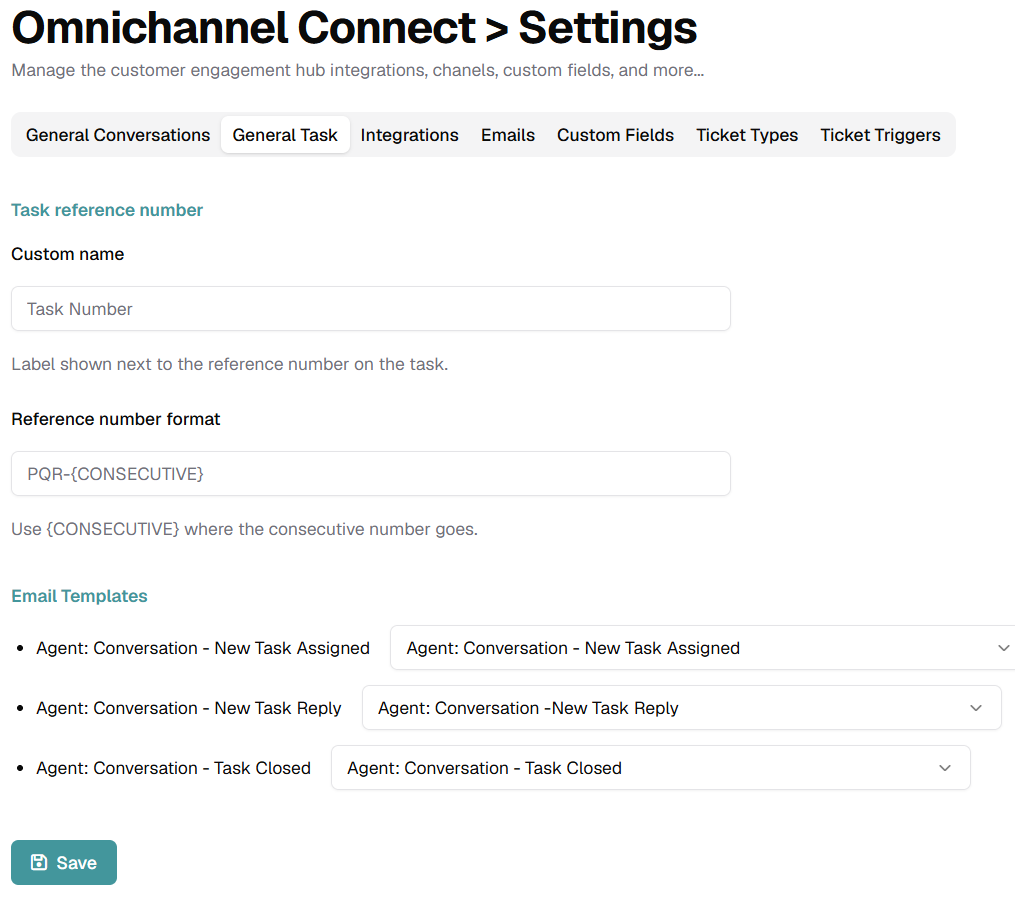
Image 14. General Task settings for task references and notification templates.
4.3 Integrations Tab
Manages the AI agents and the communication channels that feed Omnichannel Connect. The tab is split in two sections:
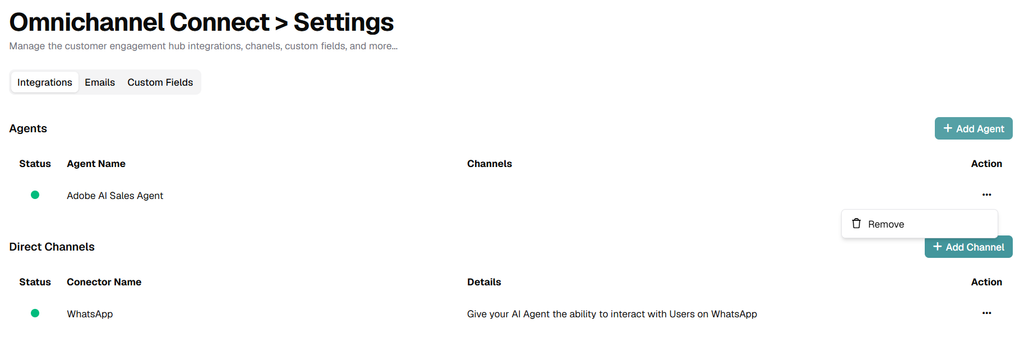
Image 15. Integrations tab of Omnichannel Connect Settings.
Agents
Lists every AI agent that has been connected to Omnichannel Connect. Each row shows the agent Status (green dot for active), the Agent Name, the Channels in which it operates and an actions menu. Use the + Add Agent button on the right to connect an additional agent; use the Remove option from the three-dots menu to disconnect one.
Direct Channels
Lists the communication channels enabled at node level for direct interaction with users (independently from the AI agents). Each row shows the channel Status, the Connector Name (for example, WhatsApp), the Details and the actions menu. Use + Add Channel to enable a new channel.
4.4 Emails Tab
Defines the default email behavior used to reply to messages received from email-based channels (Gmail, Microsoft Exchange, etc.).
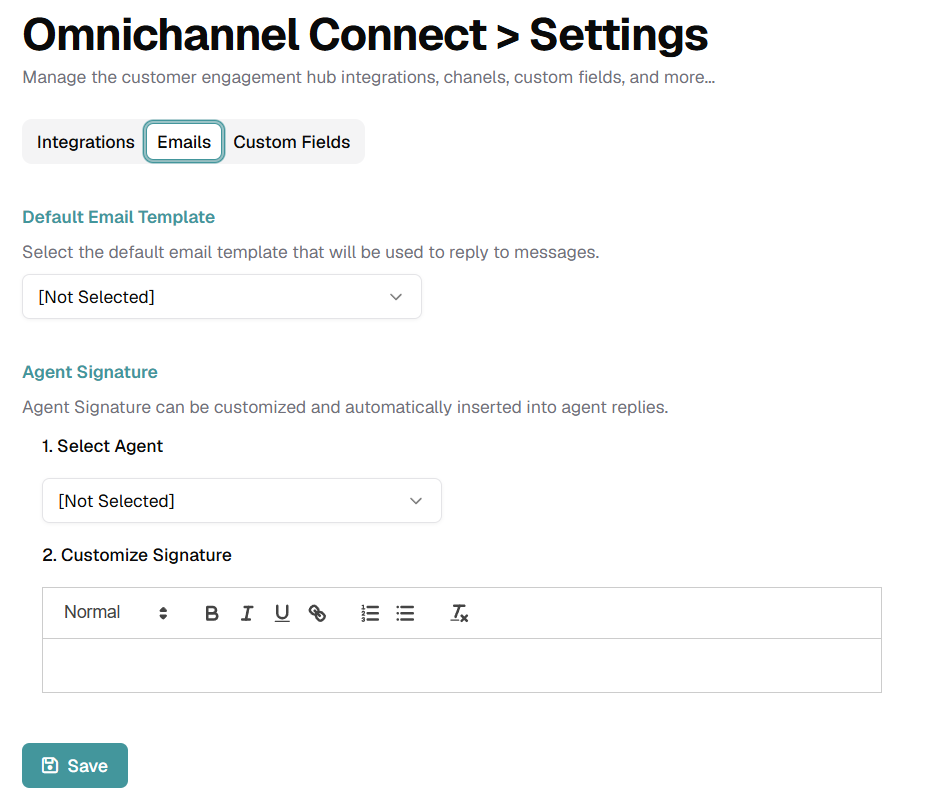
Image 16. Emails tab of Omnichannel Connect Settings.
Default Email Template
Dropdown that selects the email template that will be used by default to reply to incoming messages. Templates are created from the node’s template library; the default value is [Not Selected], which forces administrators to choose a template before replying.
Agent Signature
Allows administrators to customize a signature that will be automatically appended to the replies of each agent. The configuration follows two steps:
- Select Agent — dropdown that picks the agent whose signature you want to edit.
- Customize Signature — rich-text editor with basic formatting tools (paragraph styles, bold, italic, underline, links, ordered and unordered lists, clear formatting) to compose the signature block.
Click Save at the bottom of the page to persist the changes.
4.5 Custom Fields Tab
Extends the data model of Omnichannel Connect with additional fields specific to your business. The tab manages two independent groups of fields: Conversation Custom Fields and Contact Custom Fields.
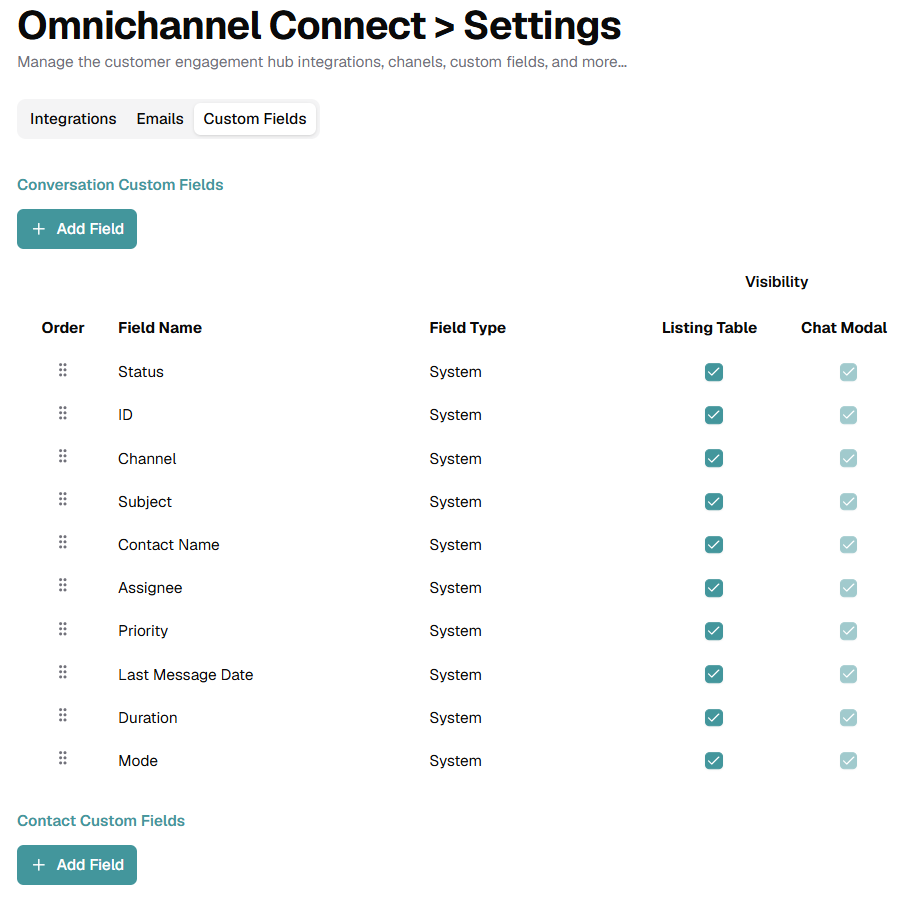
Image 17. Custom Fields tab of Omnichannel Connect Settings.
Both groups share the same table layout, with the following columns:
- Order — drag handle that lets you reorder the fields by drag-and-drop. The order defined here controls how the fields are displayed in the listings and in the chat modal.
- Field Name — internal name of the field.
- Field Type — either System (fields that come built-in with the platform, such as Status, ID, Channel, Subject, Contact Name, etc.) or Custom (fields created by the administrator).
- Visibility — Listing Table — controls whether the field is shown as a column in the main listing.
- Visibility — Chat Modal — controls whether the field is shown inside the conversation view.
Click + Add Field on the right side of each group to create a new custom field. System fields cannot be deleted, but their visibility can be toggled on or off.
4.6 Ticket Types Tab
Ticket Types define the structures used to classify requests in Omnichannel Connect. Each type can have its own lifecycle states and custom fields.
The main page provides Filters, Search and Add controls. The table includes:
- Type — name of the Ticket Type.
- Status — whether the Ticket Type is currently active.
- States — number of states configured for the type.
- Custom Fields — custom field or fields associated with the type.
- # Requests — number of requests created with the Ticket Type.
- Last Request Date — date of the most recent request using the type.
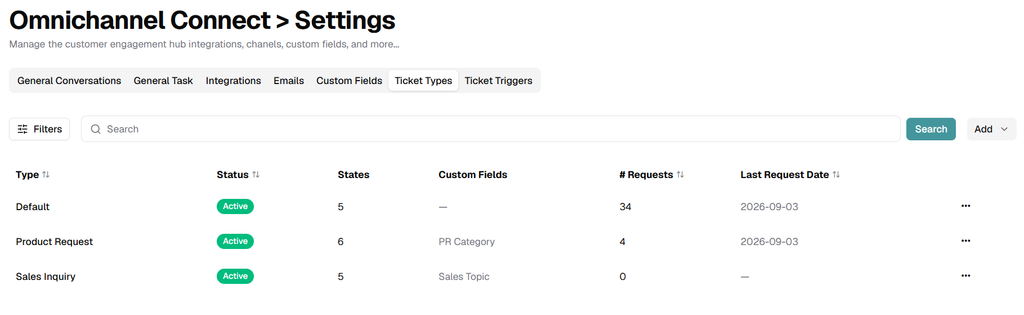
Image 18. Ticket Types main page with search, filters and request metrics.
Ticket Type Details
Open a Ticket Type to configure its core information. The Details tab displays the Ticket Type Name and an optional Description.
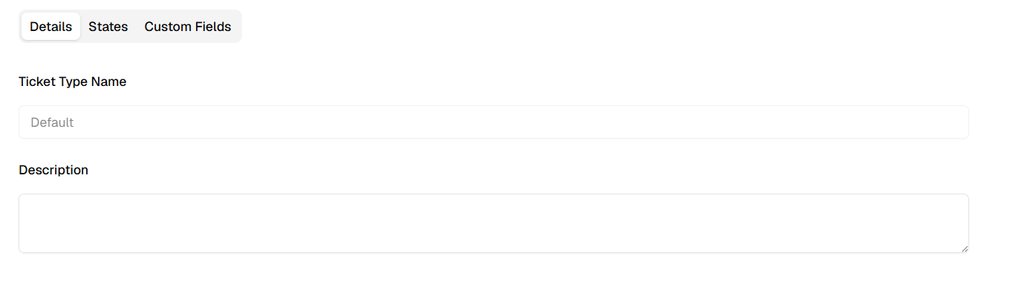
Image 19. Ticket Type Details tab.
Ticket Type States
Use the States tab to define which lifecycle states are available for the Ticket Type. The current interface includes New, Open, On-Hold, Pending, Solved and Closed.
Turn a state on to make it available for tickets of that type. Turn it off when the state should not be used in that workflow.
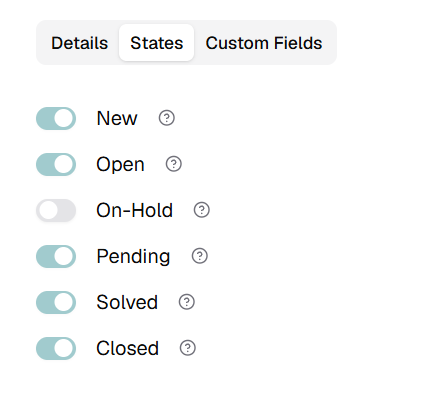
Image 20. Ticket Type States tab with lifecycle state toggles.
Ticket Type Custom Fields
Use Custom Fields to control which configured fields apply to the Ticket Type.
- Drag the handle to reorder the fields.
- Select Visible to display a field for this Ticket Type.
- Select Required when users must provide a value for the field.
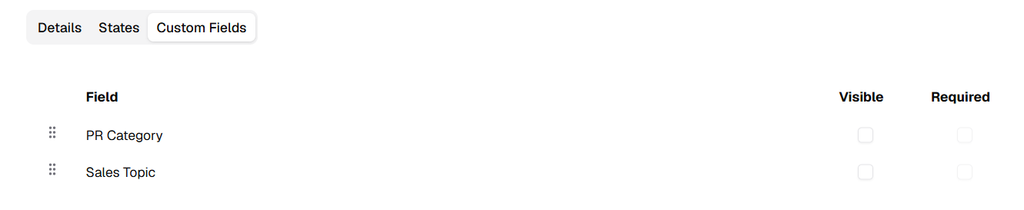
Image 21. Ticket Type Custom Fields tab with Visible and Required controls.
4.7 Ticket Triggers Tab
Ticket Triggers automate ticket and task workflows by evaluating configured conditions and executing one or more actions when those conditions are satisfied.
Use Filters to narrow the list by Inactive, Active or Deactivated status. Use Search to locate a trigger by name. The table displays the trigger Name, Description and Status.
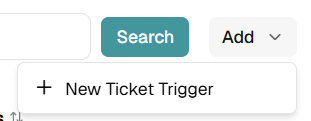
Click Add and select New Ticket Trigger to begin creating an automation rule.
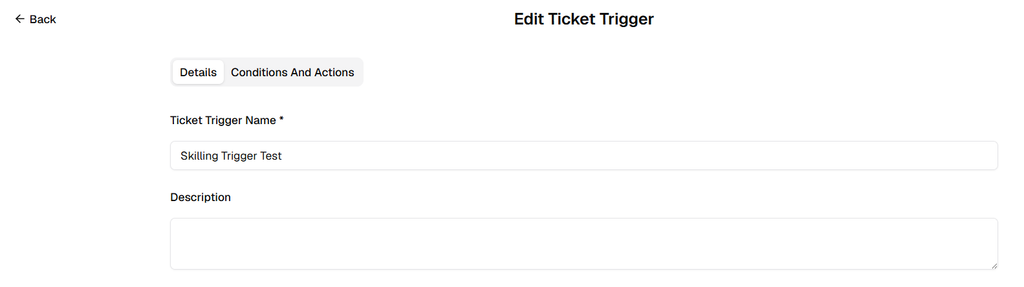
Create a Ticket Trigger
Details
Use Details to identify the trigger and document its purpose before defining the automation logic.
- Ticket Trigger Name — enter a clear, descriptive name that explains what the automation is designed to do.
- Description — add optional context describing the business purpose, expected behavior or scope of the trigger.
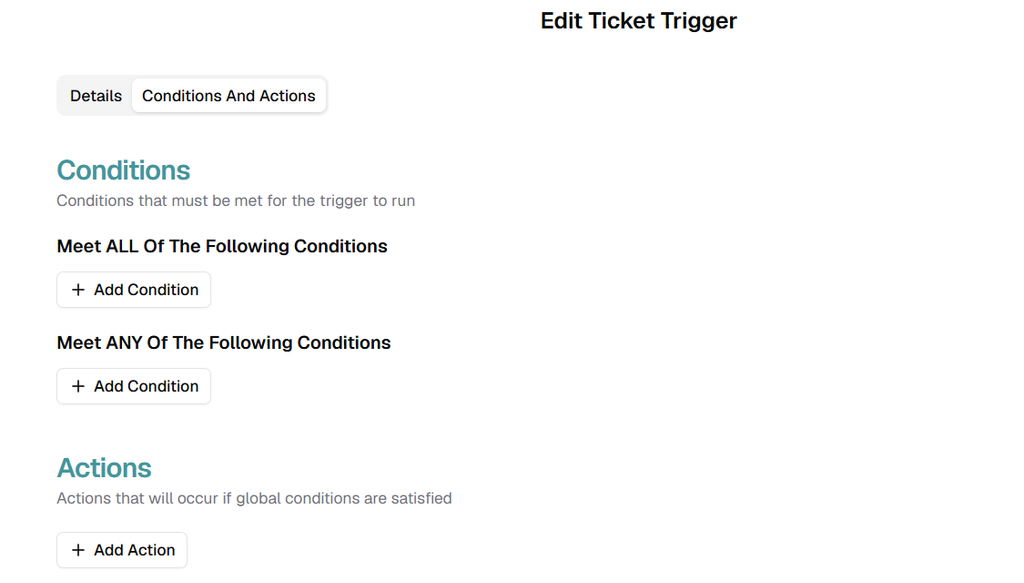
Conditions And Actions
Open Conditions And Actions to define when the trigger runs and what it should do.
The rule builder separates conditions into two logical groups:
- Meet ALL Of The Following Conditions — every condition in this group must be satisfied.
- Meet ANY Of The Following Conditions — at least one condition in this group must be satisfied.
When both groups are configured, the trigger evaluates the ALL group together with the ANY group before the configured actions are executed.
Use Add Condition under the required group to create another condition. Use Add Action to define the action that runs after the global conditions are satisfied.
Configure a Condition
Each condition is built from three parts: Category, Operator and Value.
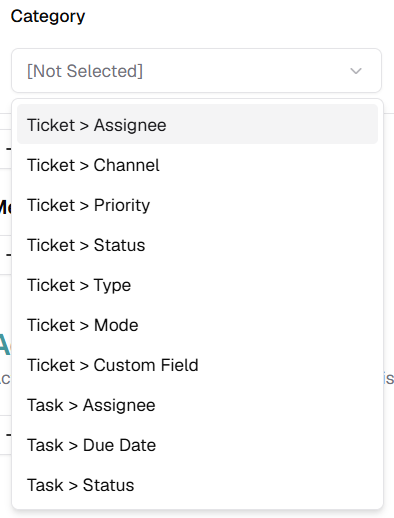
Category
Select Category to choose the ticket or task attribute that the trigger will evaluate. The current interface includes:
- Ticket > Assignee
- Ticket > Channel
- Ticket > Priority
- Ticket > Status
- Ticket > Type
- Ticket > Mode
- Ticket > Custom Field
- Task > Assignee
- Task > Due Date
- Task > Status
Operator
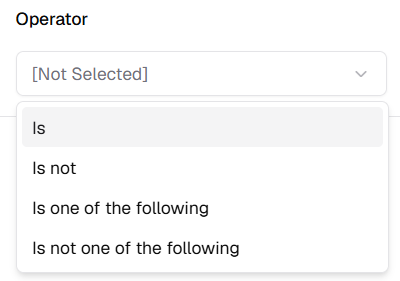
Select Operator to define how the category is compared with the condition value.
- Is — the attribute must match the selected value.
- Is not — the attribute must not match the selected value.
- Is one of the following — the attribute may match any selected value.
- Is not one of the following — the attribute must not match any selected value.
Value
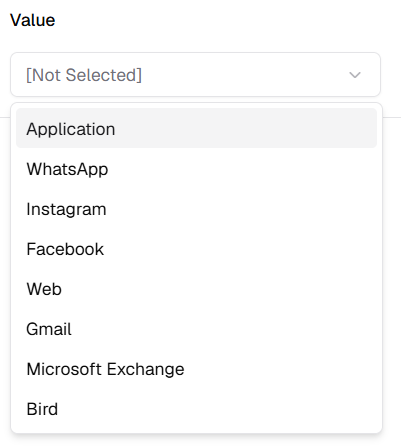
Select Value to choose the value that will be evaluated. The available values depend entirely on the selected Category. There is no universal value list: each category loads its own valid options.
For example, when Category is Ticket > Channel, the current interface includes:
- Application
- Web
- Gmail
- Microsoft Exchange
- Bird
Actions
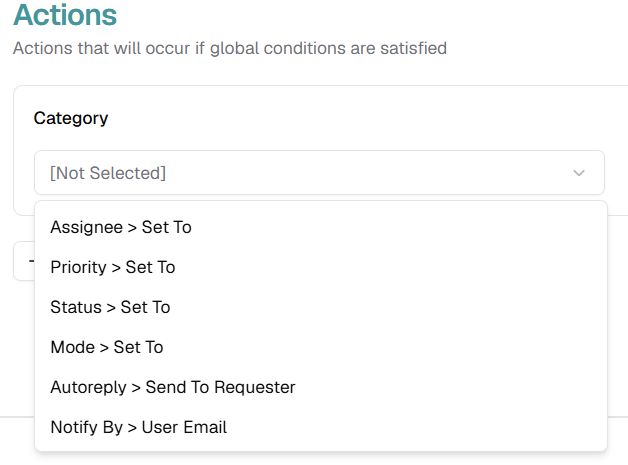
Use Add Action to configure what the platform should execute when the trigger conditions are satisfied.
Like conditions, actions are category-driven. After selecting an action Category, the platform loads the corresponding Value options for that category. This means the values available for both conditions and actions depend entirely on the category selected and on the options currently configured in the node.
The current Add Action categories visible in the interface are:
- Assignee > Set To
- Priority > Set To
- Status > Set To
- Mode > Set To
- Autoreply > Send To Requester
- Notify By > User Email
For example, if the category is Assignee > Set To, the Value field displays the available assignees. If the category is Priority > Set To, it displays the available priorities. The same logic applies across the action builder: the value list is always generated from the selected category rather than from a single shared list.
Trigger Design Recommendations
- Use descriptive trigger names so administrators can understand the automation without opening it.
- Prefer the ALL group when every requirement is mandatory. Use the ANY group for acceptable alternatives.
- Keep condition sets specific enough to avoid running an automation on unintended tickets or tasks.
- Review Ticket Types, custom fields and task settings before building rules that depend on those attributes.
- Validate channel-specific rules carefully when the same node receives requests from multiple channels.