
Role: Administrator
Objective: Analyze engagement, ticket distribution, response times, and resolution performance.
The Reports submodule consolidates the analytics of Omnichannel Connect into the Omnichannel Conversation Reports dashboard. The header shows the last refresh date of the data and exposes the global filters that apply to every section of the dashboard.
5.1 Dashboard Header and Filters
At the top of the dashboard you will find:
- Last Refresh Date — timestamp of the last data refresh.
- Date selector — predefined ranges (such as All Time) or a custom range defined with the From / To pickers. Click Go! to apply the range.
- Channel filter — narrows the data to a specific channel or to All Channels.
- User Agents filter — narrows the data to a specific human agent or to All User Agents.
- Priority filter — narrows the data by Low, Normal or High priority.
5.2 AI vs Human Engagement
First report of the dashboard. It compares the volume of responses submitted by AI agents against those submitted by human agents over the selected period.
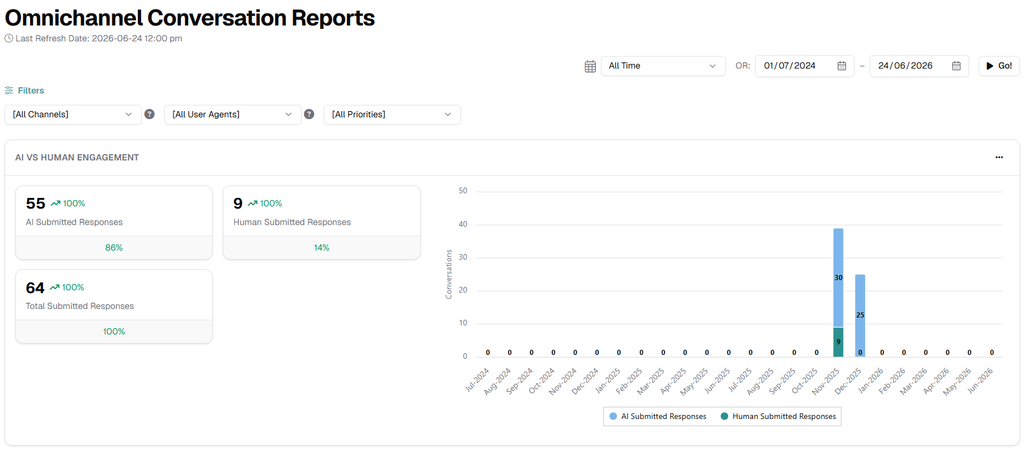
Image 23. AI vs Human Engagement report.
The KPI cards on the left summarize:
- AI Submitted Responses — absolute number of responses delivered by the AI agents, with the percentage variation compared to the previous period.
- Human Submitted Responses — absolute number of responses delivered by human agents and percentage variation.
- Total Submitted Responses — sum of both, with the percentage of the total represented by each source (for example, 86 % AI versus 14 % Human).
The stacked bar chart on the right plots the monthly distribution of AI versus Human responses, making it easy to detect adoption trends and seasonality.
5.3 Tickets by Agent and by Status
Two donut charts that show how conversations are currently distributed:
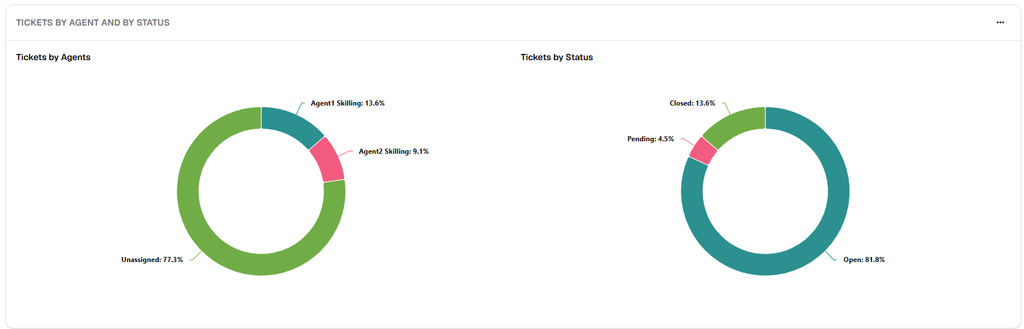
Image 24. Tickets by Agent and by Status.
- Tickets by Agents — share of conversations handled by each human agent, plus the share of conversations still unassigned. Use it to balance workloads across the support team.
- Tickets by Status — share of conversations in Open, Pending and Closed status. Use it to monitor the overall health of the queue.
5.4 Tickets by Day and Hour
Two bar charts that explore the temporal distribution of incoming conversations:
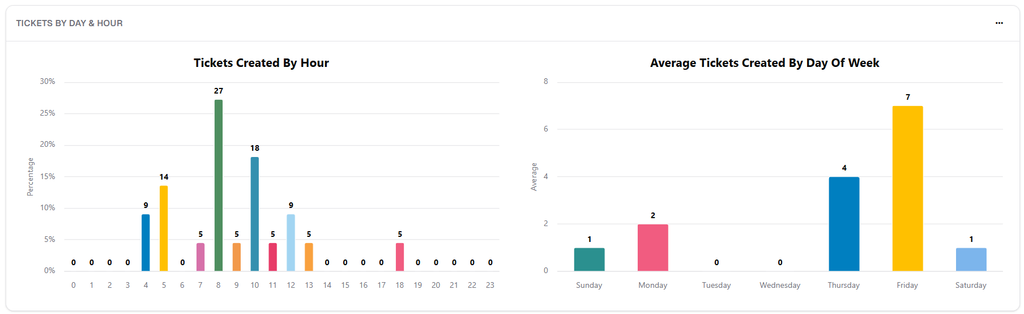
Image 25. Tickets by Day and Hour.
- Tickets Created By Hour — percentage of tickets created in each hour of the day (0 to 23). Use it to identify peak hours and to size on-call rotations.
- Average Tickets Created By Day Of Week — average number of tickets opened each day of the week. Use it to plan staffing for the busiest days.
5.5 Engagement Efficiency
Measures how quickly the team responds to and resolves conversations.
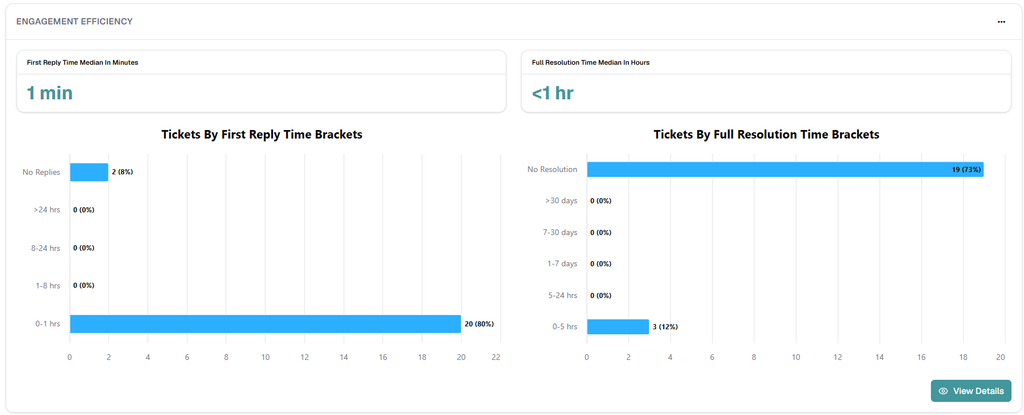
Image 26. Engagement Efficiency report.
The two KPI cards on the top show:
- First Reply Time Median In Minutes — median time between the first user message and the first agent reply, expressed in minutes.
- Full Resolution Time Median In Hours — median time between the opening and the closing of the conversation, expressed in hours.
Below the KPIs, two horizontal bar charts distribute the conversations across response-time brackets:
- Tickets By First Reply Time Brackets — groups conversations by how fast the first reply was sent (0–1 hrs, 1–8 hrs, 8–24 hrs, > 24 hrs, No Replies).
- Tickets By Full Resolution Time Brackets — groups conversations by how long they took to close (0–5 hrs, 5–24 hrs, 1–7 days, 7–30 days, > 30 days, No Resolution).
Engagement Efficiency Details
Click the View Details button at the bottom right of the report to open the Engagement Efficiency Details modal, which lists every conversation that contributes to the metrics above.
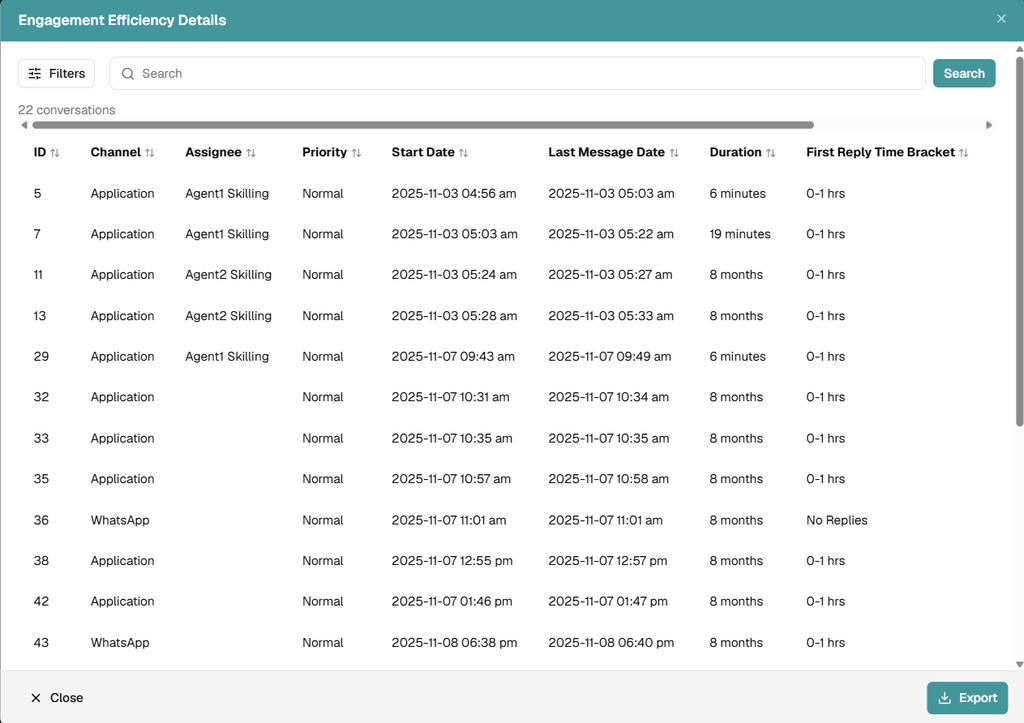
Image 27. Engagement Efficiency Details modal.
The modal includes Filters and Search controls on the top, a record counter (for example, 22 conversations), and a detailed table with the following columns: ID, Channel, Assignee, Priority, Start Date, Last Message Date, Duration and First Reply Time Bracket. Use the Export button at the bottom right to download the data, respecting the filters currently applied. Close dismisses the modal.