
Role: Administrator
Objective: Search, filter, open, manage, and collaborate on customer conversations.
The Conversations submodule is the inbox of Omnichannel Connect. It lists every conversation handled by the agents of the node and lets administrators search, filter, open and act on each one of them.
2.1 Main Page
Click on Conversations in the Omnichannel Connect menu to open the main listing. The page provides a search bar, a Filters button and a counter that shows how many items are currently selected out of the total visible records.
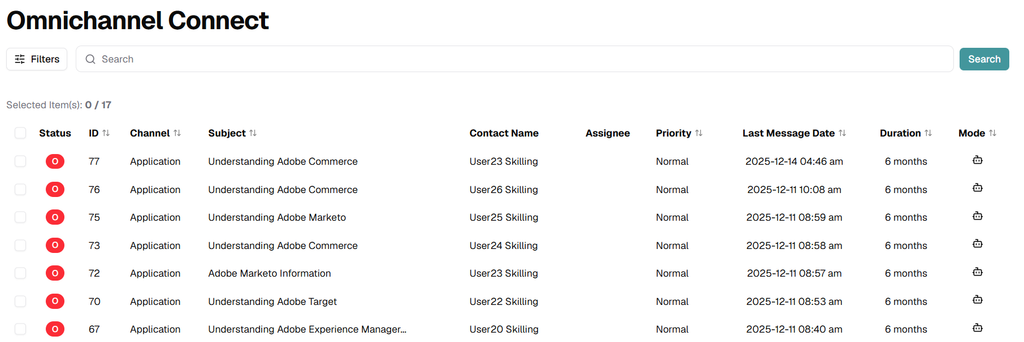
Image 2. Conversations main page.
The table includes the following columns by default:
- Status — current state of the conversation (for example, Open). The colored indicator reflects the status code.
- ID — unique identifier of the conversation, used to locate it in reports and external tools.
- Channel — channel where the conversation took place (Application, WhatsApp, Instagram, etc.).
- Subject — topic or first message that summarizes the conversation.
- Contact Name — user who started the conversation.
- Assignee — agent currently responsible for the conversation. Empty when the conversation is unassigned.
- Priority — Low, Normal or High.
- Last Message Date — timestamp of the most recent message exchanged.
- Duration — time elapsed since the conversation was opened.
- Mode — indicates whether the conversation is being handled in AI, Moderated or Manual mode. The icon reflects the current mode.
Every column header includes a sort icon to reorder the table by that attribute.
2.2 Filters
Click the Filters button on the upper-left corner of the page to open the filter panel. The panel is organized in several sections that can be combined to narrow down the list. Use the Clear button at the bottom to reset every selection.
Conversation State
Restricts the list to a logical state of the conversation. Only one option can be selected at a time:
- All Unassigned Conversations — conversations that do not have an agent assigned yet.
- My Open Conversations — open conversations currently assigned to the logged-in user.
- All Open Conversations — every conversation in Open status, regardless of the assignee.
- Recently Closed Conversations — conversations recently moved to the Closed status.
- Pending Conversations — conversations waiting for additional input.
- All Conversations — no state restriction; shows everything.
Date Range
Use the From and To calendar pickers to limit the list to conversations whose last message falls within the selected window.
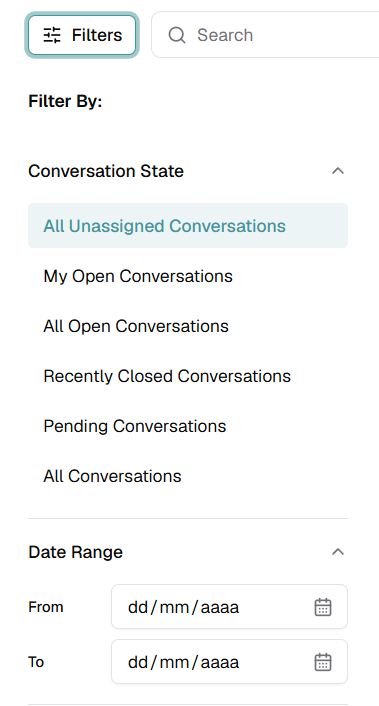
Image 3. Filters panel — Conversation State and Date Range sections.
Channels
Multi-select checkboxes that restrict the list to one or more channels. Available options: Application, WhatsApp, Instagram, Facebook, Web, Gmail and Microsoft Exchange.
Priority
Multi-select checkboxes for Low, Normal and High priority. Combine them to view, for example, every High-priority conversation across all channels.
Assignee
Multi-select list of the agents that can be assigned to conversations. Use the Show More link to expand the full agent list when many agents are configured on the node.
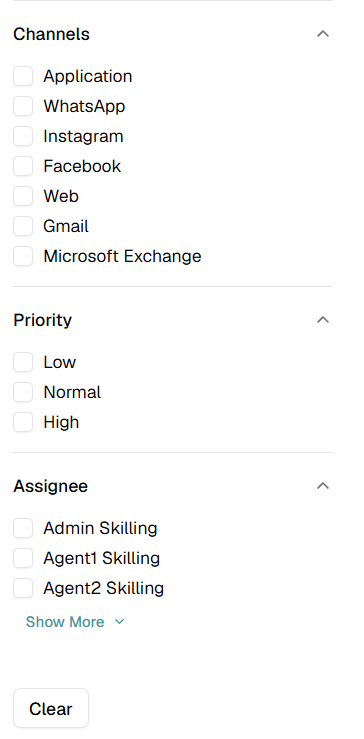
Image 4. Filters panel — Channels, Priority and Assignee sections.
2.3 Open Conversation View
Click any row in the conversations table to open the full conversation view. The workspace is divided into a Settings panel on the left and a ticket workspace on the right. The ticket workspace now includes three tabs: Conversation, Notes & Tasks and Attachments.
- Settings (left panel) — lets you change the operating Mode (AI, Moderated, Manual), the Priority (Low, Normal, High) and the Assigned Agent of the conversation. The Take it link assigns the conversation to the logged-in user with a single click.
- Conversation tab (right panel) — shows the ticket header, current status, message history, search control and the response actions available for the conversation.
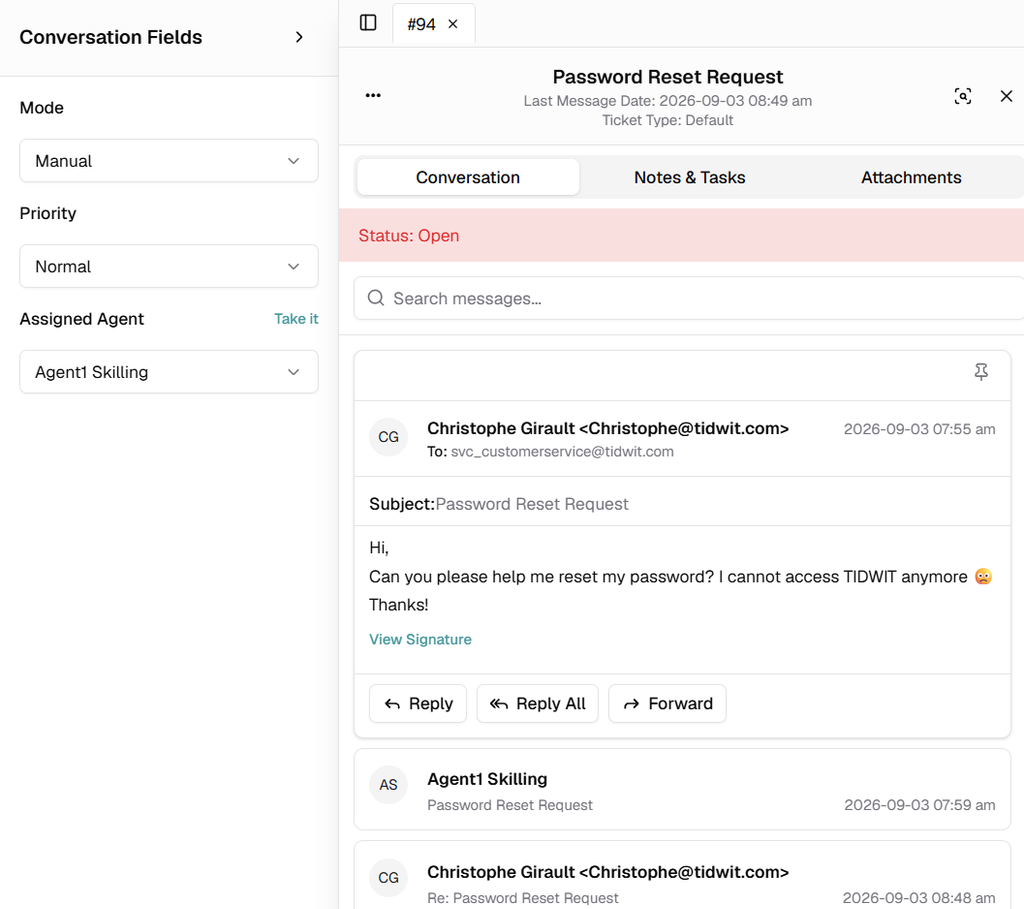
Image 5. Open conversation view with Conversation, Notes & Tasks and Attachments tabs.
The response area at the bottom of the thread accepts text, voice notes (microphone icon), images and emojis. To submit the response, use the Submit button on the bottom-right corner. The arrow next to the button opens a dropdown with three submission modes:
- Submit as Open — sends the response and keeps the conversation in Open status.
- Submit as Pending — sends the response and moves the conversation to Pending status, indicating that additional input is expected.
- Submit as Closed — sends the response and closes the conversation.
2.3.1 Notes & Tasks Tab
Open Notes & Tasks to create and track internal follow-up items associated with the current ticket. This area is separate from the customer-facing conversation thread.
Use Filters, Search and Date to locate existing notes or tasks. When no records exist, the page displays an empty-state message and the New Post composer remains available at the bottom.
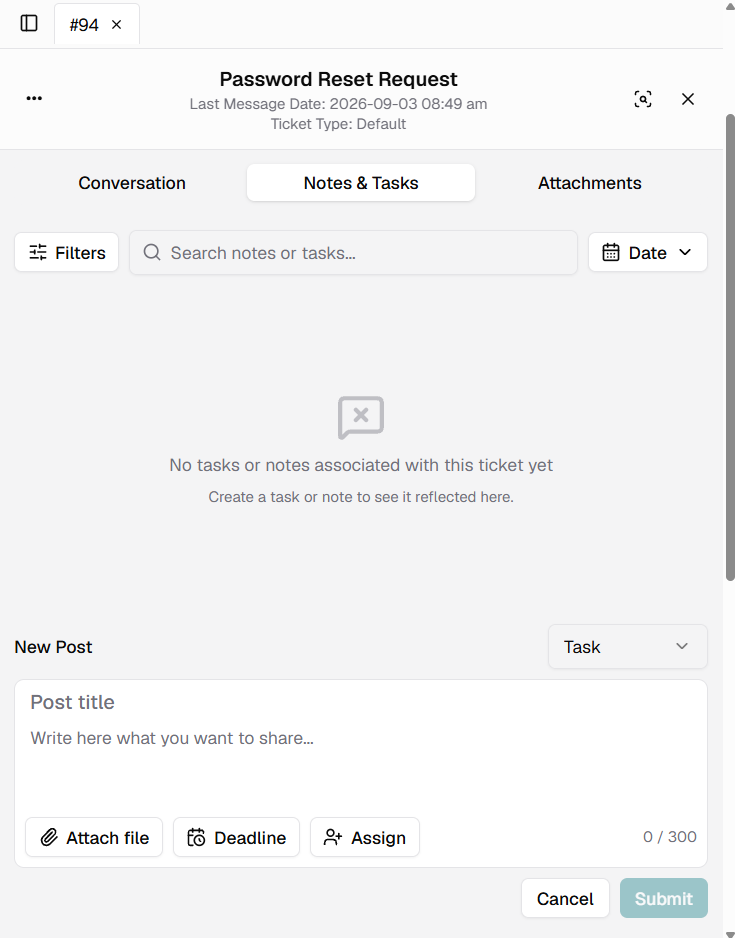
Image 6. Notes & Tasks tab with filters, search, date control and New Post composer.
To create a task or note:
- Select the post type from the dropdown in the New Post area.
- Enter a Post title and the message or instructions.
- Use Attach file when supporting material is required.
- For tasks, use Deadline to define a due date and Assign to select the responsible user.
- Click Submit to create the item, or Cancel to discard it.
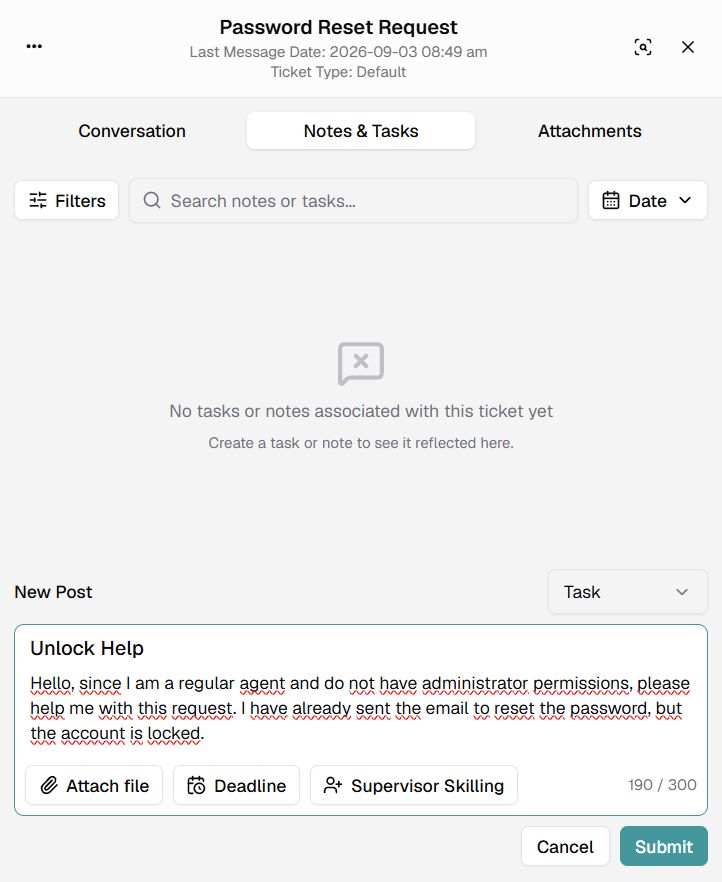
Image 7. New task example with title, instructions, deadline and assignee.
Created tasks appear in the Notes & Tasks timeline. Each task card can display its creation date, deadline, assignee, status, title and description. Use Reply when additional internal follow-up is required.
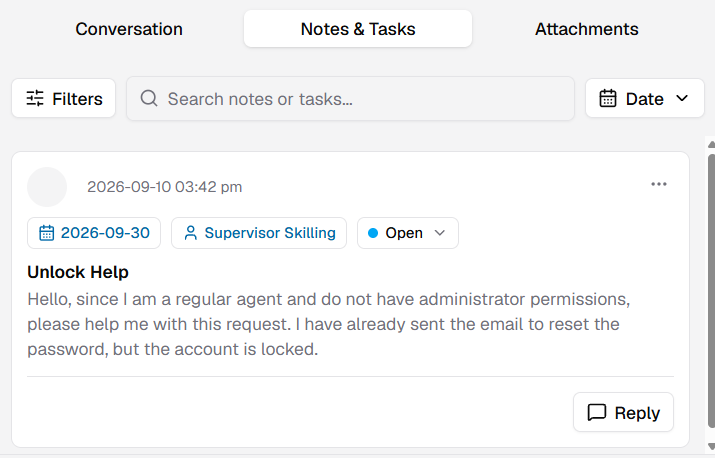
Image 8. Created task displayed in the Notes & Tasks timeline.
2.3.2 Attachments Tab
Open Attachments to review files and media associated with the ticket. The tab groups uploaded items in a single place so agents can reference supporting material without scanning the complete conversation history.
Each attachment card identifies the file and its source within the ticket, such as Conversation.
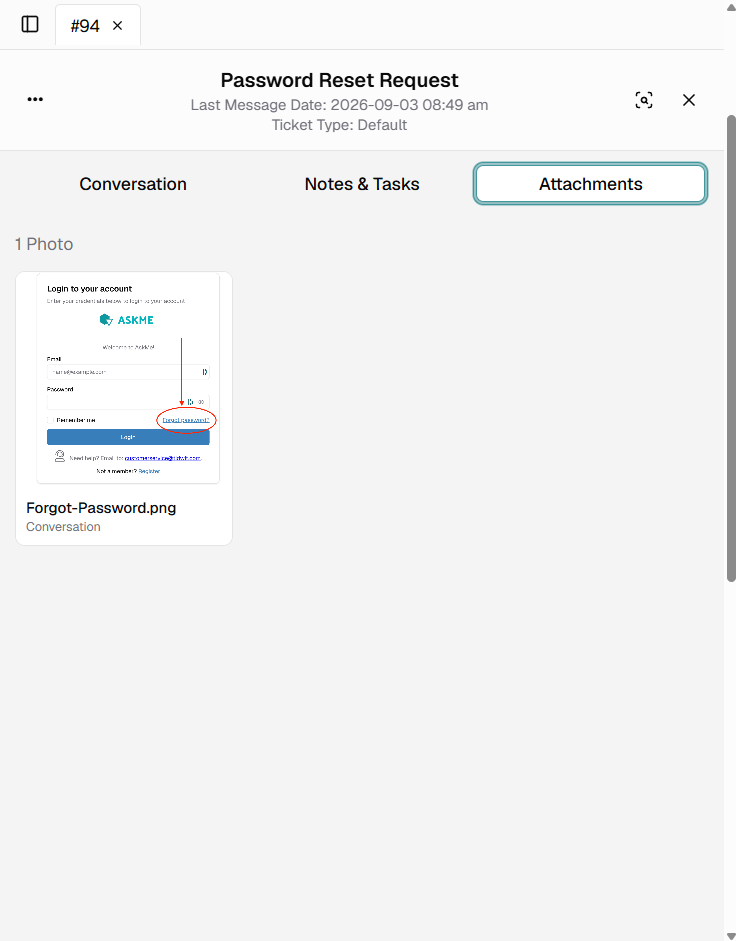
Image 9. Attachments tab displaying a file associated with the conversation.
2.4 Conversation Actions Menu
The three-dots icon at the top of the conversation header opens a contextual menu with administrative actions for the entire conversation:
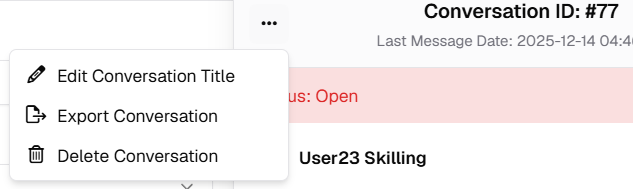
Image 10. Conversation actions menu.
- Edit Conversation Title — lets you rename the conversation to make it easier to identify in the listing and in the reports.
- Export Conversation — downloads the full conversation thread (messages, timestamps, sender) for archival or external analysis.
- Delete Conversation — permanently removes the conversation from the node. The action requires confirmation and cannot be undone.