
Role: Administrator
Forms and Surveys Reports
Open Results from a form row to analyze distribution, engagement, submissions, and question-level responses.
The current reporting workspace contains Dashboard, User Details, and Question Details.
1. Dashboard Overview
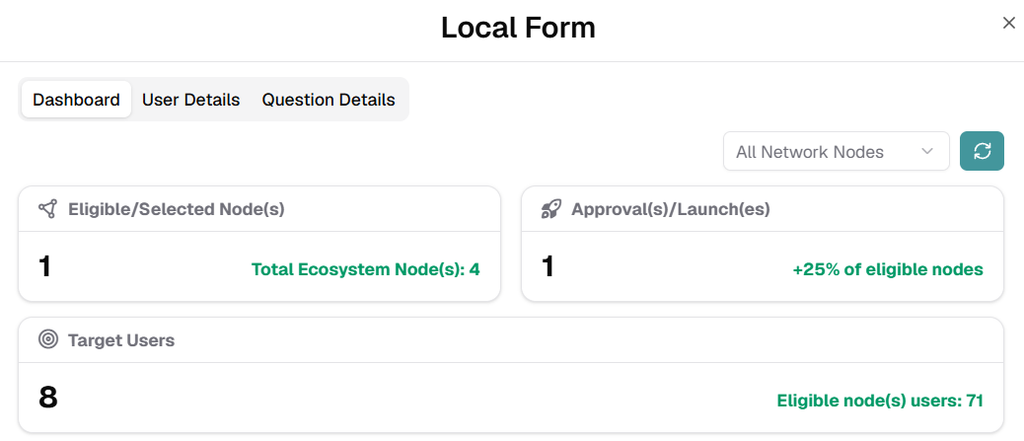
Use Dashboard for the high-level performance view.
- Eligible/Selected Node(s): Number of nodes included in the form distribution.
- Approval(s)/Launch(es): Number and percentage of eligible nodes that approved or launched the form.
- Target Users: Number of users targeted by the form compared with eligible users in the selected nodes.
Use the node selector to view all network nodes or focus on a specific node. Refresh the dashboard when needed.
2. Analyze Responses by Question
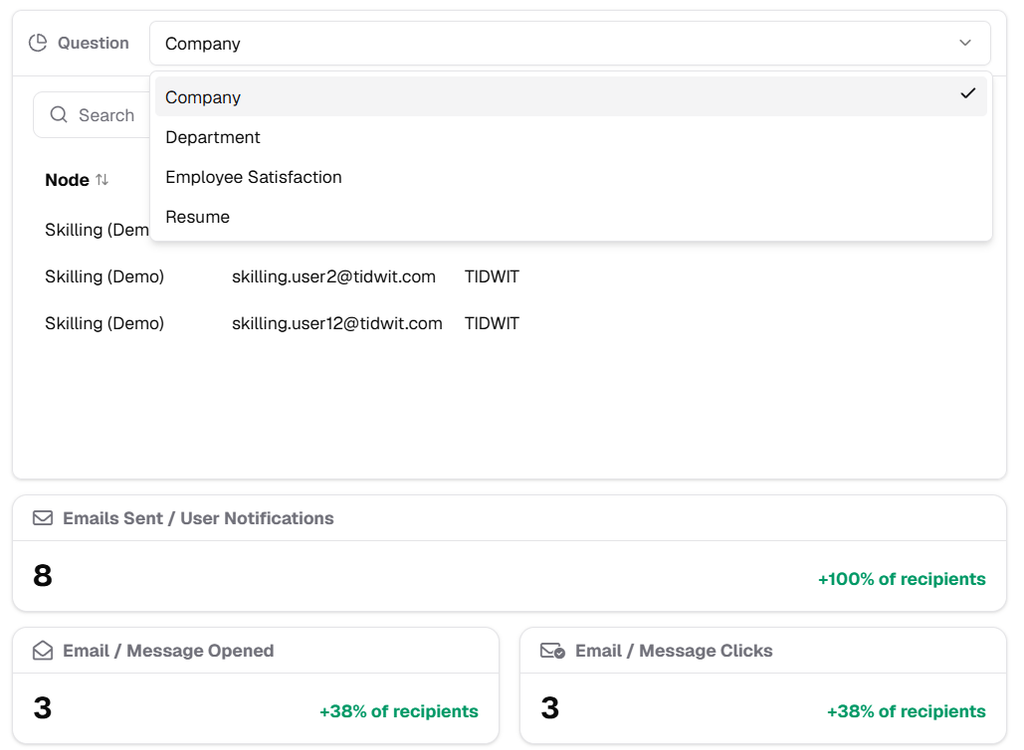
Use the Question selector to focus the Dashboard on one form question.
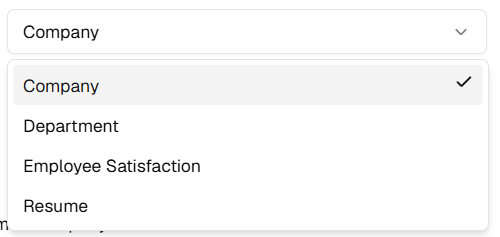
The available questions come from the Fields configured in the selected form or survey.
Use Search to locate matching response records by the visible data.
3. Engagement and Submission Metrics
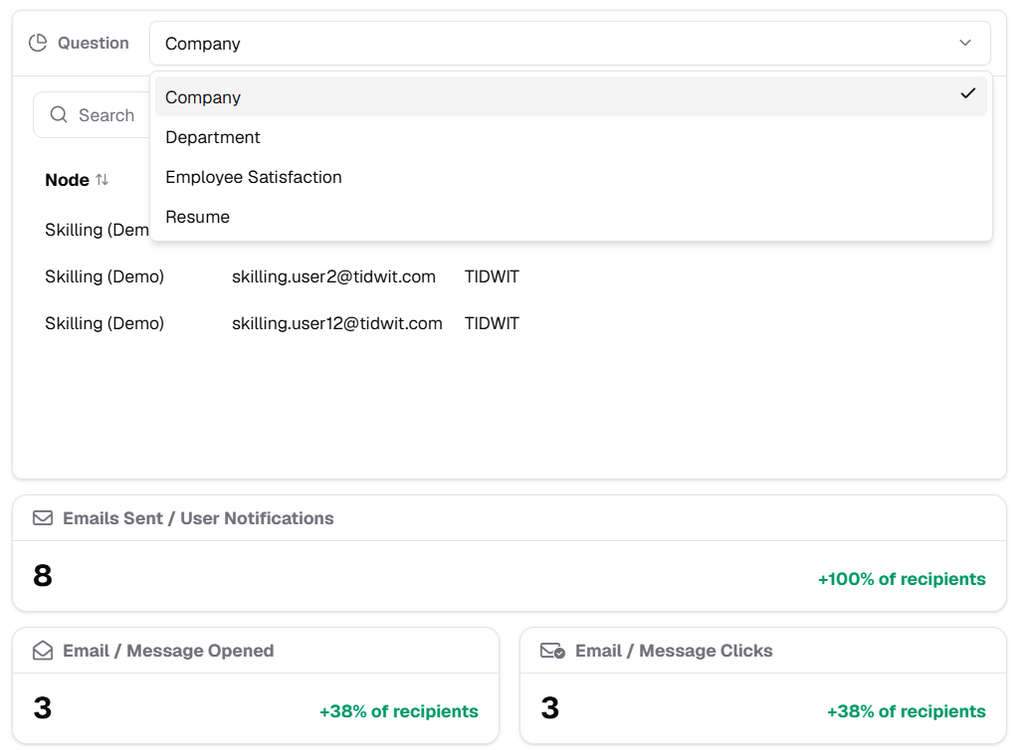
Review the communication and completion indicators to understand the user journey.
- Emails Sent / User Notifications: Number of notifications sent.
- Email / Message Opened: Number of notifications opened.
- Email / Message Clicks: Number of message-link clicks.
- Forms / Surveys Submissions: Number of submitted responses.
- Forms / Surveys Skipped: Number of recipients marked as skipped by the workflow.

4. User Details
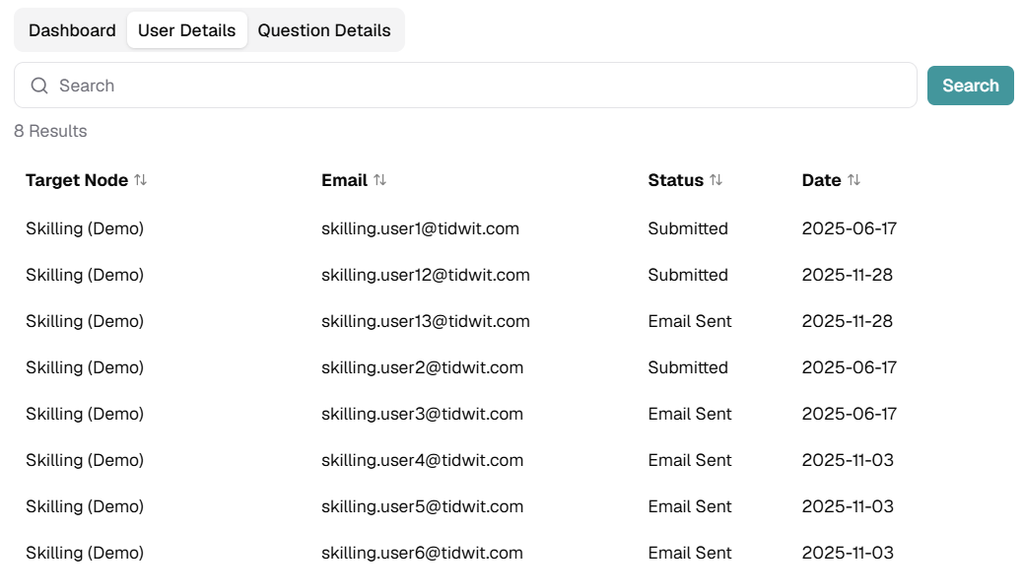
Open User Details to review the form lifecycle at the participant level.
- Target Node: Node associated with the user.
- Email: User email address.
- Status: Current user-level state, such as Submitted or Email Sent.
- Date: Date associated with the recorded state.
Use Search and click Search to locate a specific user or record.
5. Question Details
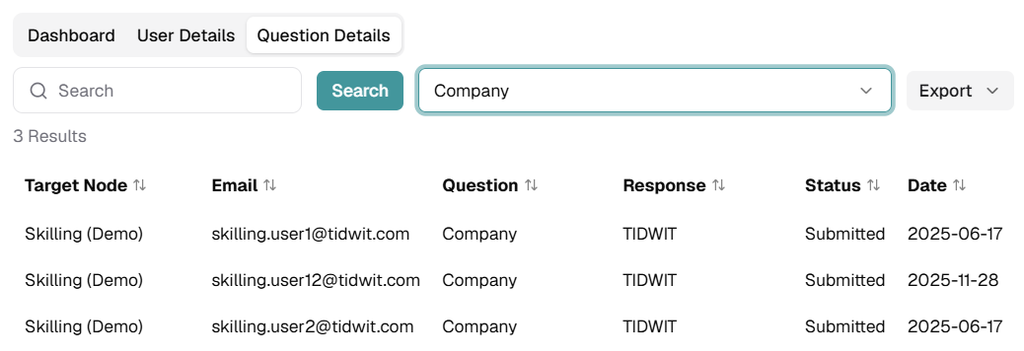
Open Question Details for a granular view of answers to a selected question.
Select a question from the dropdown. The list is generated from the questions configured in the form.
- Target Node: Node where the response originated.
- Email: Responding user.
- Question: Selected form question.
- Response: User answer.
- Status: Submission status.
- Date: Date associated with the response.
Use Search and click Search to locate a specific response.
6. Export Question Details
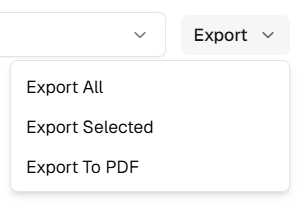
Open Export to download the Question Details dataset.
- Export All: Export all records in the current dataset.
- Export Selected: Export only the records selected for export.
- Export To PDF: Create a PDF export of the report.
Note: Review the selected question, search criteria, and record selection before exporting.
7. Reporting Best Practices
- Use Dashboard for quick participation and engagement analysis.
- Use User Details for participant-level auditing.
- Use Question Details to analyze individual answers.
- Apply the appropriate node or question selection before interpreting the results.
- Confirm the displayed dataset before exporting.
8. Reporting Troubleshooting
- No data appears: Check the selected node, question, and search criteria.
- Expected response is missing: Confirm that the correct question is selected.
- Export differs from expectations: Review the current dataset and selection before exporting.