
Role: Administrator
Objective: Manage voucher email templates and configure their content, subject lines, and reusable variable tags.
1. Email Templates Main Page
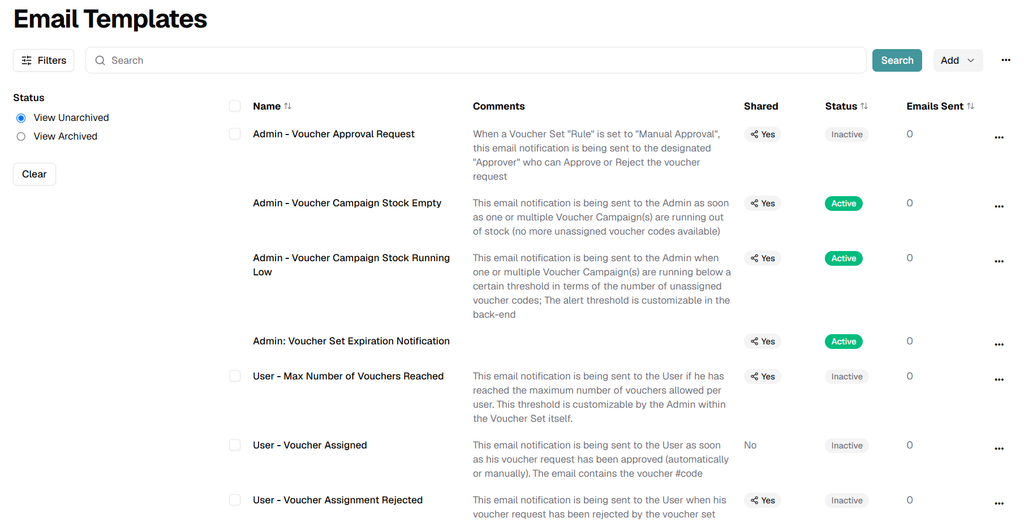
Open Email Templates to review the voucher email templates available in the current instance.
Use the page to search, filter, create, archive, import, export, and manage templates.
Search and Filters
- Search: Enter a template name or keyword, then click Search.
- View Unarchived: Display templates that are not archived.
- View Archived: Display archived templates.
- Clear: Remove the active filter selection.
Template List
The table summarizes the available email templates.
- Name: Template name.
- Comments: Administrative description or usage guidance.
- Shared: Indicates whether the template is shared.
- Status: Shows whether the template is Active or Inactive.
- Emails Sent: Displays the number of emails sent using the template.
2. Manage an Existing Email Template
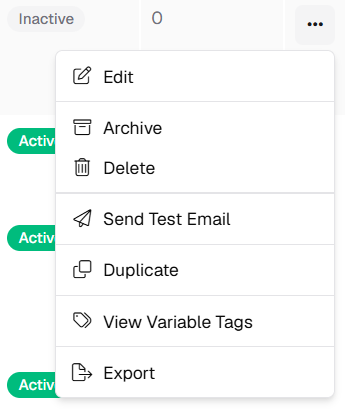
Click the three-dots menu at the end of a template row to open its available actions.
- Edit: Open the template for modification.
- Archive: Move the template to the archived view.
- Delete: Permanently remove the template.
- Send Test Email: Send a test message using the template.
- Duplicate: Create a copy of the template for reuse.
- View Variable Tags: Review the dynamic fields supported by the template.
- Export: Export the selected template.
3. Create a New Email Template
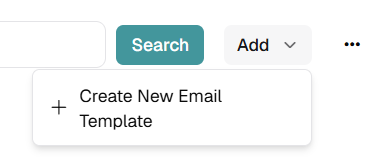
Click Add and select Create New Email Template.
Import and Export Templates
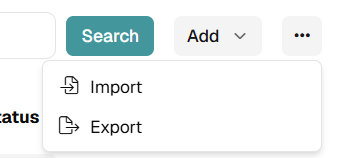
Open the global three-dots menu to access template-level file operations.
- Import: Import a previously exported email template.
- Export: Export templates for backup, transfer, or reuse.
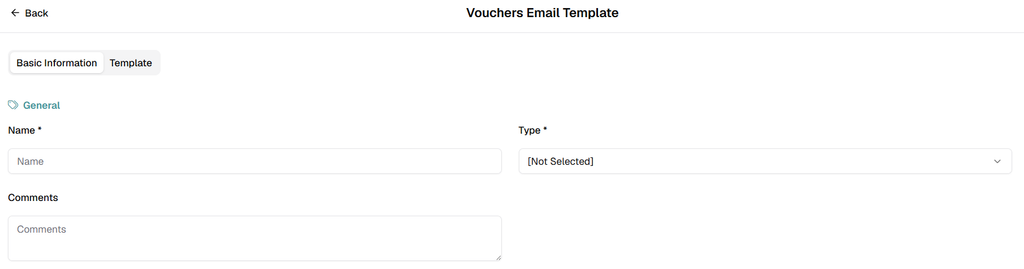
4. Complete Basic Information
Use Basic Information to define the template metadata.
- Name: Enter a clear template name.
- Type: Select the appropriate voucher email template type.
- Comments: Add optional notes describing the purpose or intended workflow.
5. Design the Email Template
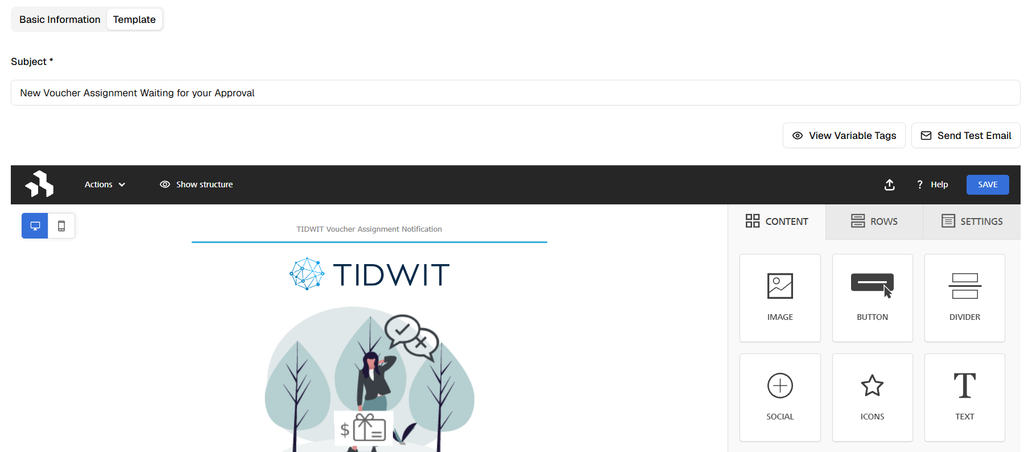
Open the Template tab to configure the email subject and message body.
- Subject: Enter the subject line recipients will see.
- View Variable Tags: Open the list of supported dynamic fields.
- Send Test Email: Validate the template before using it in a live workflow.
Use the visual builder to create and edit the email layout.
- CONTENT: Add elements such as Image, Button, Divider, Social, Icons, and Text.
- ROWS: Configure the structure and row layout of the email.
- SETTINGS: Adjust template-level design settings.
- Desktop / Mobile preview: Review how the template appears on different device sizes.
- Save: Save the latest template changes.
6. Use Variable Tags
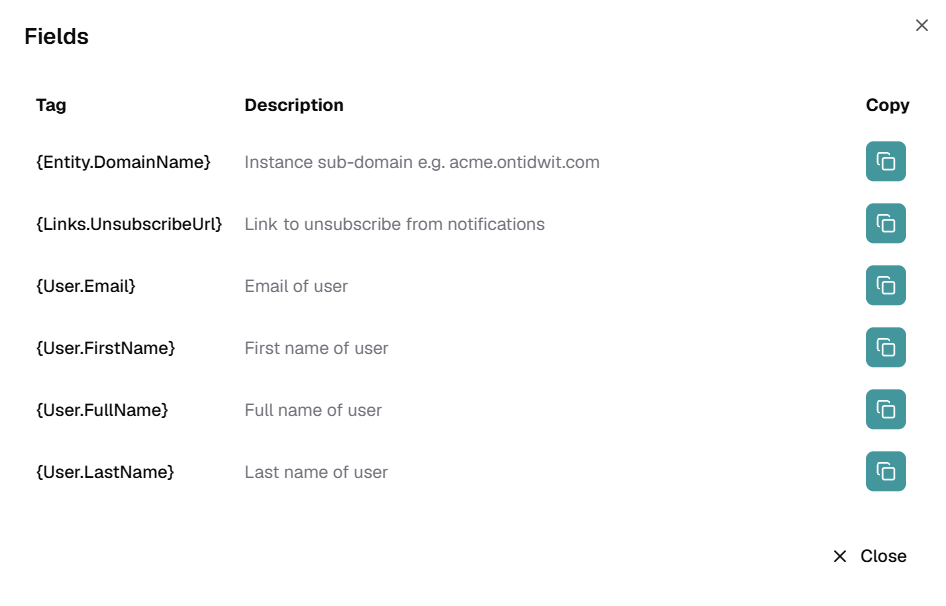
Click View Variable Tags to open the Fields window.
Variable tags insert dynamic user or instance information when the email is generated.
Use the Copy button beside a tag to copy it before placing it in the subject or message content.
Examples visible in the current interface include:
- {Entity.DomainName}: Instance sub-domain.
- {Links.UnsubscribeUrl}: Link to unsubscribe from notifications.
- {User.Email}: User email address.
- {User.FirstName}: User first name.
- {User.FullName}: User full name.
- {User.LastName}: User last name.
7. Recommended Administrator Workflow
- Create or duplicate a template that matches the required voucher notification.
- Complete Basic Information and select the correct Type.
- Configure the Subject and design the message in the Template tab.
- Insert Variable Tags only where dynamic values are required.
- Send a Test Email and verify content, links, variables, and mobile layout.
- Save the template before assigning it to Voucher Campaigns or Voucher Settings.
- Archive templates that are no longer in use instead of keeping multiple obsolete versions active.