
Sign-in to your TIDWIT Ecosystem instance:

On the upper left corner click on the Menu button. The left-hand side panel will display, and you will see icons corresponding to the different apps and workloads available on TIDWIT. The first three icons correspond to the Users section explained in the User Manual. The remaining icons are only visible with an administrator profile. If you can’t see them and you are an administrator, ask your TIDWIT portal administrator to give you the required permissions.
Campaigns
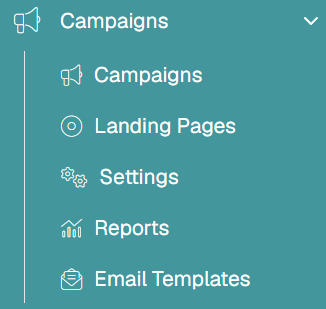
In the left bar, under the Ecosystem Campaigns menu, click “Manage Campaigns”.
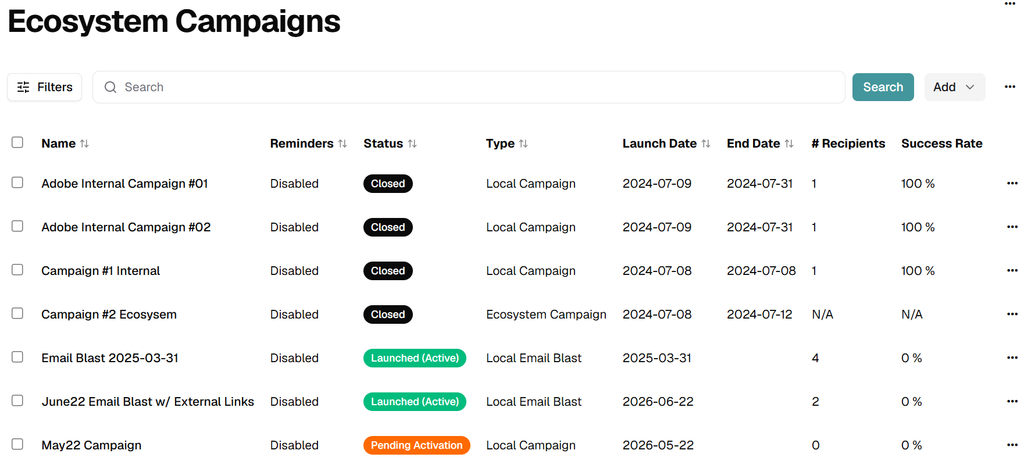
You will see is a list of campaigns created to date and their status.
Campaign Types
Two types of campaigns can be created: Learning Campaigns and Email Blast Campaigns, these campaigns are subdivided into Local and Ecosystem.
Learning Campaigns
- Using the Local Learning Campaign option, the campaign manager can assign one or multiple learning assets (courses, videos, assessments, learning paths, etc.) to a defined target audience (user list or user groups). Assigned users will receive an email with a link to the assignment page – from which they can start & complete their assignment.
- Using the Ecosystem Learning Campaign option, the Campaign Manager can assign one or multiple learning assets (courses, videos, assessments, learning paths, etc.) to selected partner nodes. The partner node Admin can update the assignment and define their own target audience before launching the campaign to their organization.
Email Blast
- Using the Local Email Blast option, the campaign manager can send a custom email to a target list of users (or user’s groups) – and tweak the message using the built-in email template editor.
- Using the Ecosystem Blast option, the Campaign Manager can submit a custom email to selected partner nodes. The partner node Admin can tweak the message as needed, and define their own target audience (internal and/or external) before sending the email.